Create a Display Design with ChatGPT
This tutorial builds a complete tournament display design with ChatGPT's help — starting from a picture, not from JSON. Instead of asking the agent to invent a design blind, you first let ChatGPT draw a mockup of the screen you want, polish it until you like it, and then use that image as the visual reference for the real thing.
Before you start, connect ChatGPT to your UHT account. The first two steps below only use ChatGPT's built-in image generation — the UHT connection comes into play later, when the mockup is turned into an actual design in your account.
Step 1 — Let ChatGPT design a mockup
Ask ChatGPT to generate a design image of your tournament clock. Describe the mood you want and list every piece of information the screen must show — the more explicit the list, the less the mockup forgets. A prompt like this works well:
Create a nice looking clean poker tournament clock design i can use during my poker tournament:

the design should look modern and futuristic
the following information must be included
Tournament Name
Current Level
Level Timer (big)
Current levels blinds (big)
next levels blinds
total prize pool
players left & players entered
the prize distribution list
time to next break
The design should be clean and should be easily readable from the back of the room (at least the main information of level timer and current blinds)
@Create image Use only Fonts from Google Fonts
Two details in that prompt matter:
@Create imageexplicitly invokes ChatGPT's image tool (you can also pick Create image from the + menu), so you get a picture rather than a description.- "Use only Fonts from Google Fonts" — the display designer loads fonts from Google Fonts, so a mockup that sticks to them can later be rebuilt with the exact same typography.
ChatGPT answers with a rendered mockup:
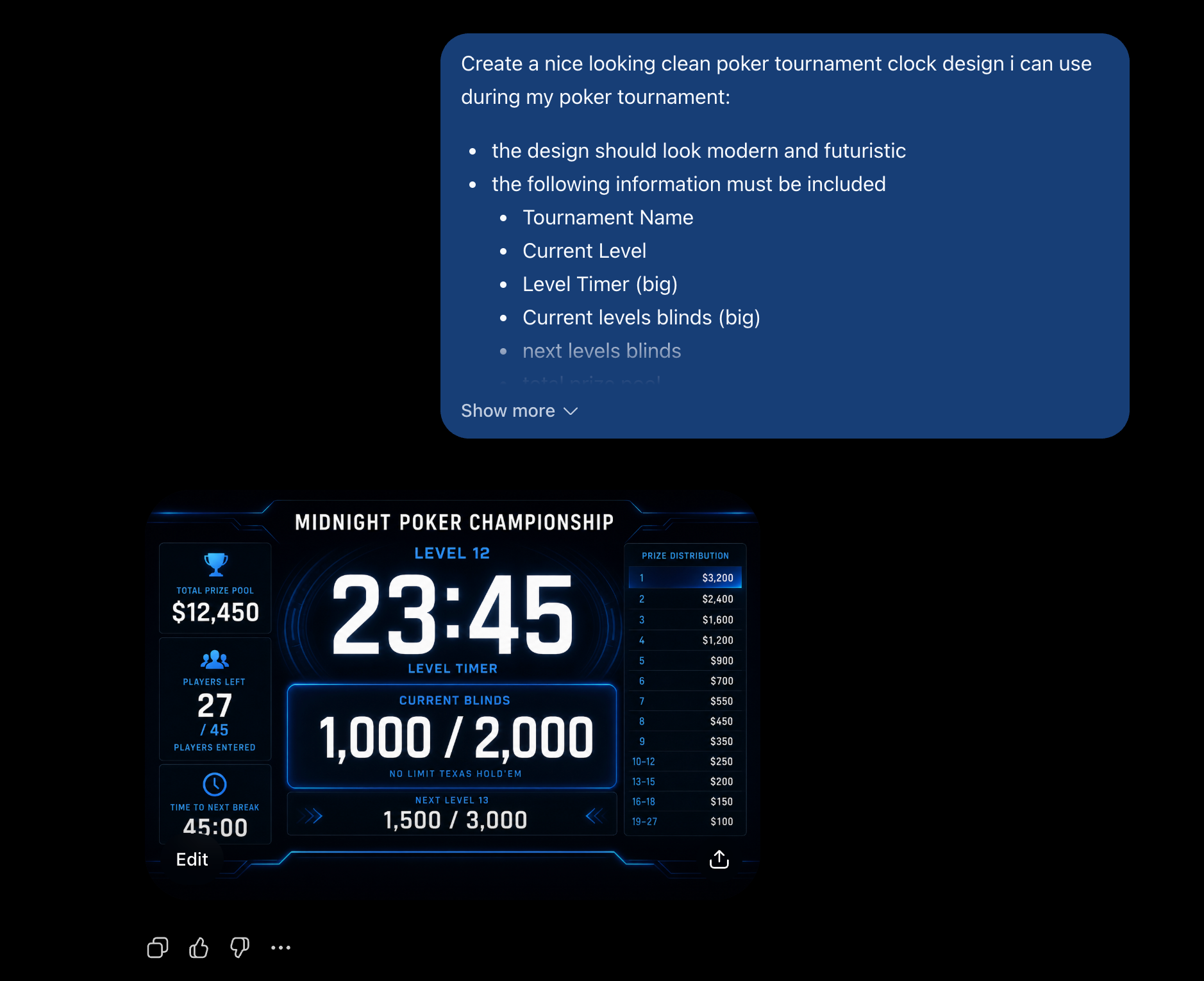
Now iterate. This is a normal chat — keep asking for changes ("make the timer even bigger", "use a green accent instead of blue", "move the prize list to the left") until the mockup looks exactly like the screen you want in your poker room. Time spent here pays off: everything that follows is built to match this picture.
Up to this point the UHT MCP connection hasn't been used at all — this is pure ChatGPT image generation. You could do these steps with any image-capable AI.
Step 2 — Extract the graphics as a sprite sheet
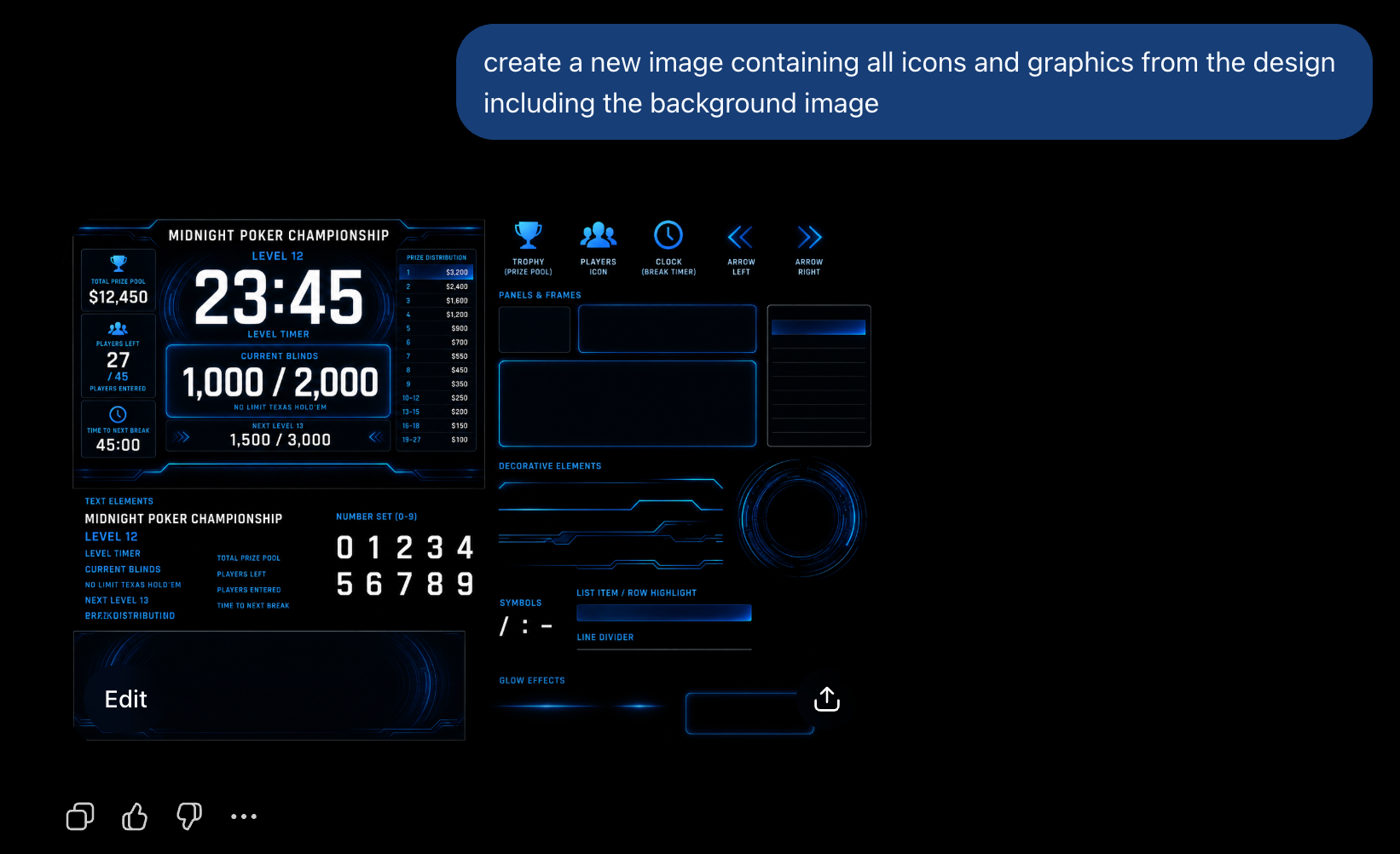
The mockup is one flat picture, but a real display design is built from individual pieces: a background, icons, panels, decorative elements. So next, ask ChatGPT to pull those pieces out of the design into a single collection image:
create a new image containing all icons and graphics from the design including the background image
The result is a sprite sheet — the design's icons, panels, frames, decorative lines and background collected in one image, ready to be cropped into separate image resources later:
Ask ChatGPT which fonts it used in the design (or which Google Fonts come closest). Note the names down — you can add them to the design later so the rebuilt screen matches the mockup's typography.
With a finished mockup and its graphics in hand, the next part of the tutorial turns them into a real display design in your UHT account.