Connect your agent
Every agent connects the same way underneath: you give it the server address, and the first time it tries to use it, your browser opens so you can sign in to UHT and approve the connection. No API keys, nothing to copy out of a developer console.
The address is always:
https://ultimate-holdem-timer.com/mcp
Pick your agent below. If yours is not listed, the any other MCP client section covers it. The landing page carries the same instructions with copy buttons:
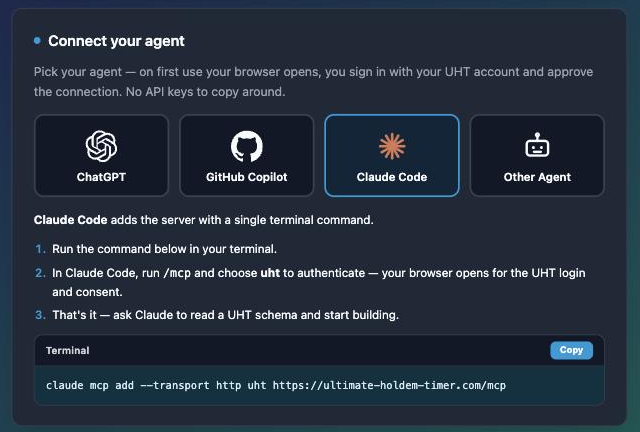
The approval step (all agents)
Whichever agent you use, the first connection ends on this page in your browser:
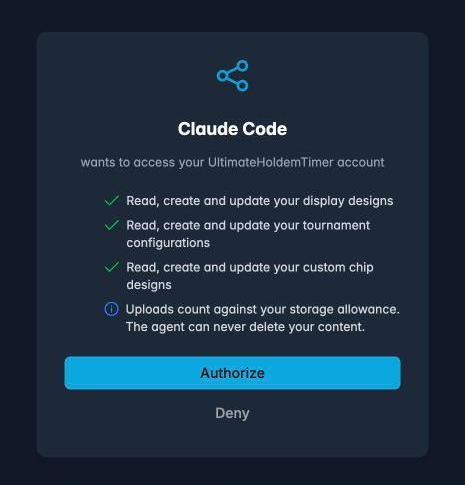
It names the agent that is asking, lists exactly what the connection can do, and shows the conditions (minimum tier and how long the access lasts). Approve sends the agent back its credentials; Deny sends it away with nothing. If you are not signed in to UHT in that browser, you sign in first and land back on this page.
The approval must happen in a browser on the same device the agent opened it from — the agent is waiting on a local callback. If you run an agent on a remote machine, check its documentation for remote OAuth support.
Claude Code
One command in your terminal:
claude mcp add --transport http uht https://ultimate-holdem-timer.com/mcp
Then, inside Claude Code:
- Run
/mcpand select uht. - Choose Authenticate — your browser opens for the UHT sign-in and consent page.
- Approve. Back in the terminal, the server shows as connected and its tools are available in every conversation.
Try it immediately:
Use the uht tools to show my account info and list my display designs.
When the token expires (about 30 days), /mcp → uht → re-authenticate repeats the same
browser dance.
Claude (claude.ai and the desktop app)
Claude connects through custom connectors (available on paid plans):
- Open Settings → Connectors and choose Add custom connector.
- Name it
UHTand pastehttps://ultimate-holdem-timer.com/mcpas the URL, then save. - Click Connect — the UHT sign-in and consent page opens; approve it.
- In a new chat, make sure the UHT connector is enabled under the tools menu, then ask away.
ChatGPT
ChatGPT (including the free web version) connects through a custom plugin:
- Open Settings → Plugins → Browse plugins and create a new plugin.
- Paste
https://ultimate-holdem-timer.com/mcpas the server URL, name itUHT, leave authentication on OAuth and confirm the creation. - ChatGPT opens the UHT sign-in page — log in and approve the connection.
- In a chat, pick UHT from the + menu, then use one of the example prompts.
There's a full screenshot walkthrough of every click on Connect ChatGPT step by step.
VS Code (GitHub Copilot)
Copilot's agent mode reads MCP servers from mcp.json:
-
Open the Command Palette and run MCP: Add Server… → HTTP, then paste the server URL. Or add it by hand to
.vscode/mcp.json(per project) or your user configuration:{"servers": {"uht": { "type": "http", "url": "https://ultimate-holdem-timer.com/mcp" }}} -
Start the server from the MCP panel — the browser opens for the UHT login and consent.
-
In Copilot Chat (agent mode) the UHT tools appear automatically.
Cursor
-
Open Cursor Settings → MCP and choose Add new MCP server, or add this to
~/.cursor/mcp.json(or.cursor/mcp.jsonin a project):{"mcpServers": {"uht": { "url": "https://ultimate-holdem-timer.com/mcp" }}} -
Cursor detects that the server needs authentication — click the login prompt, approve in the browser, done.
Any other MCP client
Anything that speaks MCP over Streamable HTTP with OAuth works — Windsurf, Gemini CLI, Codex CLI, custom agents built on the MCP SDKs:
- Add an HTTP MCP server with the URL
https://ultimate-holdem-timer.com/mcp. - Authentication is discovered automatically (OAuth 2.1 with dynamic client registration —
the client finds everything through
/.well-known/oauth-protected-resource). You never configure credentials by hand. - Approve the connection when the browser opens.
When the connection misbehaves
"Unauthorized" or the agent suddenly can't reach UHT — the ~30-day token has most
likely expired. Re-authenticate the server in your agent (in Claude Code: /mcp → uht →
authenticate; in Claude/ChatGPT: reconnect the connector). You approve again and everything
resumes.
The consent page says you're not eligible — either the MCP server is temporarily disabled, or it currently requires a higher account tier than yours. The landing page always shows the current conditions; see pricing for what the tiers include.
Saves fail with a storage error — your account storage is full. The agent is told the exact numbers, and Free up space shows how to make room.
The browser never opens — some terminal agents print the authorization URL instead of launching a browser. Copy it into any browser on the same machine and approve there.