Manual players
Every club has them: Rudi, who has played every Friday for ten years and will never install an app. Or the guest who comes twice a year. They still deserve a place in the standings.
A manual player is a club member that you add by hand. They have no UHT account and never log in, but otherwise they count like everyone else: you can register them for tournaments, they collect results, and they can play in your leagues.
When to use a manual player
Good reasons
- The player refuses to create an account or has no smartphone.
- You are moving an existing club to UHT and want everyone on the list from day one.
- Someone plays in your league but is not around to accept an invitation.
Better not
- The player is willing to sign up. A real account is better for everyone: they register themselves, see their own results and get emails about your tournaments. Use the QR scan or an invitation instead.
If a manual player creates an account later, you can move their whole history to it in one step. See Moving to a real account.
Only directors can add, edit and move manual players. Floor staff and members see them as ordinary members, without any special mark.
Adding manual players
On the Members tab press Add players, then Add player without account below the three tabs.
Step 1: pick or type the names
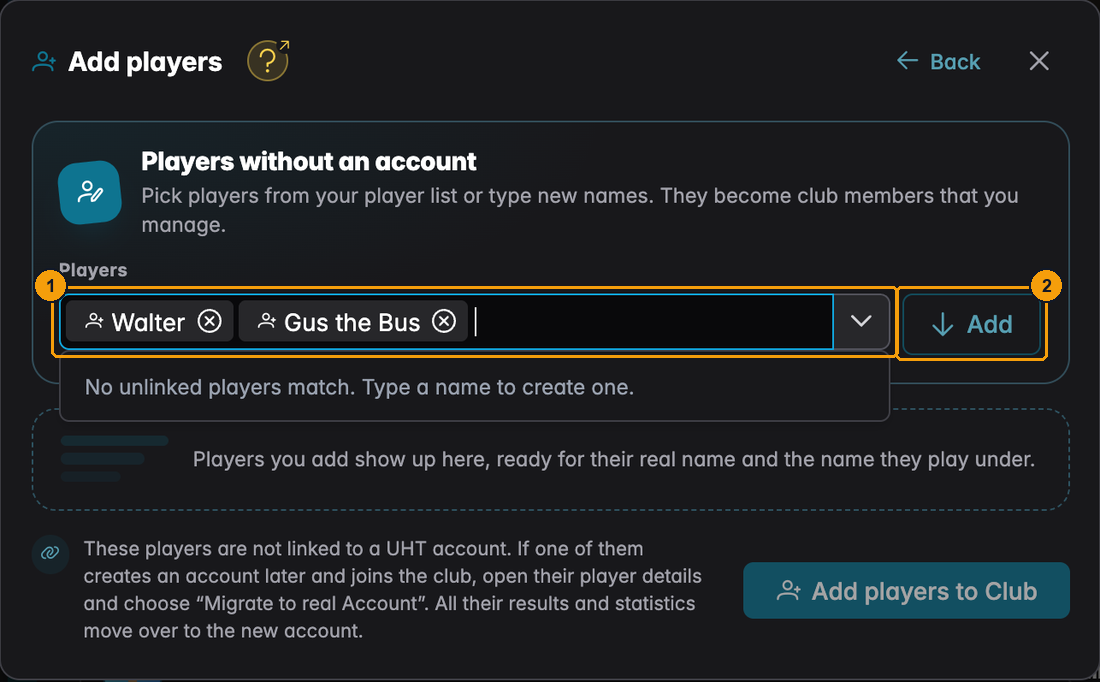
- The Players field. Start typing: UHT suggests players from your own player list who are not linked to any account yet. If the name is new, choose Create "…" to make a new player. You can collect several names at once.
- Add moves the collected names into the table below.
Step 2: complete the names
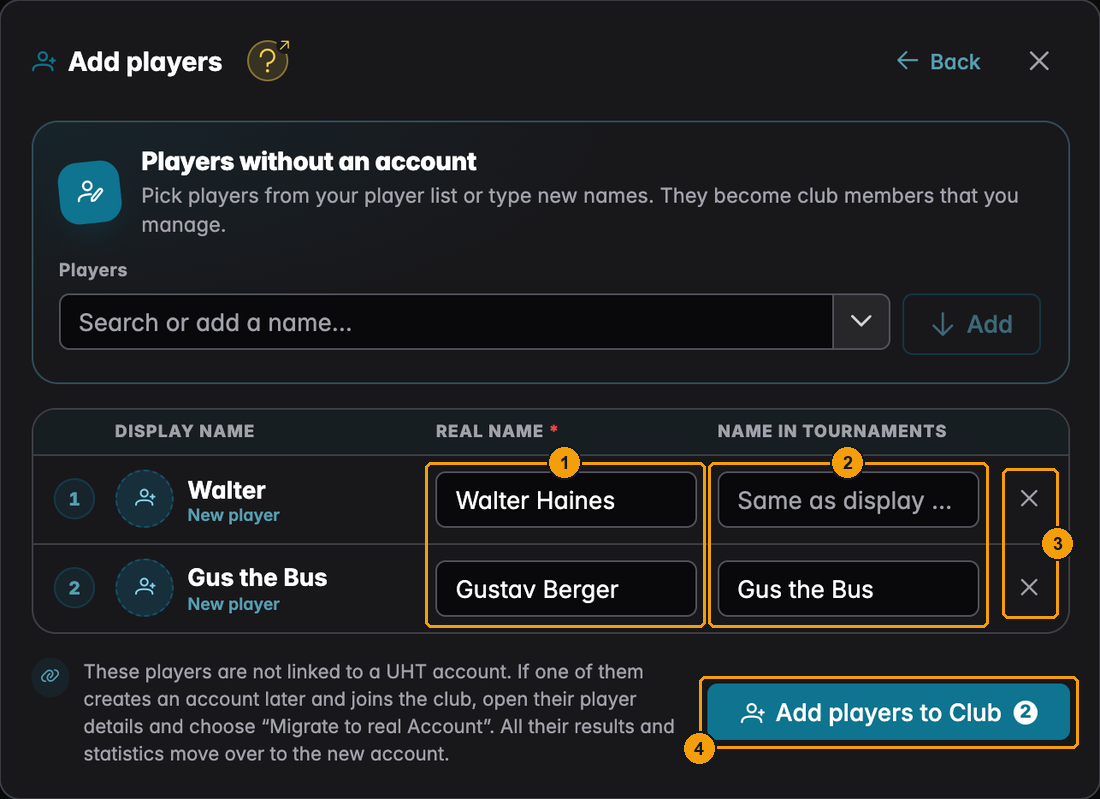
Each row shows the display name and whether it is a New player or one From your players.
- Real Name: first and last name. If your club requires real names, this field is required, marked with a red star.
- Name in Tournaments: the name the player goes by at the table, for example "Gus the Bus". Leave it empty to use the display name.
- The cross removes a row before you save.
- Add players to Club adds everyone in the table. The number on the button is how many.
If a required real name is missing, UHT highlights the empty fields and nothing is saved:
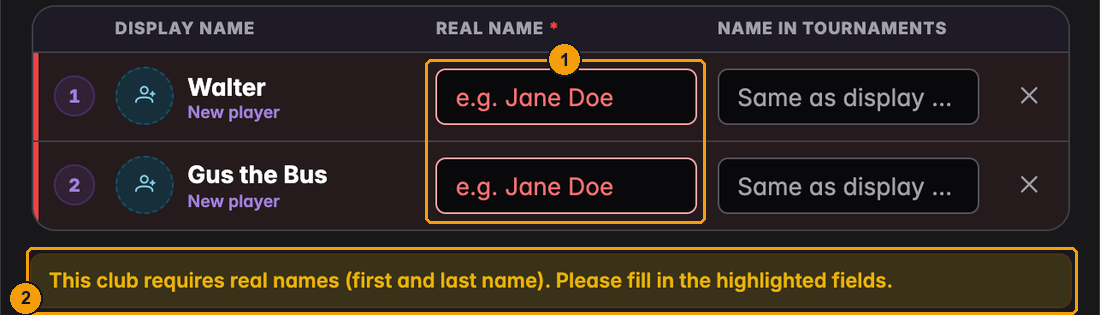
- The fields that still need a first and last name.
- The note This club requires real names (first and last name). Please fill in the highlighted fields.
When everything is in order, UHT confirms how many players were added:
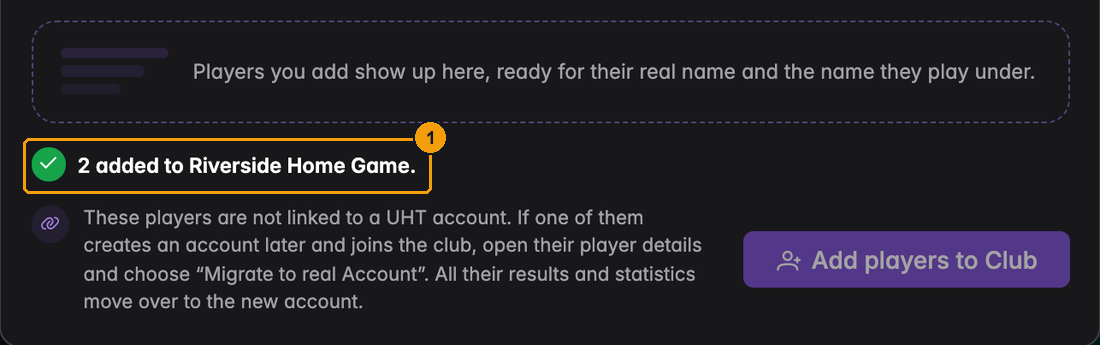
- 2 added to Riverside Home Game. You can add more right away, or close the dialog.
Manual players count towards your club's member limit like everyone else. A free club with 18 members can add two manual players, not three. If the batch does not fit, UHT adds none of them and tells you how many places are left.
Manual players in the member list
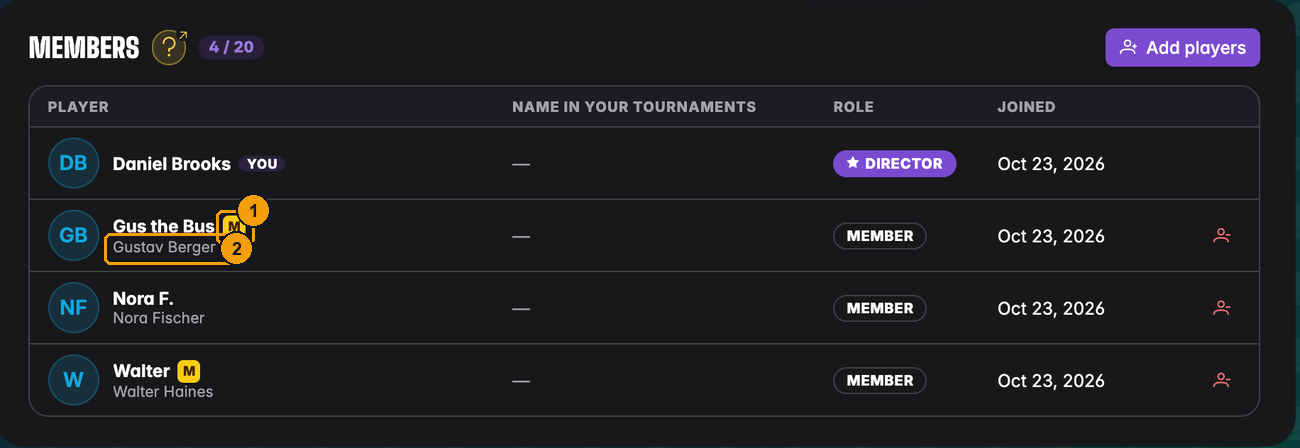
- The yellow M tells directors this is a manual player without a UHT account.
- Their real name appears under the display name, like for every other member.
Manual players can only have the role Member. Since they never log in, a staff role would mean nothing.
Editing a manual player
Click the row to open the player's details:
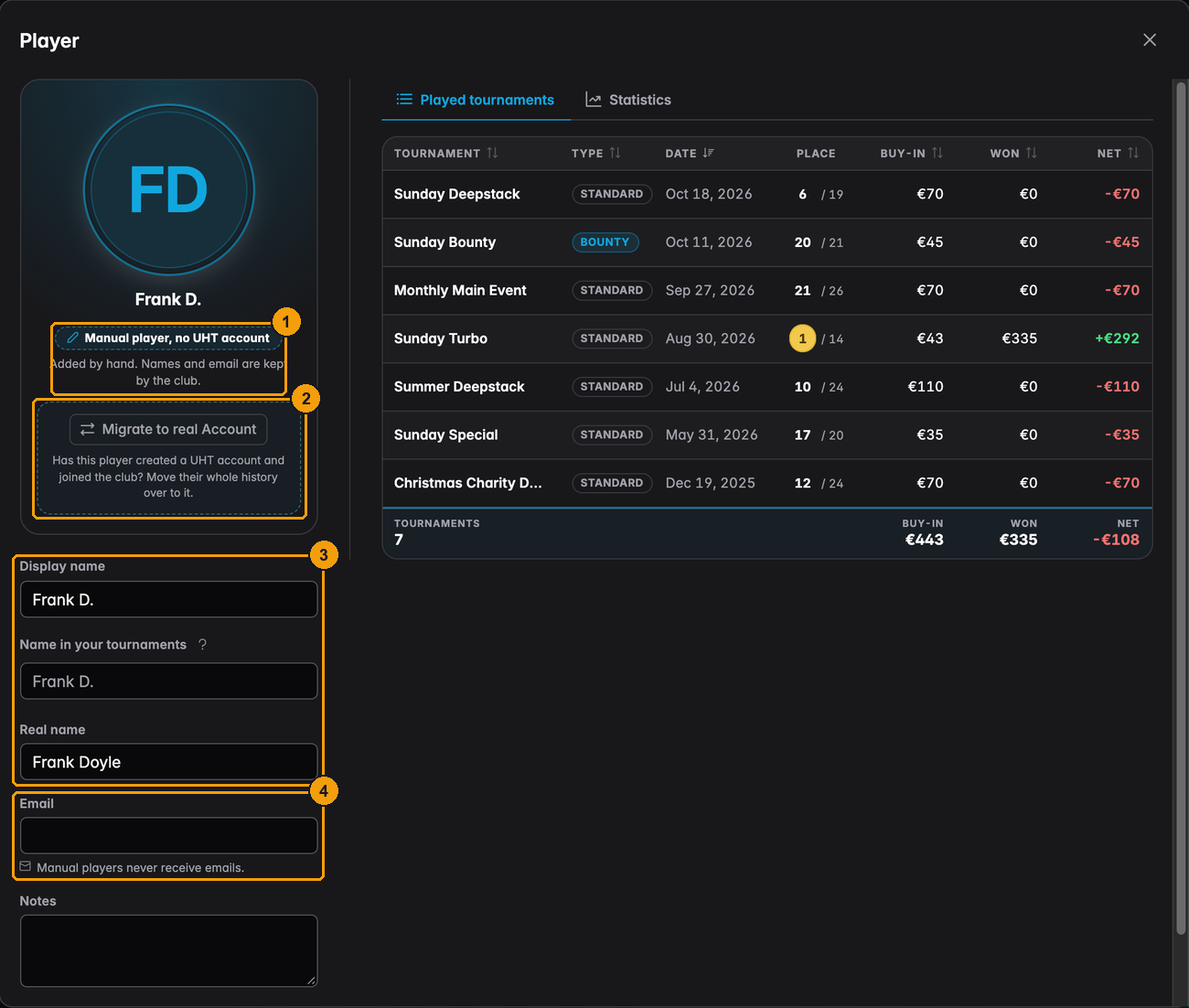
- Manual player, no UHT account. The club keeps this player's names and email.
- Migrate to real Account moves the player's history to a real account (see below).
- Display name, Name in your tournaments and Real name. Unlike for players with an account, you can change all three here, because nobody else looks after them.
- Email: you can note an address for your own records, but manual players never receive emails. No tournament reminders, no newsletters, nothing.
The right side lists every tournament the player has played, just like for any other member.
Removing a manual player from the club works like removing anyone else (see Removing a member). The player is not deleted: they show up again in the suggestions when you add manual players later, with their history.
Moving to a real account
Frank has finally created a UHT account. You do not want to lose his seven tournaments, his points or his statistics. Here is how to bring them over.
Before you start, Frank has to:
- create his UHT account, and
- join your club with it, for example by scanning his QR code.
Now there are two Franks in the member list: the manual one (with the M) and the real one.
Then:
- Open the manual player and press Migrate to real Account.
- Under Their UHT account, pick the member who is the same person.
- Check the summary and press Migrate and delete.
Here is the same dialog in the Riverside Home Game, where Walter's history moves to Nora's account:
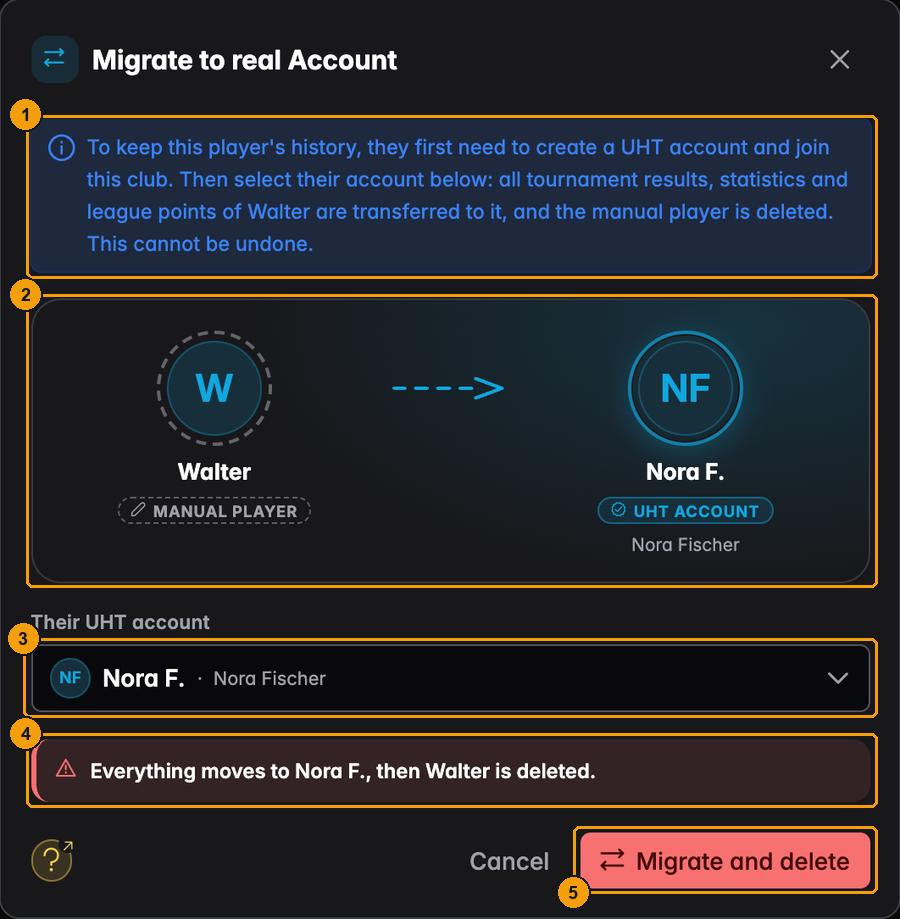
- What is about to happen, in plain words.
- From the manual player on the left to the UHT account on the right.
- Their UHT account: the list only offers members of this club who have an account.
- The last warning: everything moves over, then the manual player is deleted.
- Migrate and delete does it. This cannot be undone.
What moves over:
- all tournament results and statistics,
- league places and points, including any point adjustments (if both had adjustments, they are added up),
- registrations for upcoming tournaments.
If both accounts played in the same tournament, the real account's result is kept, so nothing is counted twice.
You cannot migrate a player who is sitting in a running tournament. Wait until it has finished.
Check the real name under the account before you confirm. Once the history is moved, there is no button to move it back.