Managing registrations
Everything the host does happens on the lobby page itself. There is no separate admin screen: open your own lobby and the same page grows a set of controls that nobody else can see.
The player list
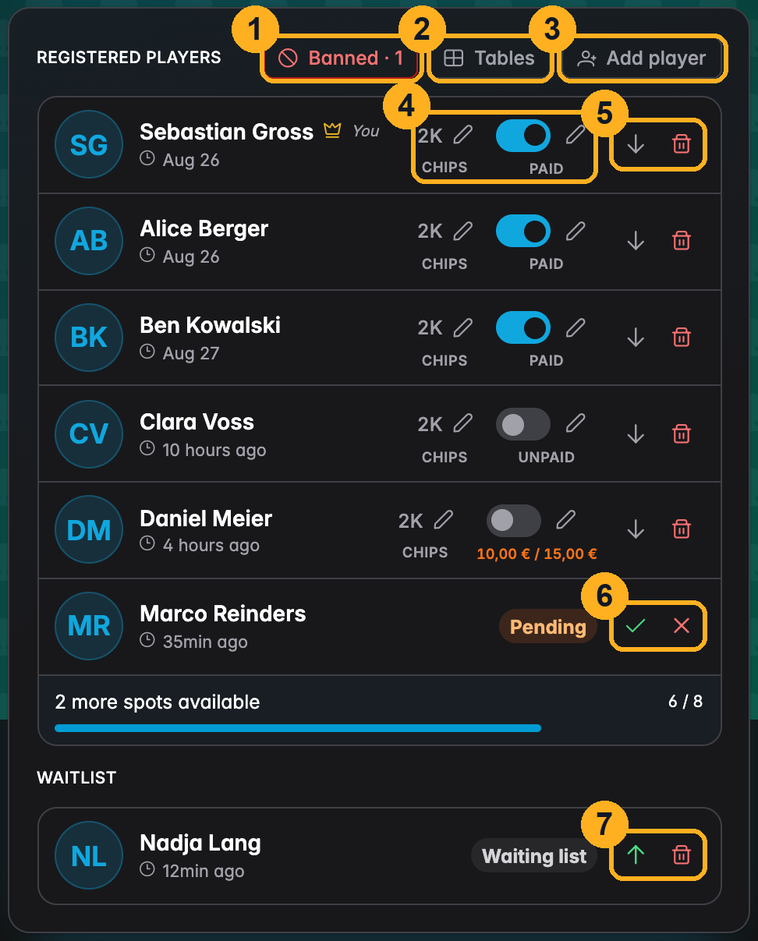
| # | Control |
|---|---|
| 1 | Banned — accounts barred from this lobby; only shown when there is at least one |
| 2 | Tables — seat the confirmed field across tables |
| 3 | Add player — put someone in the field yourself |
| 4 | Chips and payment for a confirmed player |
| 5 | Move a confirmed player to the waiting list, or remove them |
| 6 | A pending registration: approve (✓) or decline (✕) |
| 7 | A waiting-list player: promote into the field, or remove |
Rows are ordered by the time they registered, so the fairest reading of "who was first" is also the default one. Below the registered rows sits the spots-available line, then the waiting list. Once the two lists together hold more than eight players, a search box appears above them.
The three states
| State | In the tournament? | Meaning |
|---|---|---|
| Pending | No | Someone registered and is waiting for your decision |
| Confirmed | Yes | A real entry: seat, buy-in, chips, prize-pool share |
| Waiting list | No | The field was full when they registered |
The rule behind all of it: the tournament contains exactly the confirmed players. Approving somebody registers them in the tournament — with the same buy-in, chip and prize-pool bookkeeping as if you had entered them at the timer. Moving them back out reverses all of it.
That is why the states exist at all. A pending list lets you publish a link widely without handing anyone an automatic seat.
The transitions
- Approve a pending player, or promote one off the waiting list → confirmed. Both send the player an email.
- Move to waiting list takes a confirmed player back out of the tournament. Their original registration time is kept, so they stay at the front of the queue.
- Decline or remove deletes the row. Promotion refreshes the registration time, so a promoted player sorts to the end of the confirmed list.
If approving would take you past Max players, UHT offers to raise the limit there and then rather than refusing. The licence tier is the one ceiling that cannot be raised this way.
Adding players yourself
Not everyone in a home game has a UHT account, and some people will always answer in the chat group instead of the lobby. Add player puts them in the field directly:
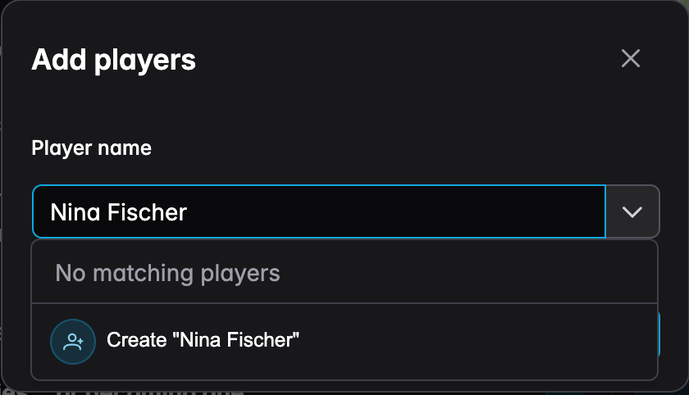
Type a name and the field searches the players you have had before, so regulars are one tap and always spelled the same way. A name that does not exist yet is offered as Create "…". Several people can be collected before pressing Add — for a group arriving together that is one action, not five.
Players added this way go straight to Confirmed while seats remain, and to the waiting list beyond that; the dialog says which before you commit.
If the player you picked has a UHT account — which is the case for anyone who once registered themselves for one of your tournaments — adding them counts as their registration: they get the confirmation email, the tournament appears under their own planned tournaments, and the lobby recognizes them when they open the link, so they are never offered a Register button that would enter them twice. A plain name has no account behind it, so that person cannot manage their own registration, receive emails, or be blocked.
Add myself is the shortcut for the host who is also playing.
If one of the people you picked has already registered themselves, UHT refuses the whole batch with "One of the selected players is already registered for this tournament with their UHT account" rather than creating a second row for them. Take that name out of the field and press Add again.
Payments and chips
Both columns are host-only and only appear on confirmed rows.
The Paid switch marks the buy-in as settled. When a player has paid part of it, the amount is shown in place of the label — 10,00 € / 15,00 € — and the pencil beside it opens the detail:
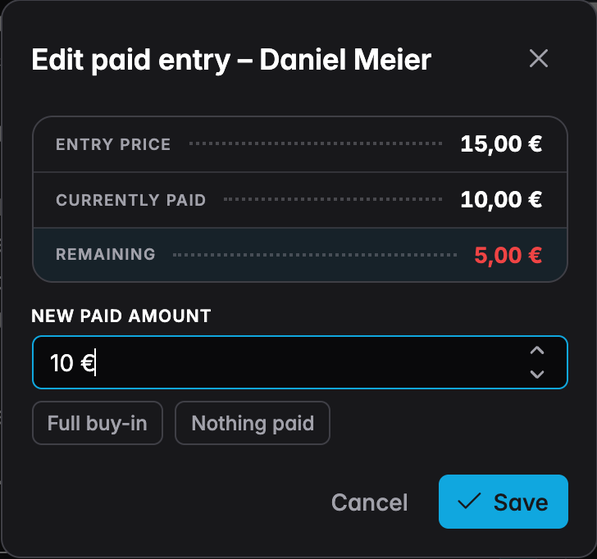
Full buy-in and Nothing paid are the two shortcuts; anything in between is typed. This is the same payment tracking as Tracking payments at the timer, on the same data — what you record here is what the timer and the tournament report show later.
The Chips column edits a confirmed player's stack, which matters for a rebuy paid in advance or a correction to a starting stack. Chip transfers between players work here too.
Seating the field
Tables opens the same table management used during the tournament, with the confirmed players as its field. Seating everyone before the doors open means the seat draw is on the wall when people arrive instead of being negotiated at the table.
Whatever you do here is published to the lobby straight away: a Tables tab appears on the page and shows every confirmed player their table and their seat, live. Nothing extra to switch on, and no seating chart to photograph and post — see The seating chart.
The full behaviour — table count, balancing, printed seating charts — is covered in Managing tables.
Declining and removing
Both actions open the same dialog. The wording changes; the mechanics do not.
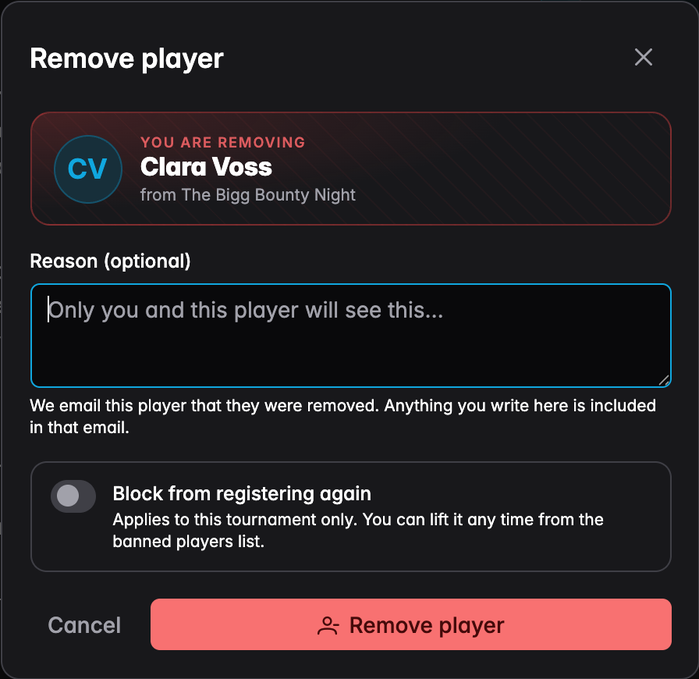
Reason is optional and private between the two of you. Removed and declined players are told by email that they are out, and whatever you write here is included in it. An empty reason sends the plain notice.
Block from registering again bars that account from this lobby. It has no effect on your other tournaments and can be lifted at any time. Use it for the person who registers for every event and turns up to none, not as a general-purpose delete.
A player with no account behind them — a name you typed, or one of your saved players who has never used UHT themselves — leaves nobody to notify and nobody to block; the dialog says so and simply removes the row.
The banned list
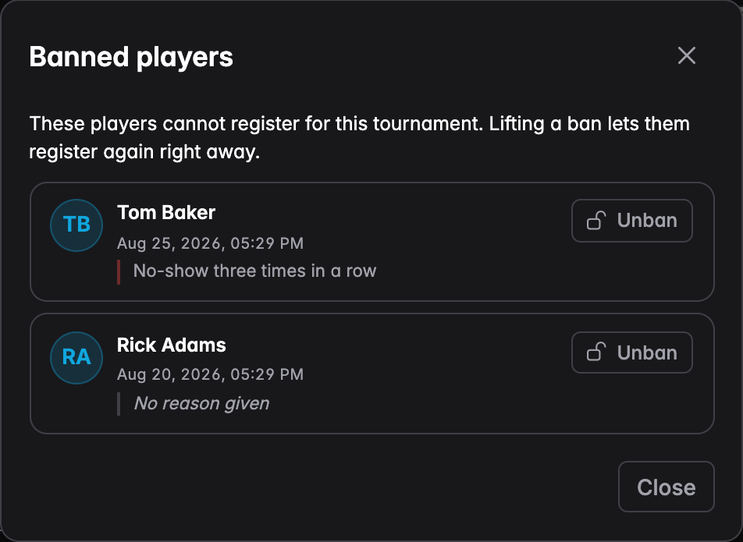
The Banned button in the list header opens it. Unban takes effect immediately: that account can register again from the next page load.
Editing the lobby while it is live
Everything you set when creating the lobby can be changed afterwards. Pencil icons sit next to the tournament name, the description, the countdown and the location; the one on the tournament information card opens the full settings:
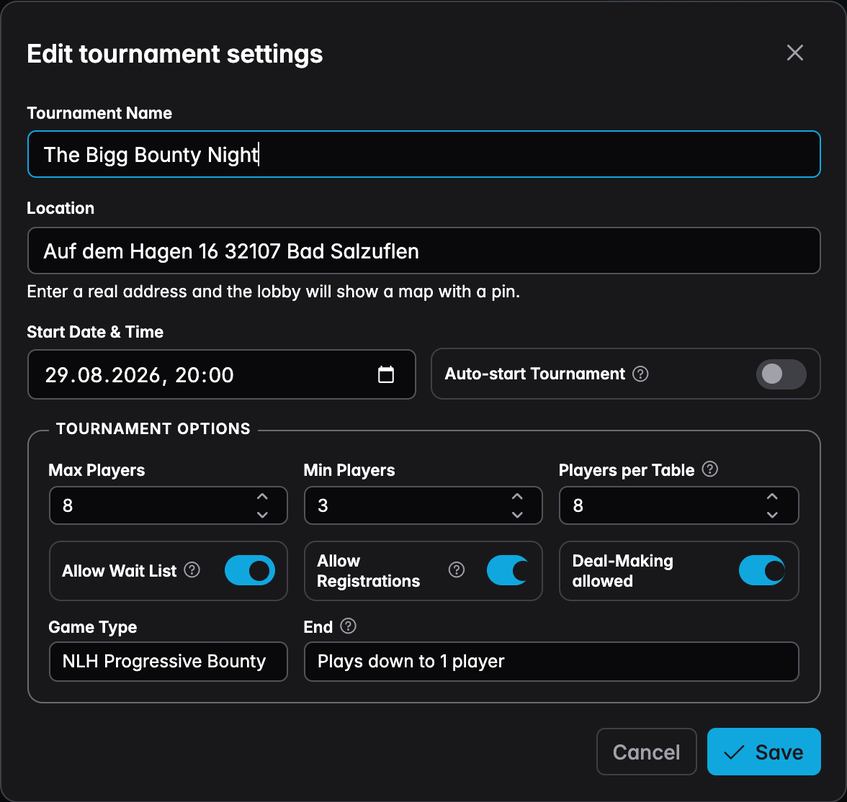
Name, location and start time are written to the planned tournament as well, so the lobby and your tournament list never drift apart. Everything else is lobby-only.
Two changes are worth thinking about before you make them:
- Lowering Max players below the number already confirmed does not throw anyone out. It only stops new registrations, and the spots line will read zero until the field shrinks.
- Turning registrations off leaves the existing field untouched. It closes the door; it does not empty the room.
Every change reaches the open lobby pages immediately — nobody has to reload to see the new start time.
What lands in your inbox
| Goes to | When | |
|---|---|---|
| New registration | You | Somebody self-registers |
| Registration approved | The player | You approve or promote them |
| Removed from the tournament | The player | You decline or remove them, with your reason |
| New update | Confirmed players | You post an update with notification on |
| Tournament reminder | Confirmed players | 24 hours before the start |
Only account-backed players receive anything. Players you added by hand are names, not addresses.
Next
- Updates and lobby chat — talking to the field
- Managing tables — the seating dialog in detail
- Tracking payments — how paid entries flow into the report