Opening a lobby
A lobby is created together with the tournament it belongs to, from the same dialog you would otherwise use to start or schedule it.
Starting the flow
Press Start on a tournament configuration. Both the manual and the scheduled variant of the dialog carry the same panel at the bottom:
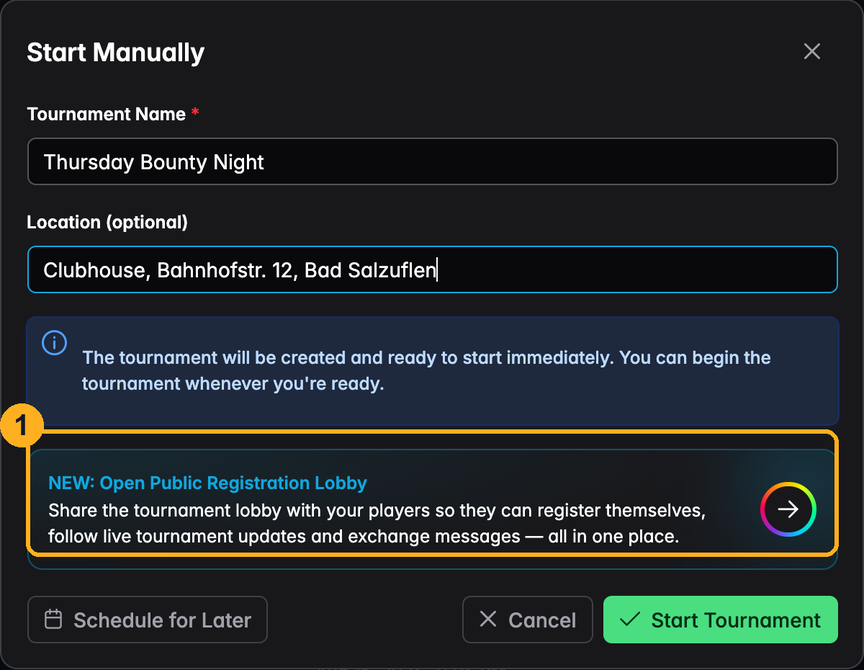
1 — Open Public Registration Lobby. The arrow button closes the start dialog and opens the lobby dialog, carrying the name and location you have already typed with it.
The tournament is not created yet at this point. Nothing is committed until you submit the lobby dialog, and cancelling leaves you with neither.
The lobby dialog
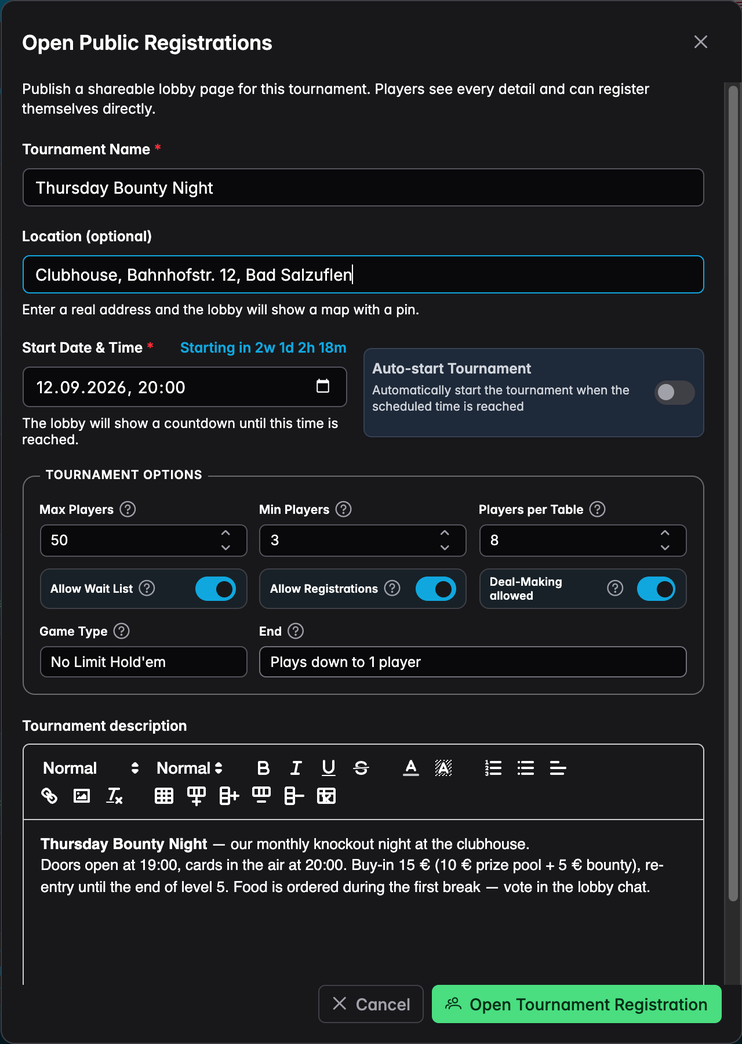
The fields that matter
Tournament name — what players see as the headline of the page. The usual duplicate warning applies: UHT allows two tournaments with the same name but will point out that you are about to create one.
Location — free text. If it reads like a real address, UHT looks up its coordinates and the lobby shows a map with a pin on it. A venue name that cannot be resolved is still shown, just without the map; nothing fails and no error appears.
Start date & time — the moment the countdown on the lobby page runs towards. With Auto-start on, it is also when the tournament begins by itself.
Max players — the size of the field, and the ceiling for confirmed plus pending registrations. It cannot exceed the player limit of your licence. Raising it later is possible at any time.
Allow wait list — what happens once Max players is reached. On, further registrations join a waiting list; off, they are turned away with a message saying the tournament is full.
Allow registrations — off means the page is read-only for everyone but you: visitors see the event and the field, but the Register button explains that only the host adds players. Useful for an invitation-only game you still want to publish.
Description — a rich-text field. Headings, lists, links, colours and images all work; images can be dropped straight into the editor. This is the part of the page players read first, so it is worth more than one line.
Purely informative options
Min players, Players per table, Game type, End and Deal-making allowed appear in the lobby's Tournament tab and nowhere else. They do not gate registrations, do not change the seat draw and do not affect payouts — they answer questions ("is this pot-limit Omaha?", "does it play down to one player or stop at 23:00?") that would otherwise arrive as messages.
Submitting
Open Tournament Registration does three things in one go: it creates the planned tournament, enables multi monitoring for it, and creates the lobby.
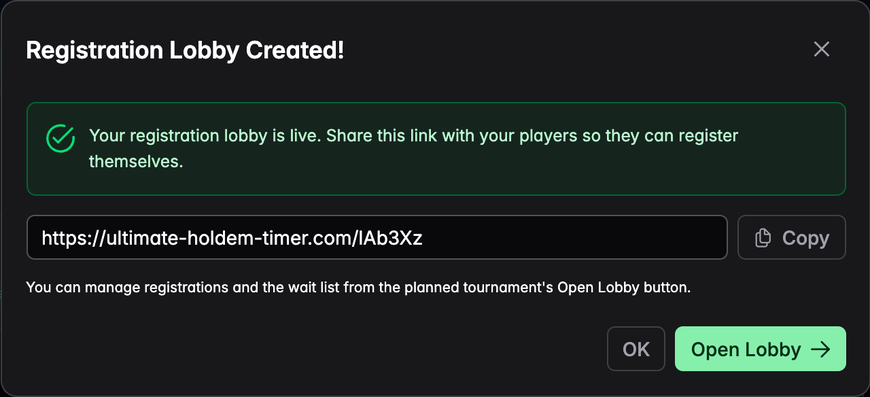
Copy that link and post it wherever your players are. It is short on purpose — it survives being read out loud, and it fits in a message without wrapping.
If the multi-monitor slot is taken
Your licence allows a limited number of tournaments to use multi monitoring at once. When that limit is reached, the dialog explains it and offers Disable & Enable Here, which frees the slot from the other tournament and continues.
That offer disappears in one case: when the blocking tournament has a lobby of its own. Freeing that slot would silently close somebody's live lobby, so UHT refuses to do it from here and asks you to close that lobby from its own tournament first — see Closing a lobby.
Finding the lobby again
Planned tournaments show the lobby in two places:
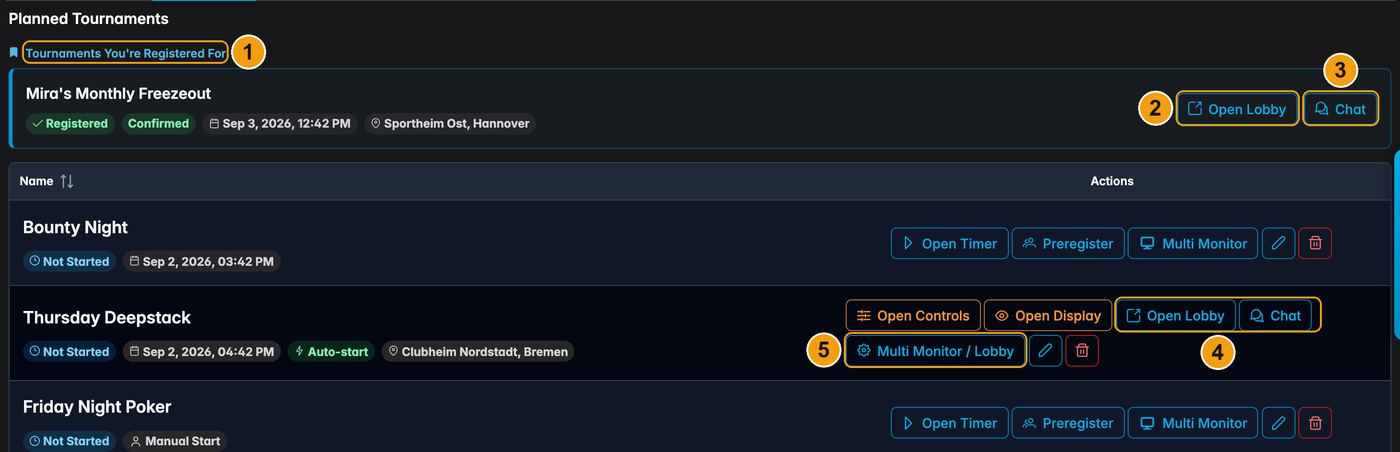
1 — Tournaments you're registered for. Lobbies belonging to other hosts that you have signed up for are pinned above your own list, with your current state next to them. They disappear by themselves when that tournament starts.
2 — Open Lobby on somebody else's tournament, straight to their lobby page.
3 — Chat opens that tournament's chat on its own page, in a new browser tab. It is there only on a Confirmed registration — pending and waiting-list players have no chat to open yet.
4 — Your own lobby tournament carries Open Lobby and Chat where a normal planned tournament carries Preregister. The pre-registration dialog is not used for lobby tournaments; the lobby's own player list does the same job and more.
5 — The settings button reads Multi Monitor / Lobby rather than plain Multi Monitor: the lobby rides on that multi-monitor pairing, so both are managed from the same dialog.
Closing a lobby
A lobby normally ends by itself — the tournament starts, and the link turns into a short "this lobby is closed" page. To end one early, open Multi Monitor / Lobby on the planned tournament and press Disable Multi Monitor & Lobby. The button says both because it does both, in a single step.
Closing the lobby deletes every registration, the waiting list, the chat and the updates. Registered players lose access and the share link stops working. The confirmation dialog spells this out before anything happens.
The tournament itself survives. It becomes a normal scheduled tournament, keeping its start time and its auto-start setting — only the lobby and the multi-monitor pairing are gone.
Next
- The lobby page — what your players see when they open the link
- Managing registrations — approving and seating the field