League tournaments
A league only gets interesting once tournaments count for it. This page shows how a tournament becomes a league tournament, how to add a game you played without the timer, how to correct points by hand, and how to put the league table on the TV while you play.
You need to be a director of the club for everything on this page except reading. A league admin can do most of it for their own league: take games out of the league, enter games by hand, set points and the scoring system of a game, adjust points and schedule tournaments. Only directors delete a finished tournament from the club's history. How to create a league and pick its scoring is explained in Leagues and leaderboards and League scoring.
Putting a tournament into a league
There are three ways, and you can use whichever fits the moment.
When you schedule it. The schedule dialog has a League (optional) field. Pick the league and the tournament counts for it from the start. See Scheduling a club tournament.
Later, while it is still coming up. On the club's Tournaments tab, press the league icon in the host tools of the ticket (the small podium next to the printer).
After it was played. On Finished Tournaments, press League on the tournament's row. This is handy when you forgot to set the league before the night, or when you decide afterwards that last month's tournaments should count for a new season.
All three open the same small dialog:
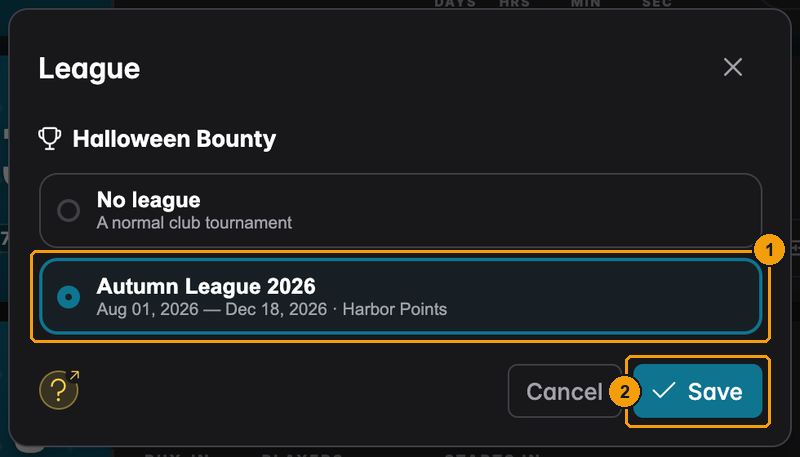
- Pick the league. Under the name you see its dates and its scoring system, so you can tell two seasons apart. No league makes it a normal club tournament again.
- Save applies it straight away.
From a scheduled tournament you can only pick leagues that are running or haven't started yet. From the finished list, ended seasons are offered too, so you can fix an old season.
When you put a finished tournament into a league, the league table is recalculated at once. Taking it out of the league removes its points again. Nothing about the tournament itself changes.
A tournament can have players who are not in the league: guests, new members, someone who never joined. They play as normal and win their prize money, but they don't earn league points and don't push anyone down in the league table. Who is in a league is set on the league's Players tab, see Leagues and leaderboards.
A different scoring system for one tournament
Normally every tournament of a league is scored with the league's scoring system. Sometimes one night should count differently: a season opener or a final that pays 1.5 times the points, a charity game that pays flat points. Instead of a second league, give just that tournament its own scoring system. It has to be one of the club's scoring systems, see League scoring.
Setting it
When you schedule it. Once you have picked a league in the schedule dialog, a field Scoring system for this tournament shows up under it.
- League default is the first choice and the one that is selected. It shows the name of the league's scoring system, for example League default (Classic), and it always follows the league.
- Pick another scoring system from the list to use it for this tournament only.
- The + next to the field creates a new scoring system on the spot. It is selected as soon as you save it.
- The ? explains the field in a few lines.
Later. Open the League dialog of the tournament (the league icon on the ticket, or League on the finished list). Once a league is picked, the same field appears under the league list. It also works for finished tournaments: Save recalculates the league table at once. If you pick a different league in the dialog, the field goes back to League default.
If you change it while the tournament runs, the tournament screens use the new system after they reload. A PDF report keeps what it showed when you exported it; a report exported later takes the points from the league table, but prints the formula and system name the tournament screen loaded.
For a game entered by hand. The Add result dialog has the same field. To change it later, press Points on the result's row in the league's Tournaments tab and pick another scoring system in the dialog, or League default (see Changing the points of a game). The points of that result and the league table are recalculated.
A tournament with its own scoring system shows a small tag with its name, on the club's tournament lists and on the league's Tournaments tab. Tournaments with the league default show no tag.
How the points are calculated
- The points of that tournament come from its own scoring system, rounded to its decimal places. The tournament's final standings, the tournament screen and the PDF report show them.
- The season total just adds up the points of all tournaments. It is rounded to the decimal places of the league's scoring system, no matter which systems the single games used.
- Corrections for one tournament (see Changing the points of a game) are added to that tournament's points and rounded with that tournament's decimal places. Season adjustments are added to the total.
- Because the whole season is calculated again whenever somebody opens the table, changing a point system changes every tournament that uses it, as described in Changing a formula during a season.
- If you move the tournament to another league or take it out of its league, its own point system is removed too, and the tournament is scored with the league default again. Choose the scoring system again in the new league if you still want it.
A scoring system that is still used by a tournament or a typed-in result can't be deleted. UHT tells you which leagues and which tournaments use it. Pick another scoring system for those first.
Example: 1.5 times the points for the first and last game
The Autumn League uses p - f + 1 (players minus place plus one). For the season opener and the
final you want 1.5 times as many points:
- Create a scoring system, for example Season special, with the formula
1.5 * (p - f + 1). Use + in the schedule dialog or the Scoring system field of the league dialog. - Schedule the opener and choose Season special as the scoring system. Do the same for the final.
- Every other game keeps League default.
In a field of 20 players the winner gets 20 points on a normal night and 30 on the opener. The season table adds it all up as usual.
High hand side bet
If the league plays the high hand (see Leagues and leaderboards), each of its tournaments can pay a prize for the best five-card hand of the evening. Setting the prize, recording hands, ties and the TV display work like in any other tournament and are explained in Side bets: the high hand. What is special about leagues:
Setting the prize. The schedule dialog and the league dialog above show High hand enabled for this tournament with a prize, filled in with the buy-in. Once a tournament has started, the league dialog shows its prize but no longer changes it. During the game, use the HH prize button in the player management.
On the TV. The Side Bet component lists the hands, the high.hand.* placeholders show the
leader. See Components.
Fixing it afterwards. On the league's Tournaments tab, Points opens the points sheet of a finished game. With a side bet it has an HH column: press it to change a player's hand, and the line above the table shows the winner and the amount, with a note when the prize moves to someone else. Save stores the hands and then the points.
This works for results you entered by hand too. Their points sheet has a High hand prize field above the table: type the amount to add a side bet to that game, and the HH column appears for every player. Leave it empty for no side bet. These hands count for the season's best hands and the High hand column just like the ones recorded during a tournament.
Scheduling a league tournament
On the league page, Schedule tournament opens a lobby for a tournament that counts for this league. League admins use it too: a club tournament they schedule must belong to a league they manage, so the league is always filled in. Directors can still schedule tournaments with or without a league from the club's Tournaments tab. After scheduling, the admin is the host and edits or cancels the lobby like any host.
The league's Tournaments tab
Open the league and switch to Tournaments. This is the season's schedule and its results in one list.
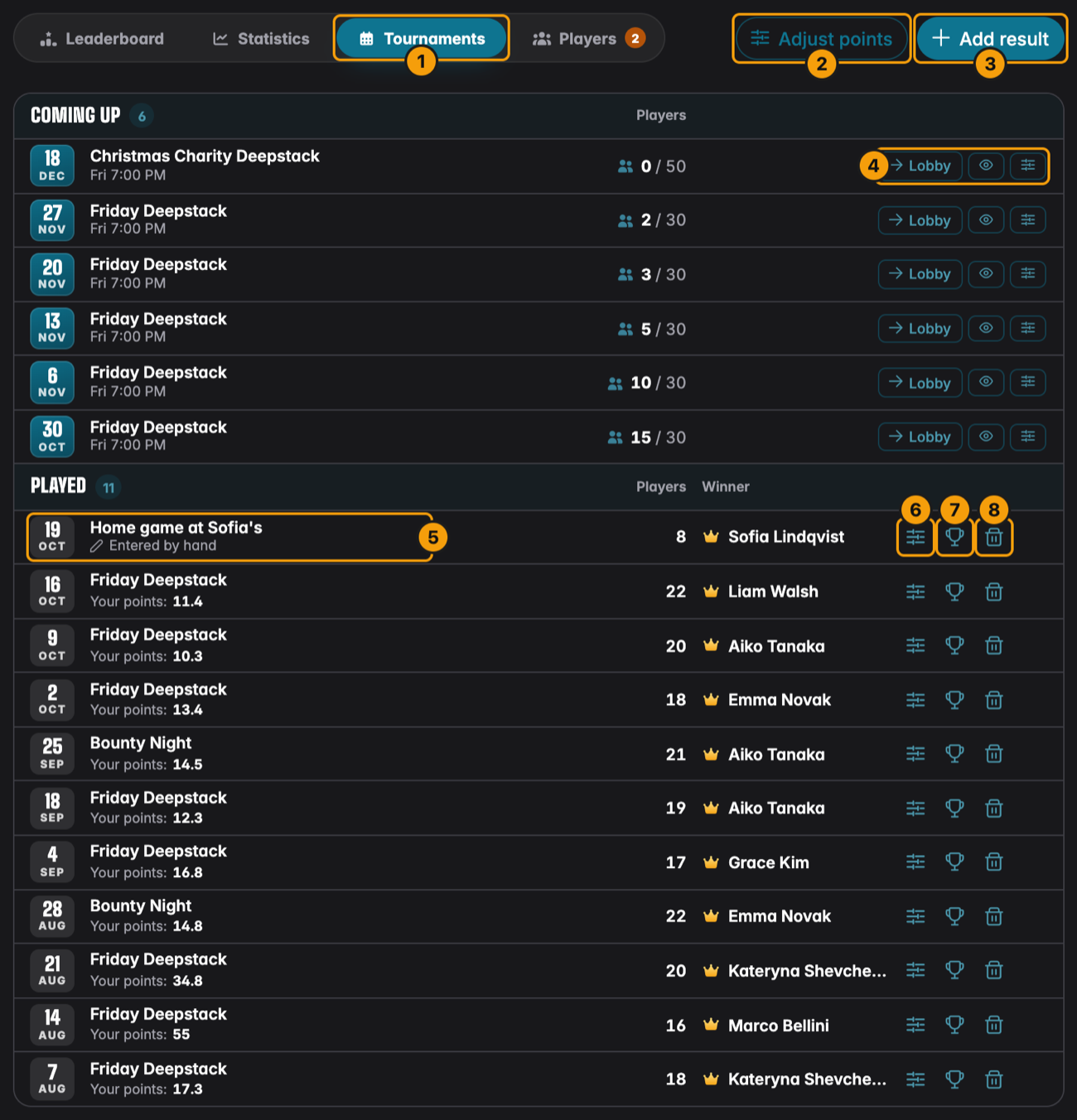
- Tournaments – the tab you are on. Leaderboard and Statistics are described in League statistics.
- Adjust points – correct a player's season total (see Point adjustments).
- Add result – type in a game played without the timer (see Adding a game by hand).
- Coming-up tournaments with Lobby, Display and Controls. Your staff start the night from here as well, like on the club's Tournaments tab.
- A result that was typed in, marked Entered by hand.
- Points (the sliders) – change the points of this game, for a tournament and for a typed-in result alike (see Changing the points of a game).
- Final standings (the trophy) – the full results of that night with the league points of each player. This works for typed-in results too.
- The trash can on a result that was typed in: Delete result. On a tournament played with the timer the same trash can is Remove from league (see Taking a game out of the league).
Every played game has the same three buttons, in this order.
If you played a finished tournament yourself, Your points under its name shows the league points you got that night (all your entries together, including a point adjustment of that tournament). When the league only counts the best results and this night is not one of yours, the points are struck through (see Only count the best results).
League players see the same list, without the director buttons:
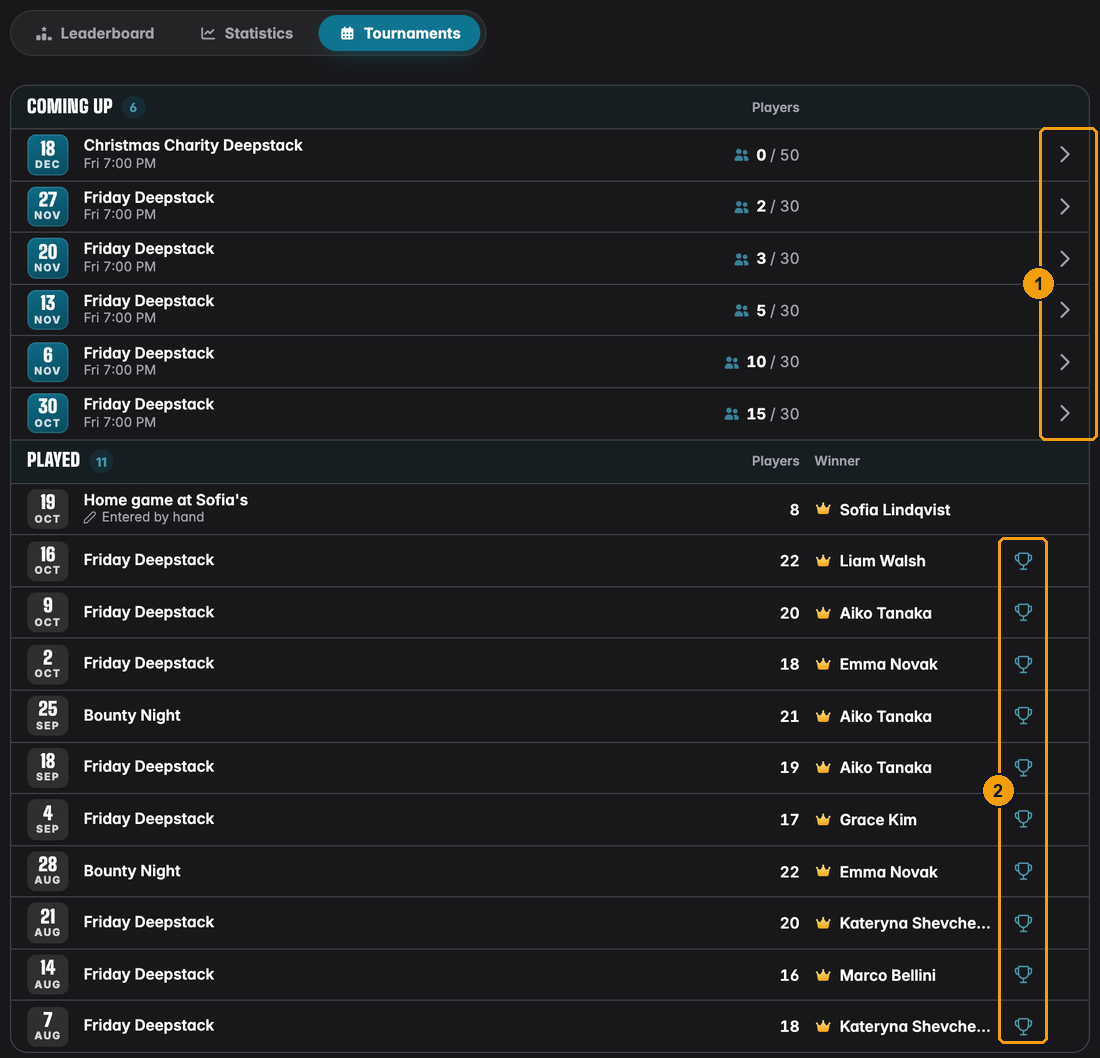
- The arrow opens the lobby of a coming-up tournament, where they register.
- The trophy opens the final standings, read-only, like on the club's finished list.
Adding a game by hand
Sometimes a league game happens without UHT, say a home game at a member's place where nobody brought a laptop. You can still count it. On the league page, press Add result.
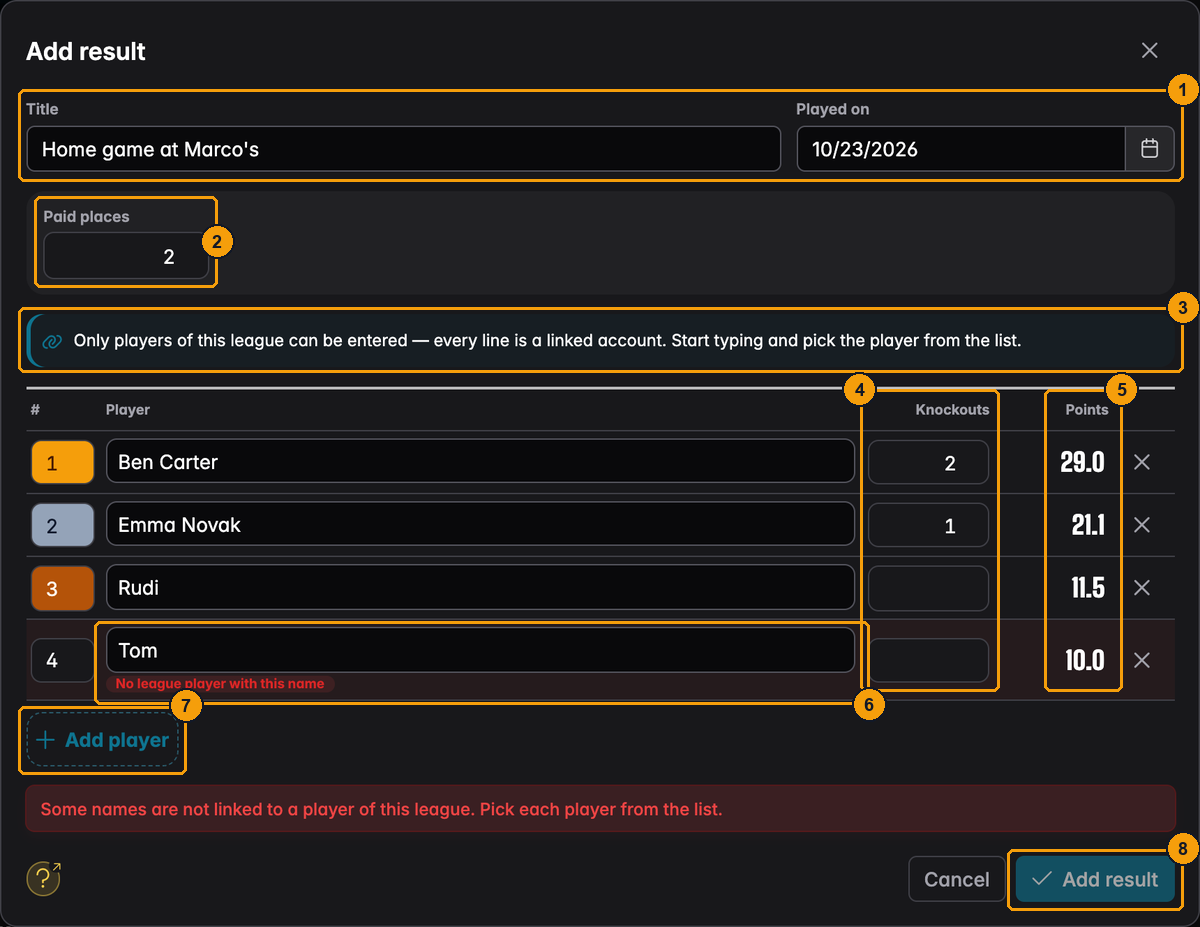
- Title and Played on – how the game shows up in the list, and when it was played. The date decides where it lands in the season. A game can't be dated in the future.
- Paid places – the dialog asks only for what your scoring formula uses. Harbor Points gives a bonus for finishing in the money, so it asks how many places were paid. A formula that counts prize money would ask for the buy-in and the winnings as well.
- The reminder of how the sheet works: every player of the league is already listed, in random order.
- Knockouts – a column appears for every number your formula needs per player.
- Points – what each player gets for this game with your league's scoring. You can type a different number into the field: the difference to the calculated points is saved as a point adjustment for that player in this game, so you don't have to correct it in a second step. The arrow button next to a changed value puts the calculated points back.
- The player of a row is a dropdown of your league's players. Type in it to search by any of their names – display name, real name or the name they play under. Each one is shown with their picture as "Name (other names)". Players already on another row aren't offered, so nobody can be listed twice. Guests can't be entered here; if you want to count a regular who isn't in the league yet, add them on the Players tab first.
- Rows are numbered by finishing place. Drag a player by the handle on the left to move them, or focus the handle and use the arrow keys. The x removes someone who didn't play, and the places close up. Add player adds an empty row. Remove all players clears the sheet if you'd rather add everyone yourself.
- Add result saves the game. The button stays disabled until at least one row has a player.
If the league has no players yet, the dialog says so and takes you to the Players tab. If your club has no other members yet, it takes you to the club's Members tab instead.
The title, the date and the players of a typed-in result are fixed once it is saved. To change those, delete the result and enter it again. The points and the scoring system can be changed later with Points.
The new game shows up on the Tournaments tab under Played, marked Entered by hand, and its points count right away. In the Autumn League, the "Home game at Sofia's" on 19 October was entered like this.
Results-only leaderboards
A leaderboard is a league without a season and without a player list, for things like a weekly Sit & Go ladder (see Leagues and leaderboards). Everything on a leaderboard is added as a result. Open the leaderboard and press Add result:
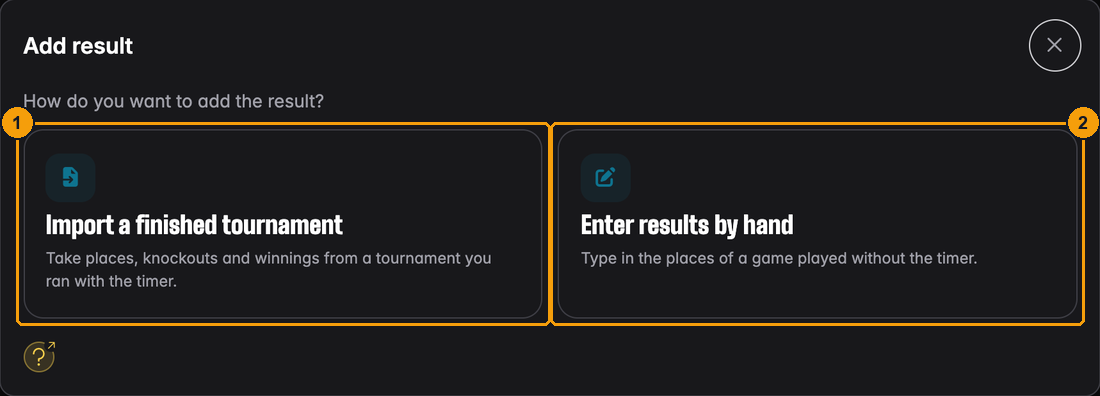
- Import a finished tournament – take places, knockouts and winnings from a tournament you ran with the timer.
- Enter results by hand – type in a game played without the timer.
Importing a finished tournament
Pick the tournament from the list. It offers your own finished tournaments and every finished tournament of the club, newest first, with date, number of players and a Club tag.
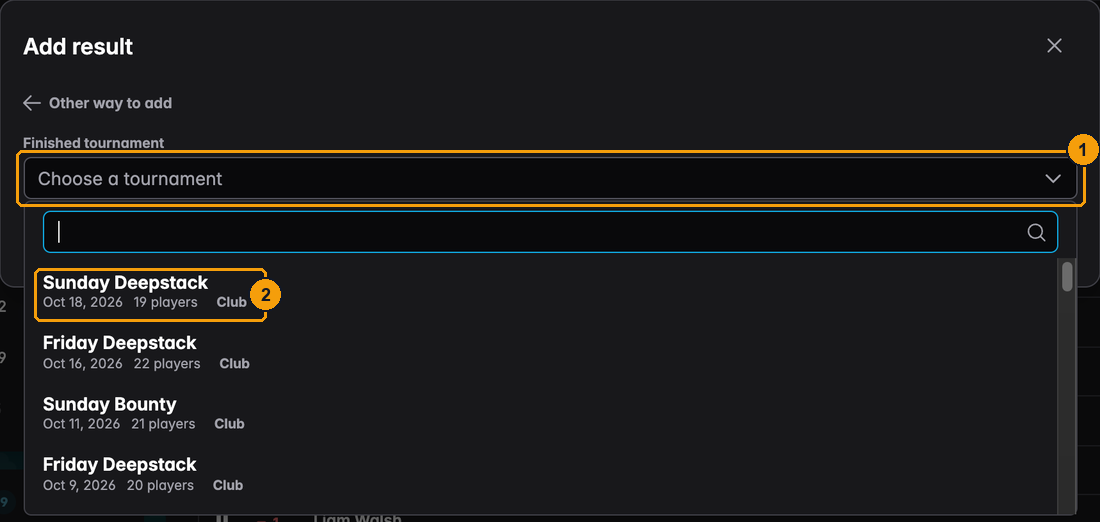
- Type to search for a tournament.
- Each entry shows the date and the size of the field, so you pick the right Friday.
UHT then shows the standings as they will be saved:
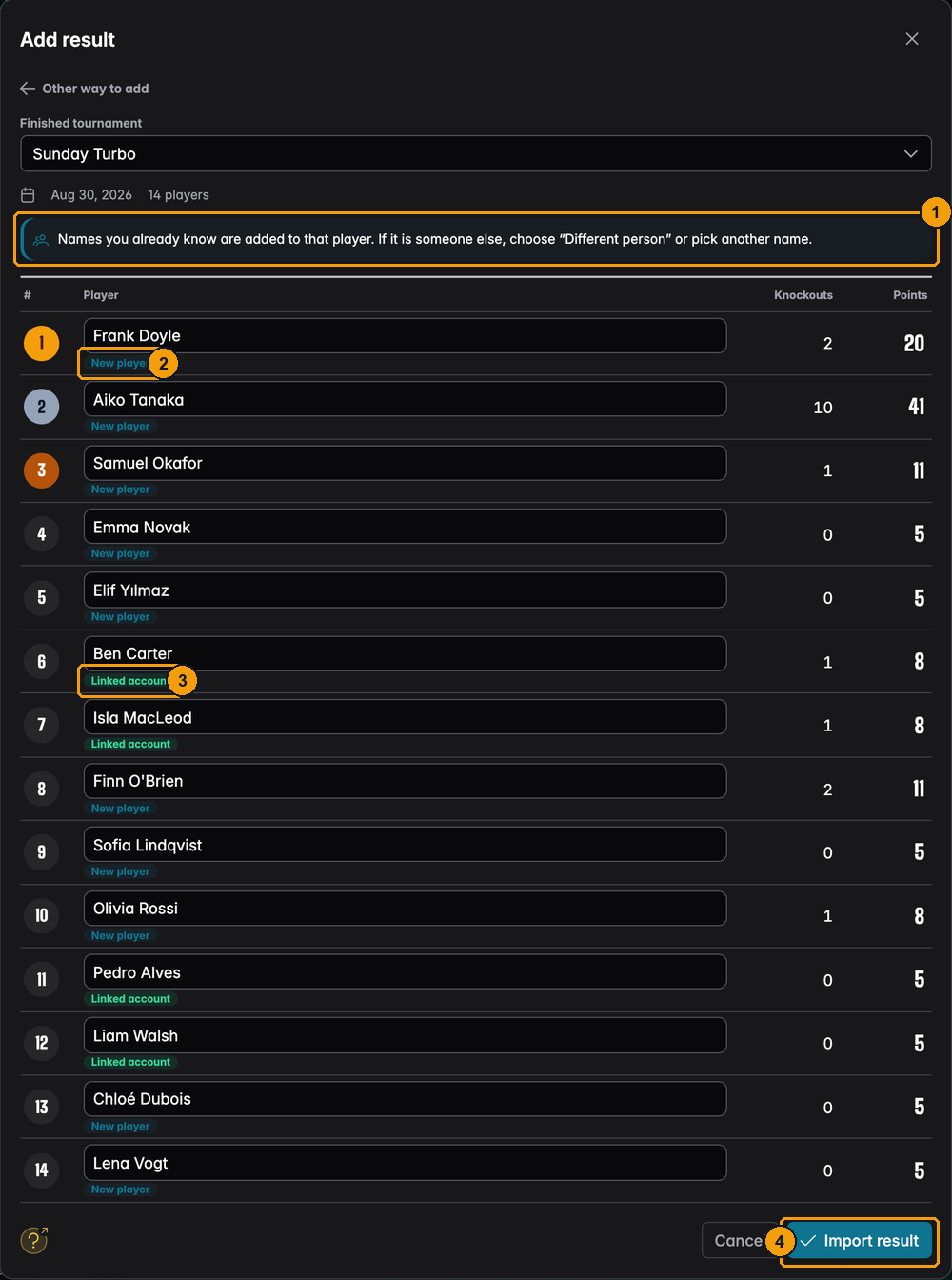
- The rule for names: a name the leaderboard already knows is added to that player.
- New player – this name hasn't been on the leaderboard before. It gets its own line in the table.
- Linked account – the player already exists on the leaderboard and belongs to this UHT account, so the result is added to them.
- Import result saves it.
If a name matches someone different (two people called Max), the row says Matched by name and offers Different person. Press it and the player is saved as a separate person, for example "Max (2)". You can also type another name into the row.
Each tournament can be imported once per leaderboard; the picker shows it as Imported after that. The import is a copy: if you correct the tournament later, the leaderboard keeps the values from the day you imported it. Delete the result and import it again to pick up the change. A tournament that was run without individual players has nothing to import.
Entering a leaderboard result by hand
This works like a league result, with one big difference: anyone can be entered, guests included.
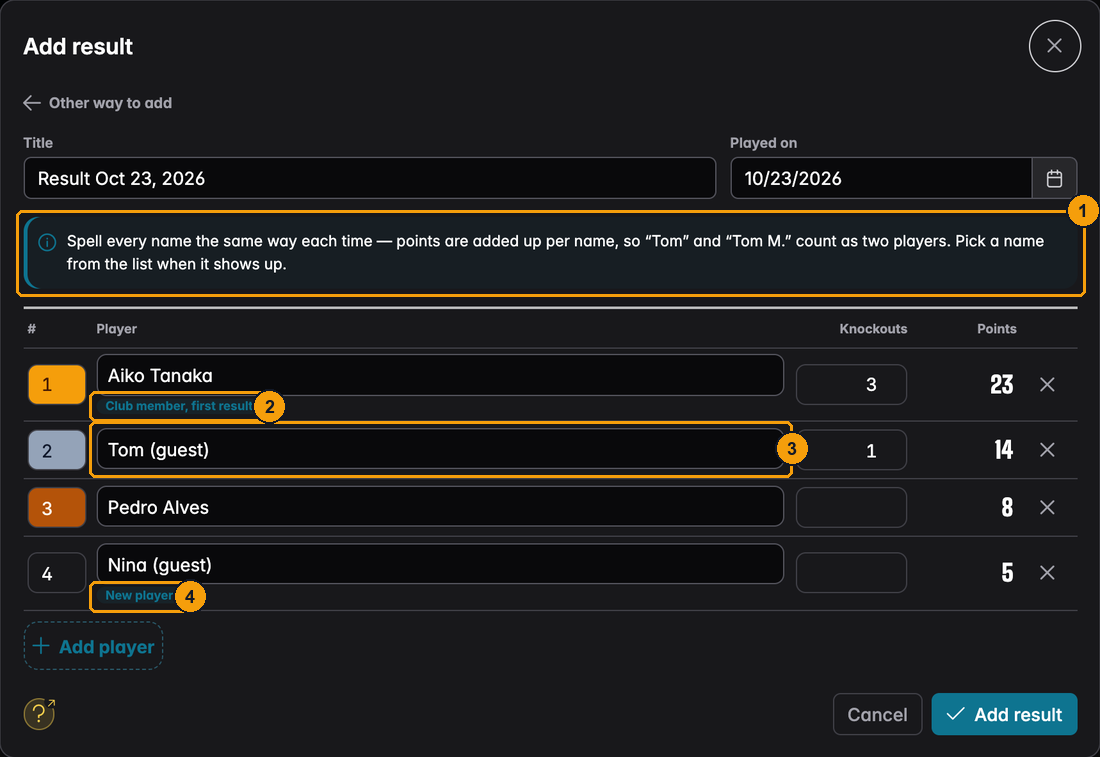
- The spelling rule. Points are added up per name, so "Tom" and "Tom M." count as two players. Pick the name from the list when it shows up.
- Club member, first result – Aiko is a club member who hasn't played on this ladder yet. She is linked to her account.
- Tom (guest) has played before, so his result is added to his line.
- New player – Nina is a guest who has never played here. She gets a new line.
The results list
All results of a leaderboard are listed on its Statistics tab, under the chart.
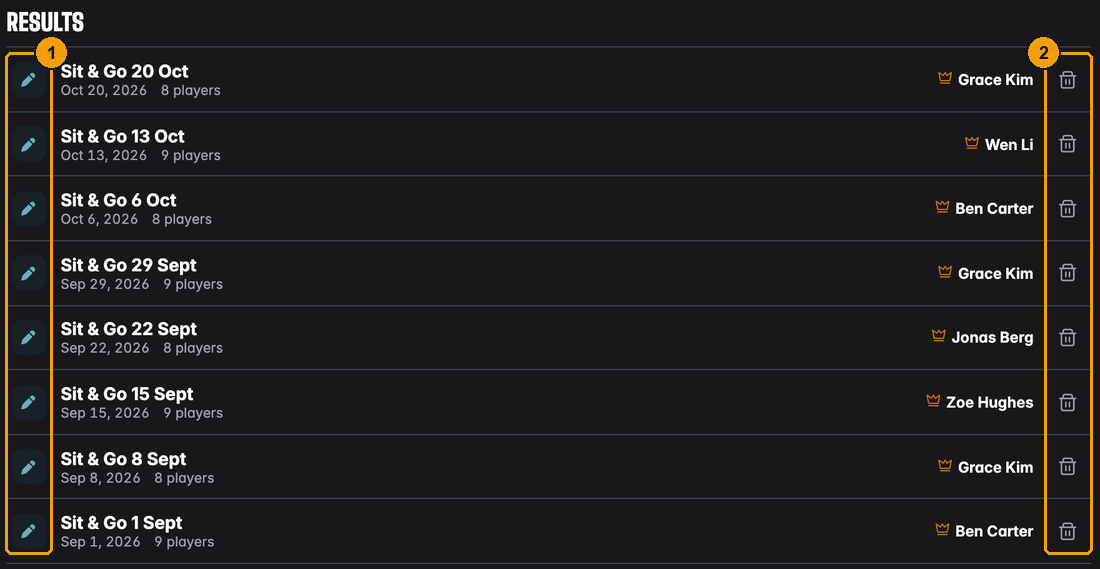
- The icon shows how the result was added: a pen for a result typed in by hand, a file icon for one imported from a tournament. All results on the Tuesday ladder were typed in.
- The trash can deletes a result. To fix a typo, delete the result and enter it again.
Point adjustments
Now and then the formula isn't the whole story. A volunteer bonus for the member who sets up the tables every Friday, a penalty for a late league fee, a starting bonus for last season's champion. That's what Adjust points is for. It is on the league page and on every leaderboard page, for directors and the league's admins.
Adjusting a season total
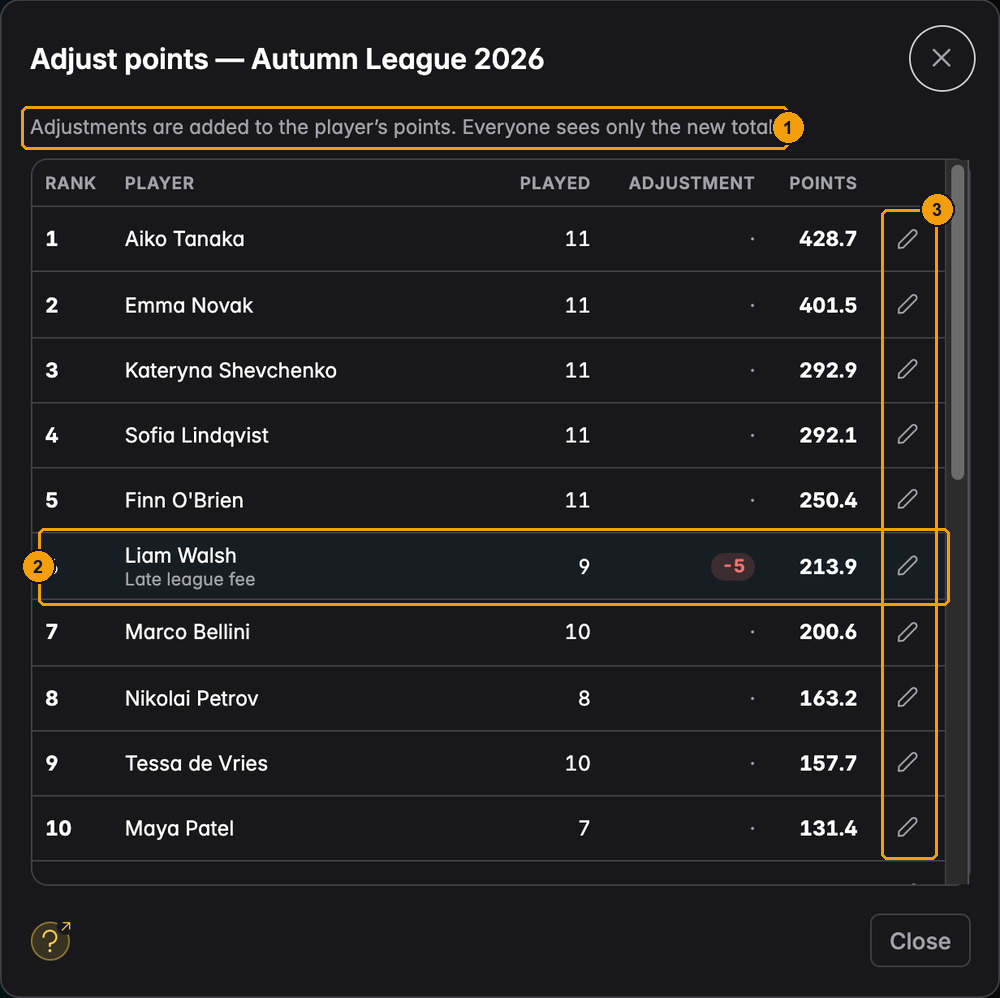
- The rule in one line: adjustments are added to the player's points, and everyone sees only the new total.
- Liam Walsh has -5 with the reason Late league fee. His total of 213.9 already includes it.
- The pencil opens a player's adjustment.
The list shows every player of the league, also those who haven't played yet. So a starting bonus before the first tournament is no problem.
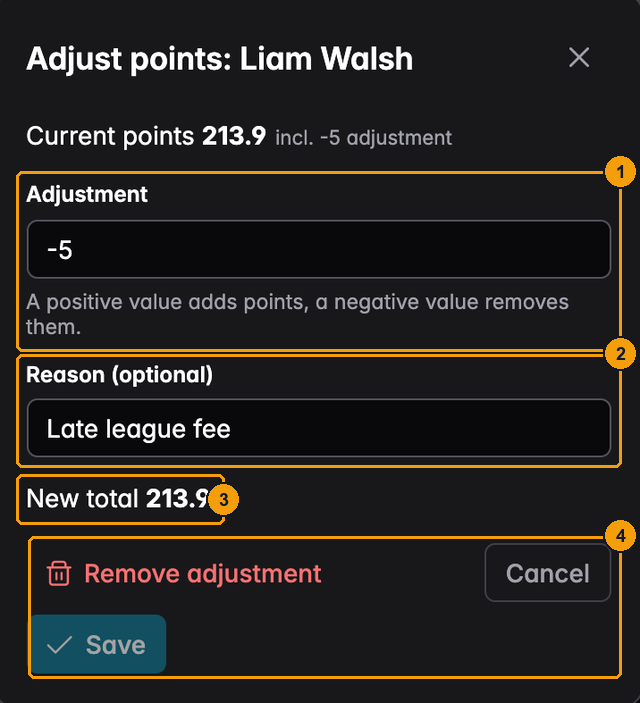
- Adjustment – a positive value adds points, a negative value removes them. This is the player's whole adjustment for the season, not something added on top: typing 10 where -5 was gives the player +10, not +5.
- Reason (optional) – a note for you and the other directors.
- New total – the result, before you save.
- Save applies it. Remove adjustment takes it away completely, Cancel leaves it as it was.
An adjustment counts from the start of the season. It moves the player's total and rank, and their line in the progress chart, but the up and down arrows in the table still only show what the last tournament changed.
Changing the points of a game
Sometimes the correction belongs to one night, not the whole season. Diego missed the bubble prize on 9 October because of a misdeal, and the club decided he should get the points of the place he would have reached. On the league's Tournaments tab, press Points on that game. It is the same dialog for a tournament played with the timer and for a typed-in result:
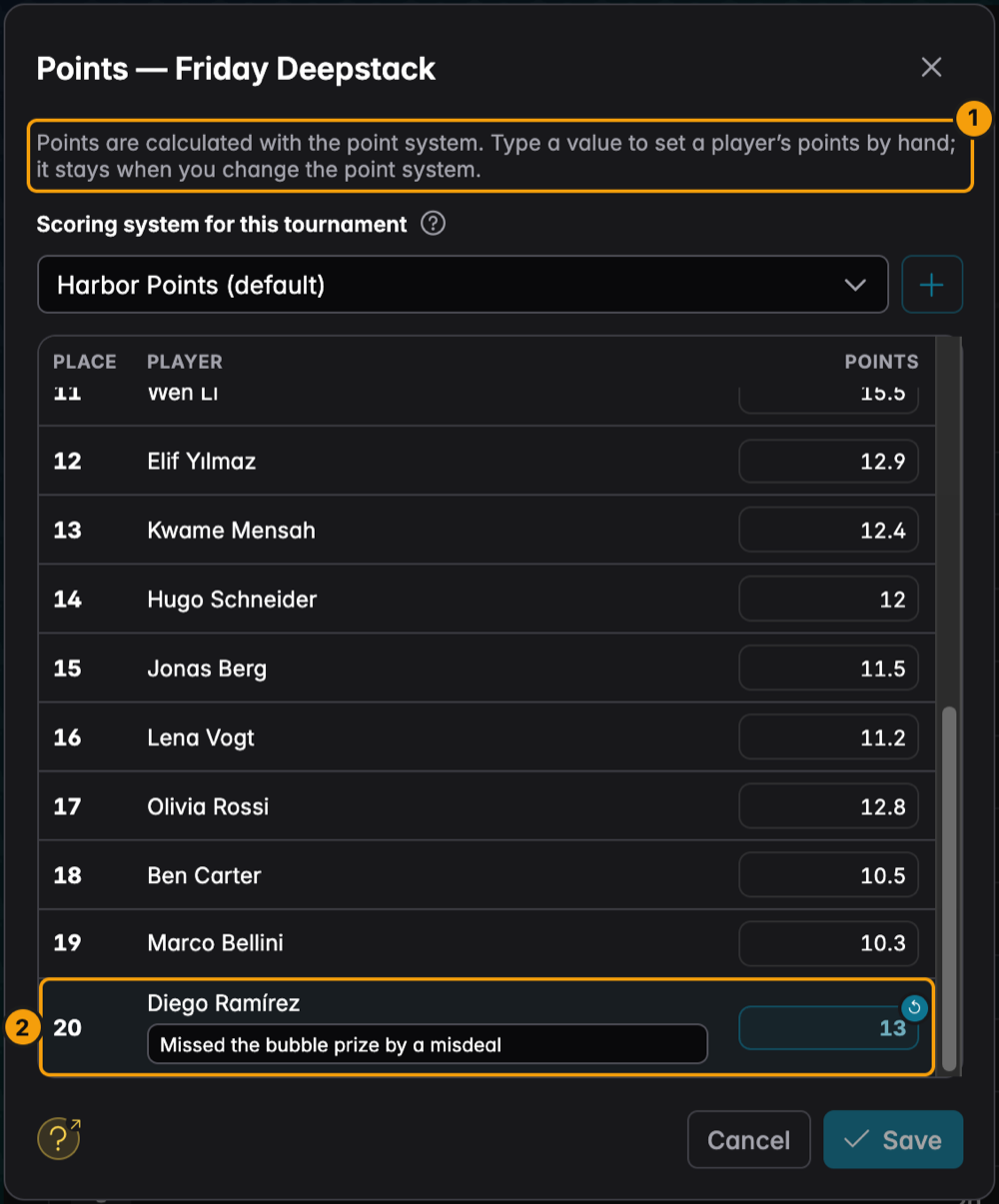
- The sheet takes the points a player should get for this game, not a difference. A value you type stays when you pick another scoring system.
- Diego finished 20th and the scoring system gives him 10. The club decides he gets 13, so you type 13 into his field and, if you like, the reason Missed the bubble prize by a misdeal. His field is highlighted, and the small undo badge on it puts the calculated 10 back.
The list shows every league player who played in that game, by finishing place, with the points the scoring system gives. How it works:
- Type the total into a player's points field. The sheet always works with the player's total for this game, never with a difference. A custom total is highlighted, and a reset badge (the undo arrow) on the row puts the calculated points back.
- Reason – every row with a custom total gets an optional reason field (up to 200 characters). Only directors see it.
- Scoring system at the top of the sheet switches the scoring system of this game. Calculated points of the other system show at once, before you save. A custom total keeps its value when the scoring system changes, so only the rows without a custom total change.
- One Save stores the scoring system, all custom totals and their reasons together. If you close the sheet with unsaved changes, UHT asks whether to discard them.
While a tournament is still running, directors find a Points button in the player management and in the lobby's Tables view of a league tournament. It does not open this sheet. It opens the per-tournament adjustment dialog for the league players who have entered so far, where you type a difference (for example +3 or -2) that is added to their live points. The scoring system and custom totals can be changed with the sheet above once the tournament is on the Tournaments tab as a played game.
Game corrections and season adjustments are separate and add up: Diego could have a season bonus as well, and both would count.
Taking a game out of the league
On a tournament played with the timer, Remove from league takes it out of the league again, after a confirmation. Its points disappear from the league table at once; the tournament itself stays as it was. A typed-in result has Delete result instead.
Who sees what
Only directors see adjustments and reasons. Everyone else just sees the totals: the leaderboard, the final standings, the TV display and the PDF report all show the adjusted numbers without saying why. This is what Emma sees for Liam after his -5:
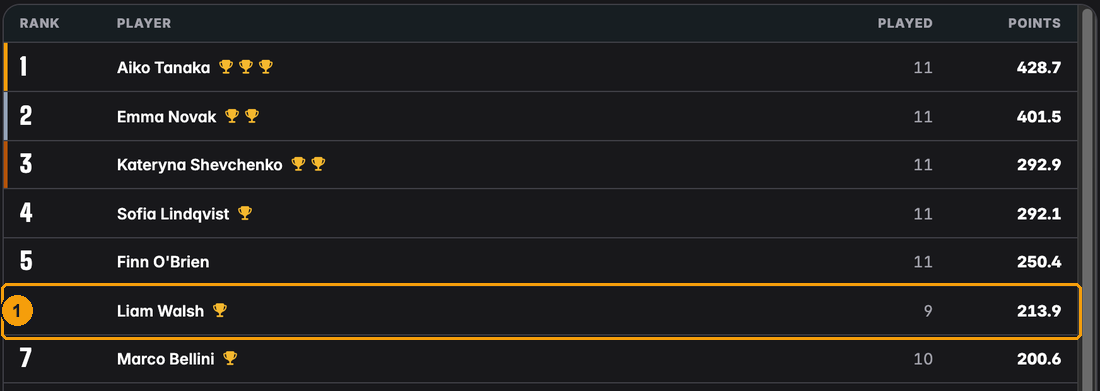
- Liam's total, with the adjustment already included.
If you want players to know about a bonus or a penalty, tell them in a news post or put it in the club rules.
The league on the tournament screen
A league feels much more real when the table is up on the TV while the cards are in the air. In the display designer, two components work with leagues.
The League Leaderboard component
Drag League Leaderboard from the list of components onto your design. While you design, there is no real tournament, so pick Dummy Tournament (With League) under Tournament Configuration at the bottom of the left panel. The component then fills with a made-up league.
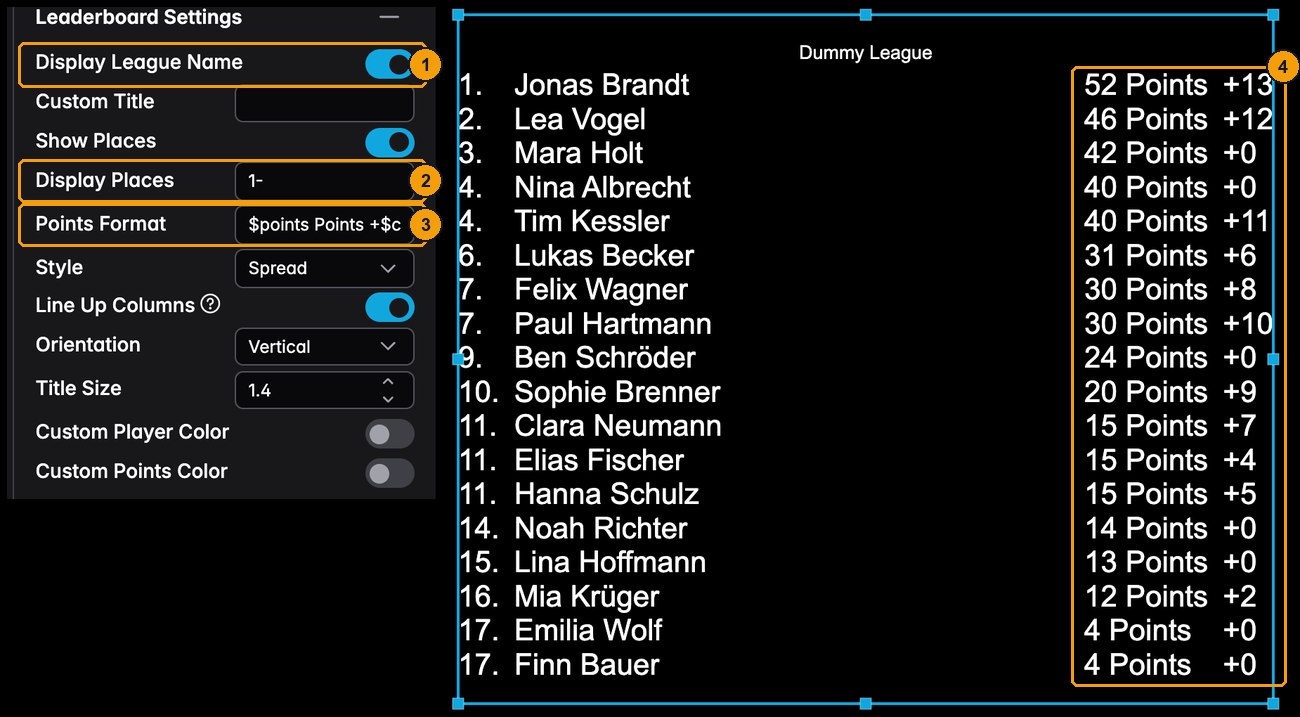
- Display League Name – shows the league's name as the title. Custom Title replaces it with your own text.
- Display Places – which ranks to show.
1-10shows the top ten,1-shows everyone. - Points Format – what appears on the right.
$pointsis the league total,$changethe points earned in this tournament,$posthe rank and$namethe player. The default is$points Points +$change. - The
+13,+12… are the points each player has picked up tonight.
During a real tournament, players earn their points the moment they are out (the players still in get theirs when the tournament is finished), and the table re-sorts itself. That makes the last hour fun to watch: everybody can see who is climbing past whom.
The points on the screen are a live preview. The official points are calculated when the tournament is finished, and if the two ever differ, the official ones count.
League points on the prize list
The Prizes component can show the league points next to the prize money.
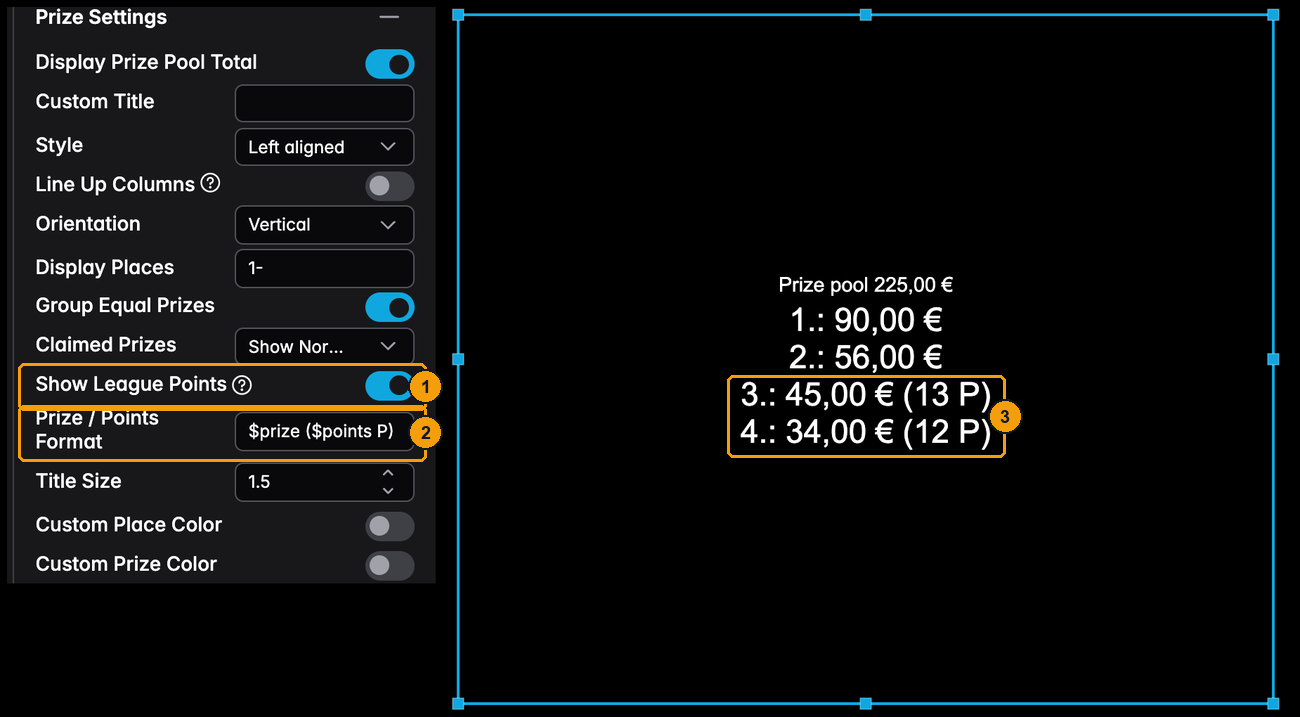
- Show League Points – switch it on.
- Prize / Points Format – how the line reads.
$prize ($points P)gives "45,00 € (13 P)". - Once a league player busts in a paid place, the points they earned appear behind the prize.
Points only show for league players, and only in tournaments that count for a league. In a normal club tournament the component looks exactly as before. You can also add the league's name, its leader or the number of league players to any Text component: look for the League group in the quick-add list.
A tournament that is not in a league shows an empty League Leaderboard, so you can keep one design for all your club nights.
Next
- League statistics – the leaderboard, the charts and every number on the Statistics tab
- Importing a league – bring a season you ran elsewhere into UHT
- Club tournaments – scheduling, registrations and the finished list