Importing a league
Your season started months ago and the results live in a spreadsheet, a WhatsApp group or a notebook. You do not have to wait for next season to switch to UHT. The import takes the tournaments played so far, with their finish order, and builds a real UHT league from them. From then on new tournaments are added as usual and the standings carry on where the spreadsheet stopped.
The example on this page is Riverside Home Game, a group of seven friends who play every second Saturday. Viktor kept their "Riverside Season 2026" in a spreadsheet: five tournaments from January to March. He imports it in about ten minutes.
Before you start
Have these ready:
- The players, ideally with the names they use in your spreadsheet. Players with a UHT account should join the club first. Everyone else can be added as a manual player during the import.
- The date and the finish order of each tournament. Prizes and points are optional.
- A scoring system that matches how your league awarded points. You can create one during the import. See League scoring.
- A tournament configuration (optional) with your buy-in, re-entries and add-ons. With it, the statistics also know what everybody paid.
You need to be a director of the club.
Step 0: open the import
On the club's Leagues tab, click Migrate League to UHT at the top right.
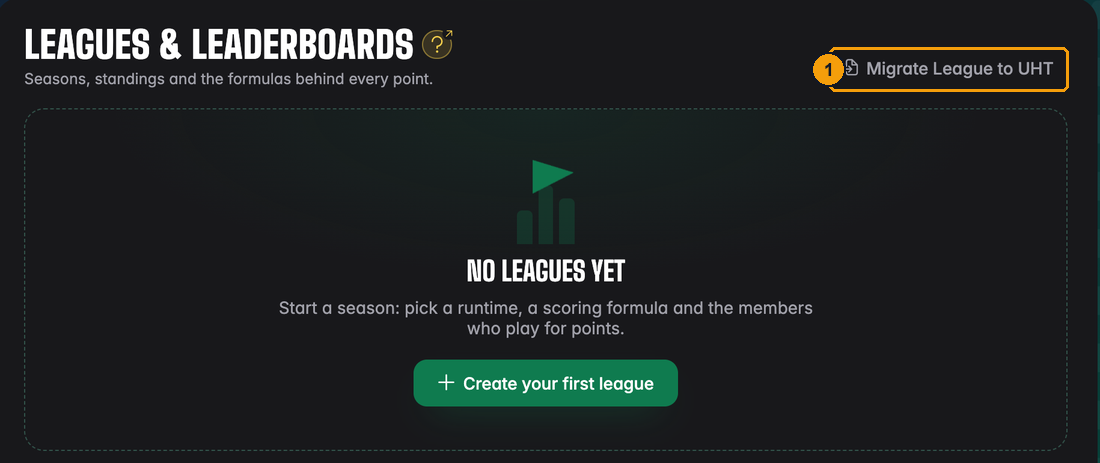
- Migrate League to UHT. It is always there for directors, also when the club already has leagues.
The wizard has six steps. You can go back to any step you have finished by clicking it at the top.
Step 1: Information
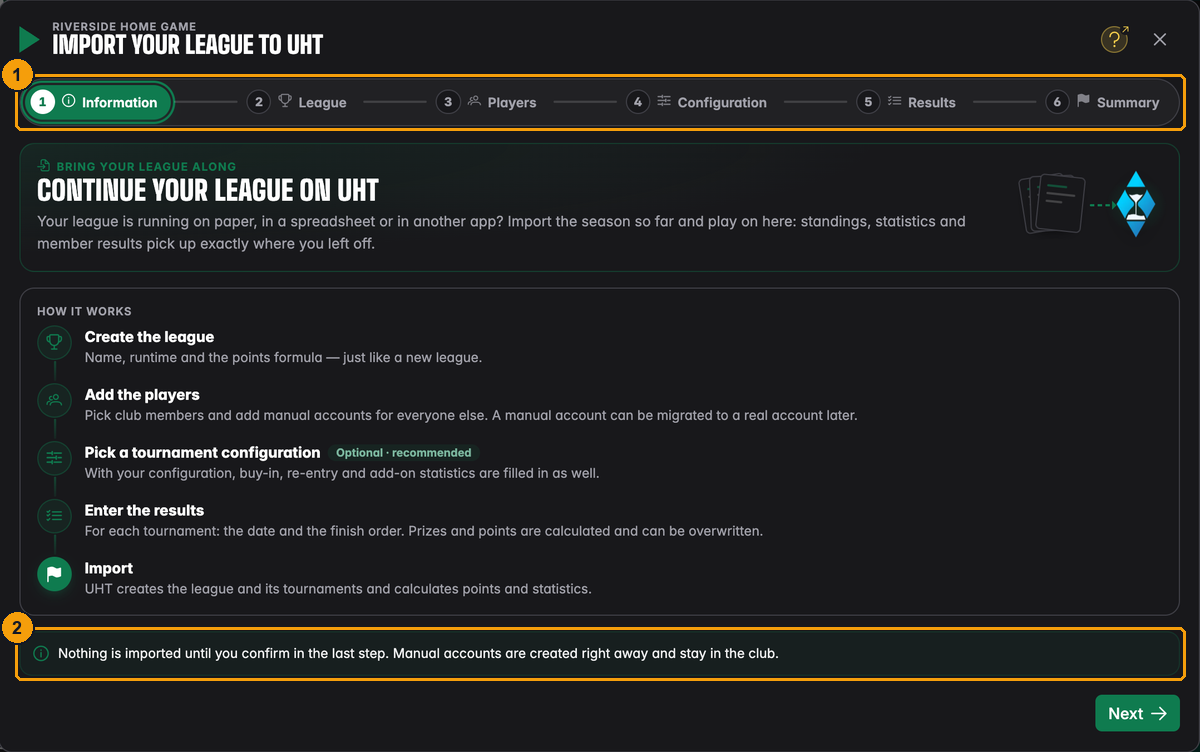
- The six steps: Information, League, Players, Configuration, Results and Summary.
- Nothing is saved until you press Import league in the last step. The one exception: manual players you create in step 3 stay in the club, even if you cancel.
Press Next.
Step 2: League
This is the same form as for a new league.
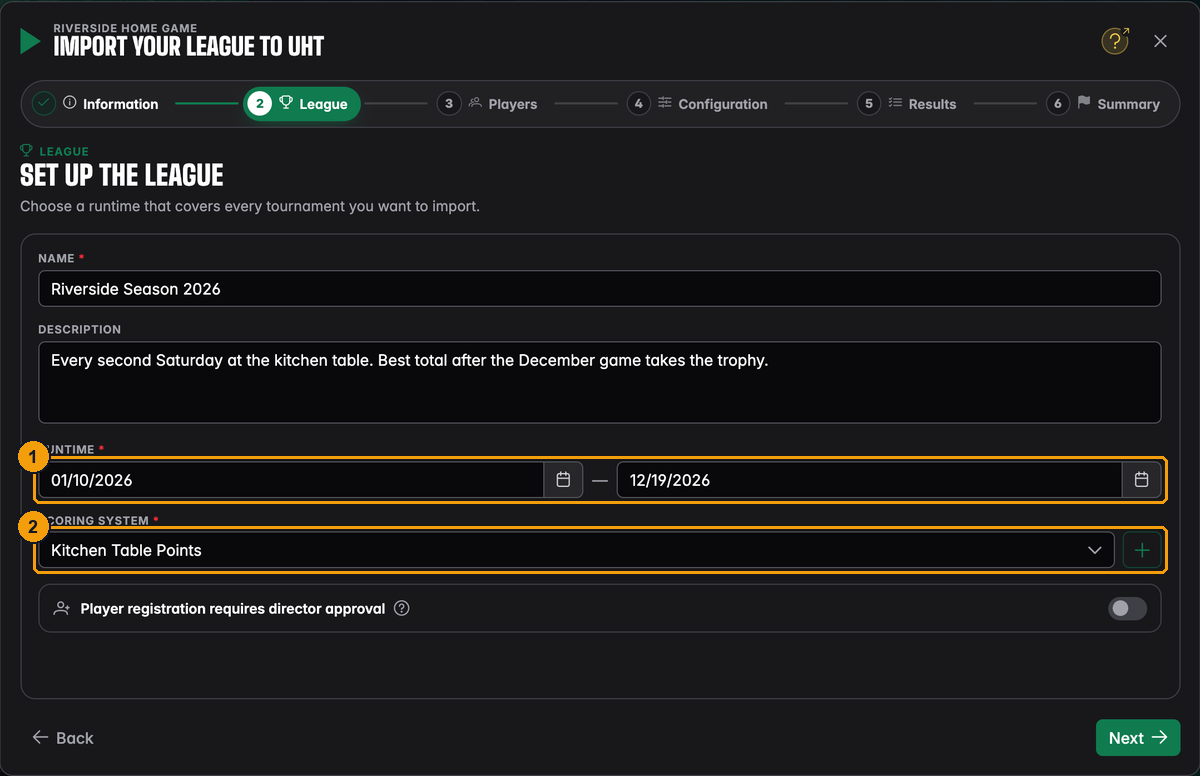
- Runtime: choose dates that cover every tournament you want to import, and the rest of the season still to come. Viktor picks 10 January to 19 December.
- Scoring system: pick one, or create one with +. Viktor's group gave 14 points for a
win, 11 for second, 8 for third and 5 for everyone else, so he created "Kitchen Table Points"
with the formula
5 + 3 * max(4 - f, 0)and Decimal places set to 0.
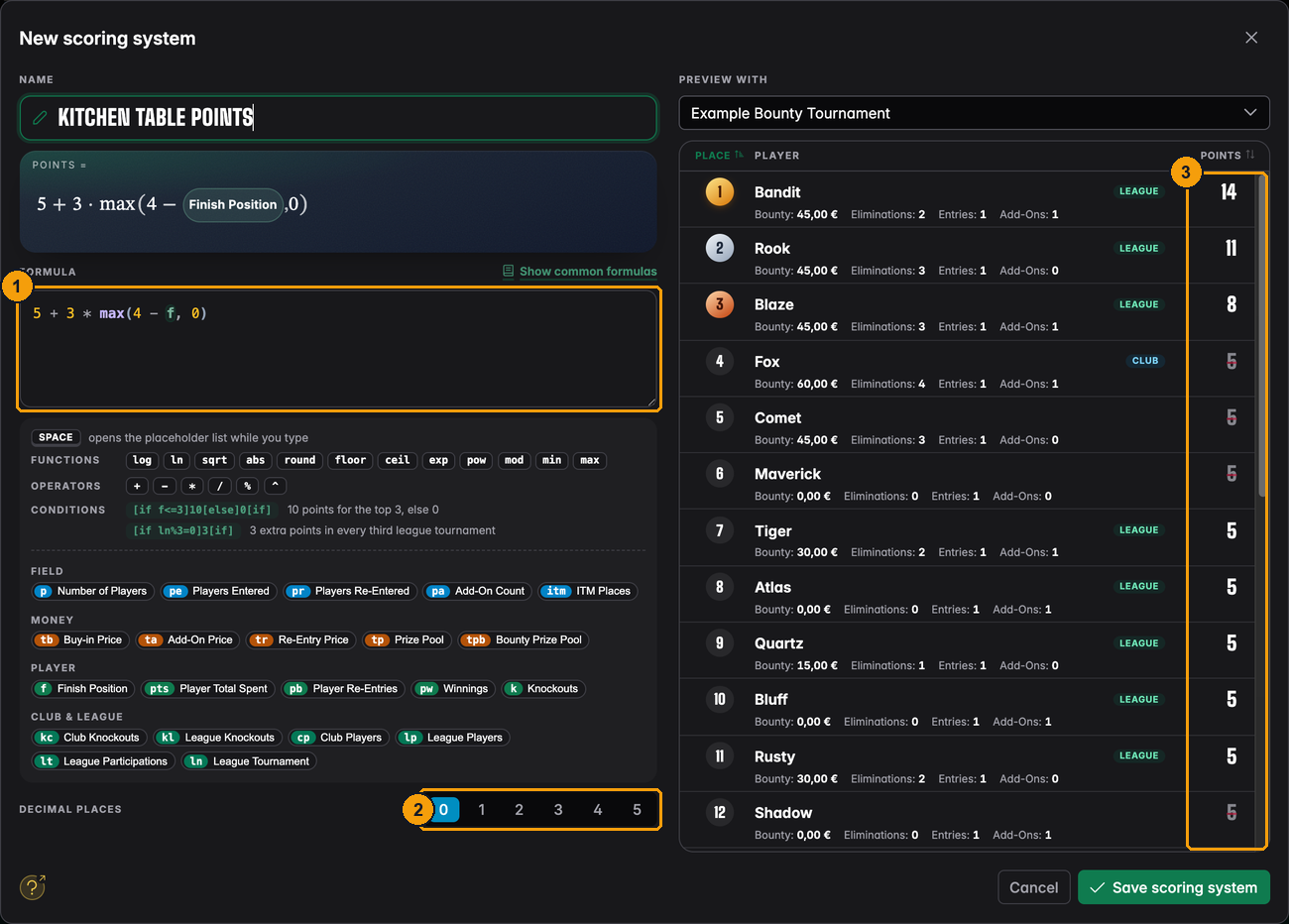
- The formula. "Show Up & Podium" from the formula library is exactly this.
- Decimal places 0 for whole points.
- The preview confirms: 14, 11, 8 and then 5 for everyone.
Some leagues hand out points by feel, or the rules changed halfway through. Pick the formula that comes closest. In step 5 you can type in the exact points for every player and tournament, and UHT keeps your numbers.
Step 3: Players
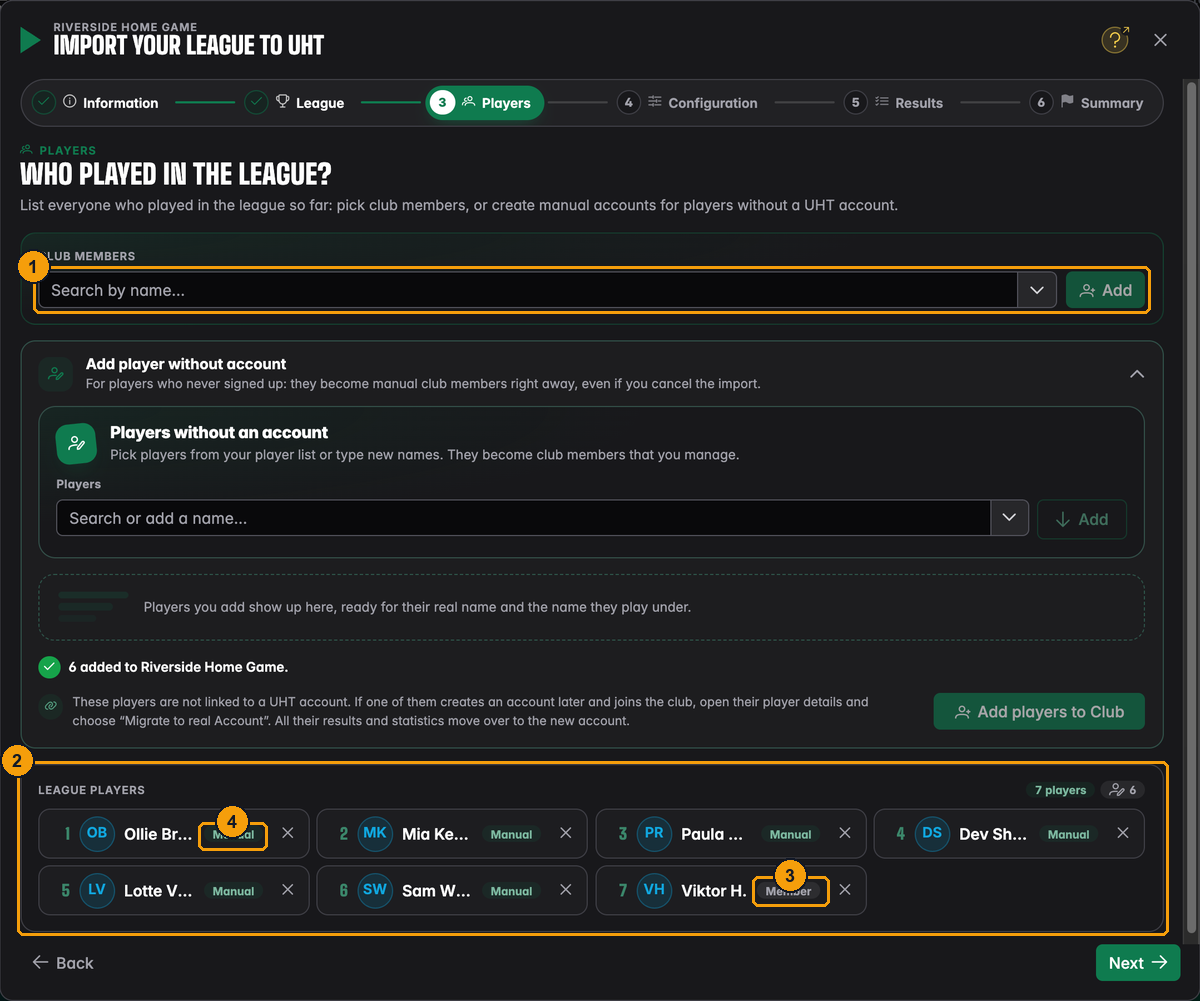
- Club members: pick players who already have an account and are in the club, then press Add.
- League players: everyone who is in the league so far, numbered in the order you added them. That order is also the starting order in step 5.
- Member marks a player with a UHT account.
- Manual marks a player without an account.
Players without an account
Open Add player without account to add the people who never signed up.
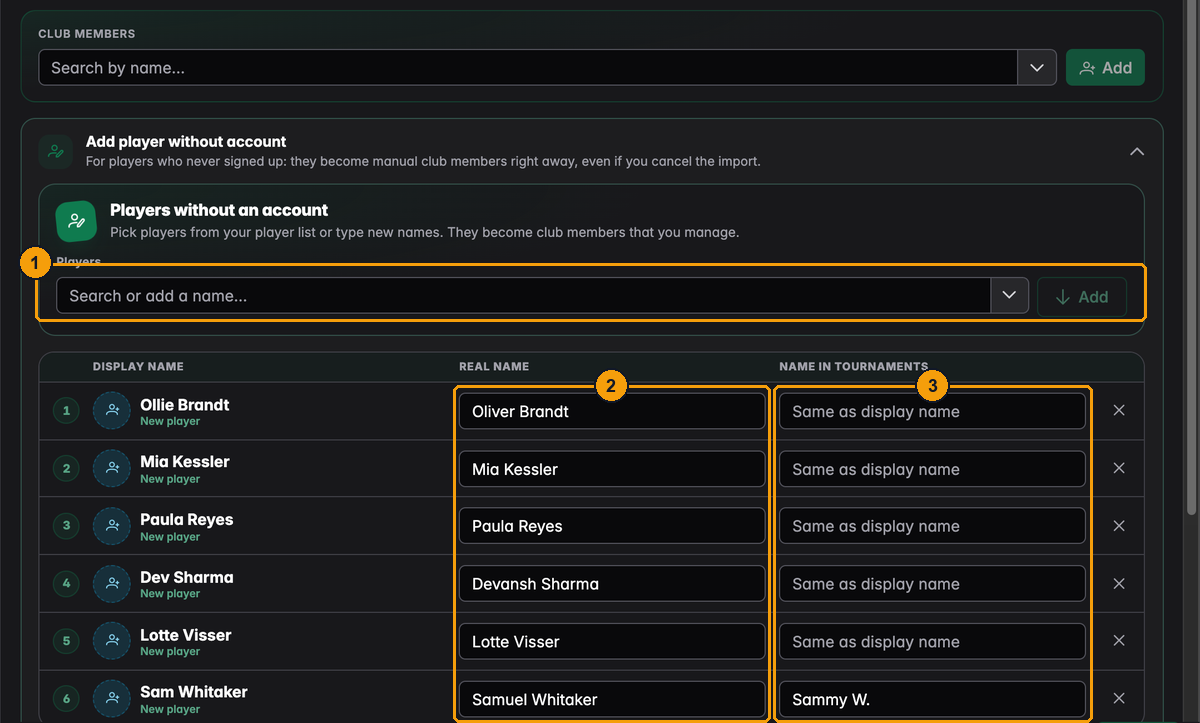
- Type a name and press Enter (or pick someone from your player list), then Add.
- Real name, if the display name is a nickname.
- Name in tournaments: the name shown on the clock, if it should differ. Viktor enters "Sammy W." for Samuel Whitaker.
Press Add players to Club. They become manual players of the club and land in the league list. If one of them creates an account later, you can move their whole history, league points included, to that account.
A league needs at least two players. Next stays grey until you have them.
Step 4: Configuration
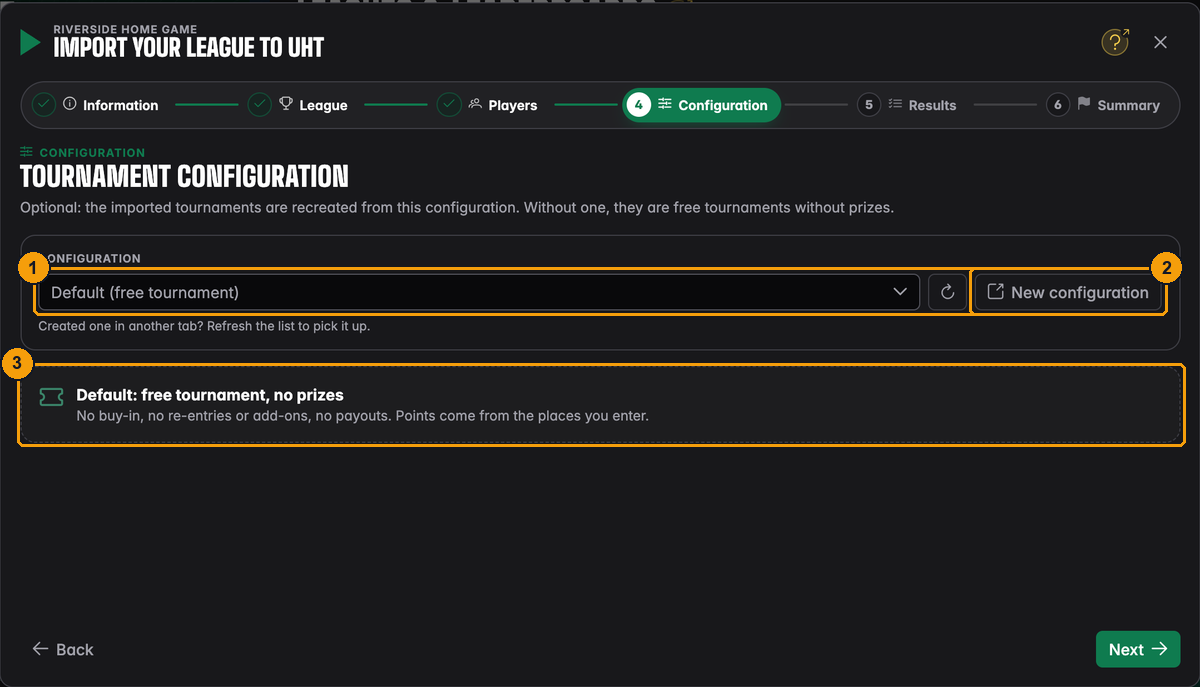
- Configuration: one of your saved tournament configurations.
- New configuration opens the configuration editor in a new tab. After saving it there, press the refresh button next to the list to see it here.
- Without a configuration, the tournaments are imported as free tournaments with no prizes. Points still work: they only need the finish order.
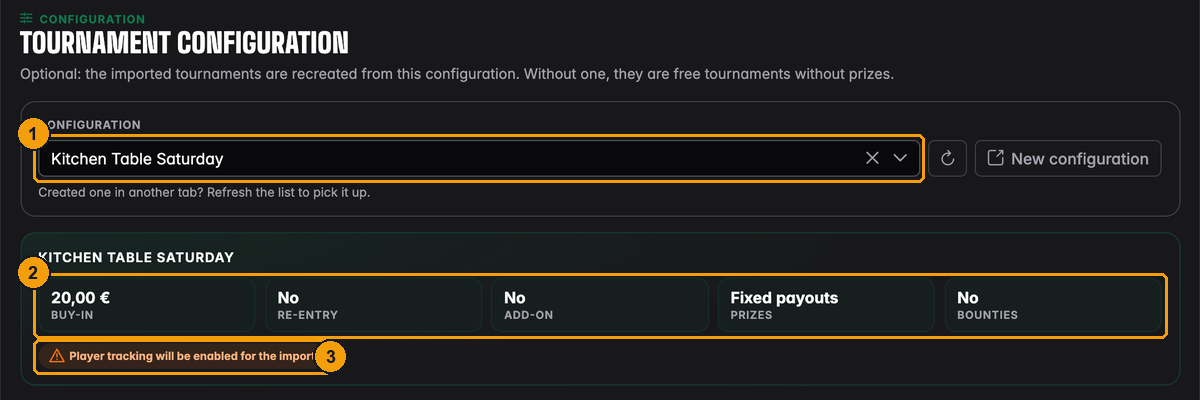
- Viktor picks "Kitchen Table Saturday", 20 EUR buy-in.
- A summary of what the imported tournaments will use: buy-in, re-entries, add-ons, prizes and bounties.
- Player tracking will be enabled for the import: imported tournaments always track individual players, even if the configuration does not. Bounties are switched off for the import.
What the configuration changes:
- Every imported tournament gets that buy-in, so the statistics show what each player paid, and
formulas that use money (
tb,pts,tp...) have real values. - If the configuration allows re-entries or add-ons, step 5 lets you enter how many each player took.
- Prizes are calculated with the configuration's payout. You can type in the real amounts instead.
Step 5: Results
One column per tournament. You can fill them in by hand, or let ChatGPT do it.
By hand
Click + Tournament. A new column appears with all league players in roster order.
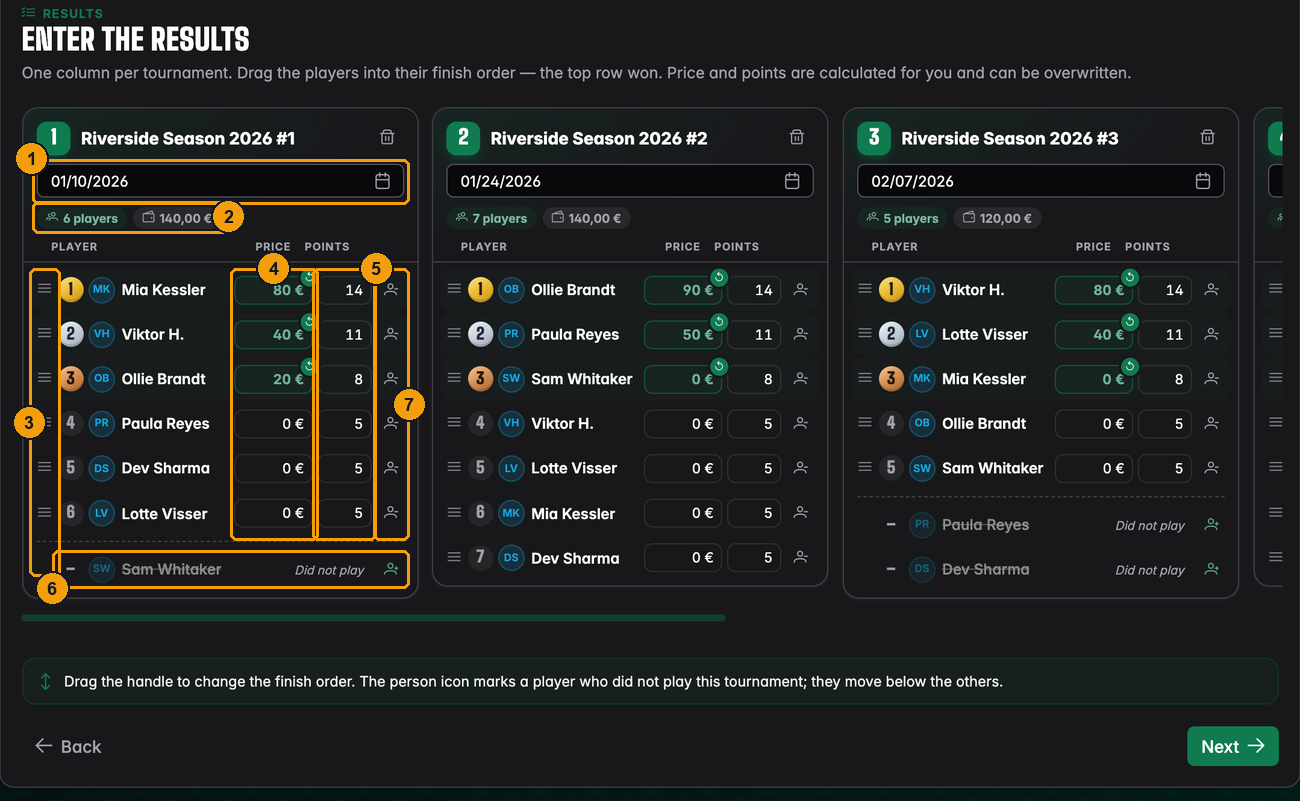
- Date played. It has to lie inside the league runtime. The column stays locked until a date is set.
- How many players took part and the prize pool that results from the configuration.
- Drag a row by its handle to move the player up or down. The top row won. With the keyboard, focus the handle and use the arrow keys.
- Price: the prize money. It is calculated from the configuration; type a different amount if the real payout was different. A small arrow button resets it to the calculated value.
- Points: calculated with your scoring system. Type a number to replace it.
- Did not play: players who were not there drop below a line and are crossed out.
- The person icon at the end of a row switches between Played and Did not play.
When the configuration allows re-entries or add-ons, each row also has small counters for them.
Each tournament gets a name like "Riverside Season 2026 #1"; click it to rename it. The bin icon removes the whole column.
Typed prices and points belong to a place, not to a person. If you move a player or switch someone to "Did not play", the typed values of every row whose place changed are cleared. Set the finish order first, then type in prices and points.
Typing in your own points
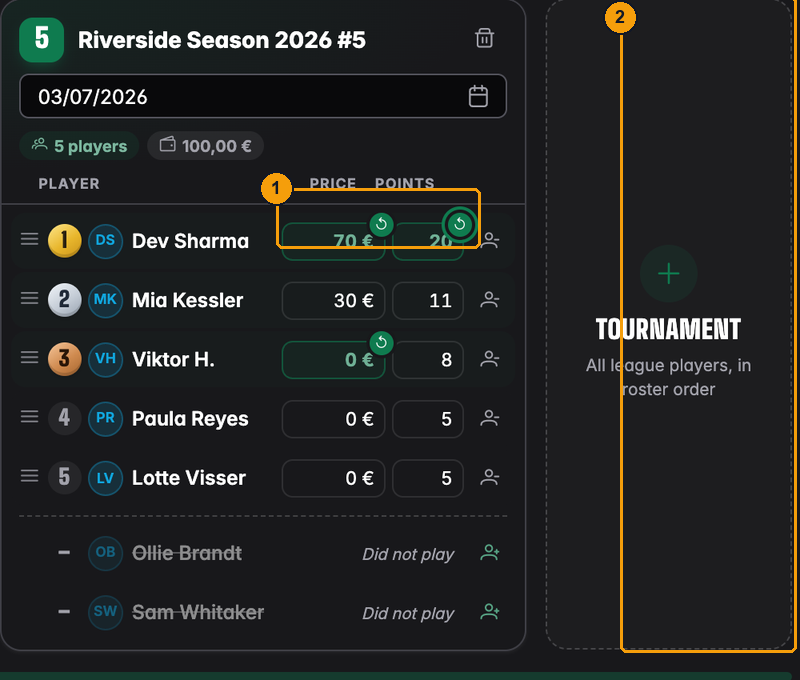
- Viktor's group gave a 6-point bonus for the season's last win, so he types 20 for Dev instead of the calculated 14. Changed values are highlighted, and the arrow resets them.
- The dashed column at the end adds another tournament.
UHT keeps typed points as a tournament point adjustment with the reason "Imported". After the import you can still see and change it under Adjust points for that tournament (see below).
A different scoring system for one tournament
Each column has a field Scoring system for this tournament under its date. It starts on League default. Pick another of the club's scoring systems when that night counted differently, for example a final with 1.5 times the points: the column's points are recalculated with it at once, and typed points are still kept exactly as you typed them. Season totals are added up with the league's decimal places. New scoring systems are created on the League step with +. After the import the tournament keeps its own system, see A different scoring system for one tournament.
With ChatGPT
If your results are in a spreadsheet, PDF or even a photo, ChatGPT can type them for you. Click Show me how on the card Let ChatGPT enter your results.
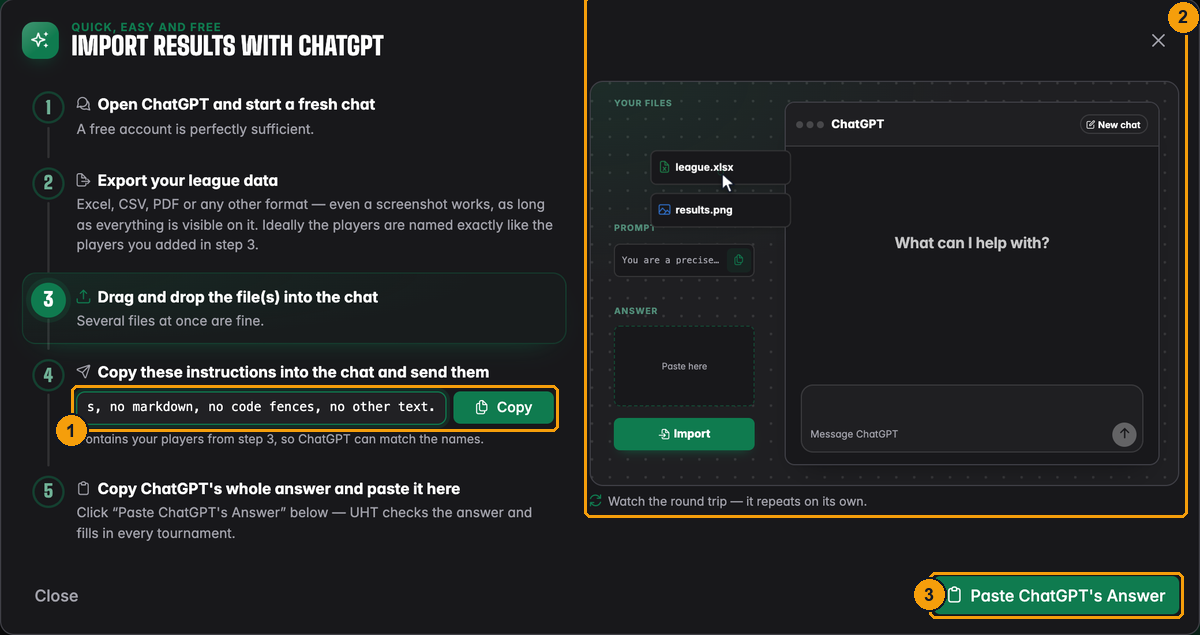
- Copy puts a prepared instruction on your clipboard. It already contains your league players from step 3 with all their names, so ChatGPT can match "Lotti" to Lotte Visser.
- The animation shows the round trip: drop your files into a new ChatGPT chat, paste the instruction, send, copy the answer.
- Paste ChatGPT's Answer opens the box for the answer.
A free ChatGPT account is enough. Your files go to ChatGPT, not to UHT; only the answer you paste back reaches UHT.
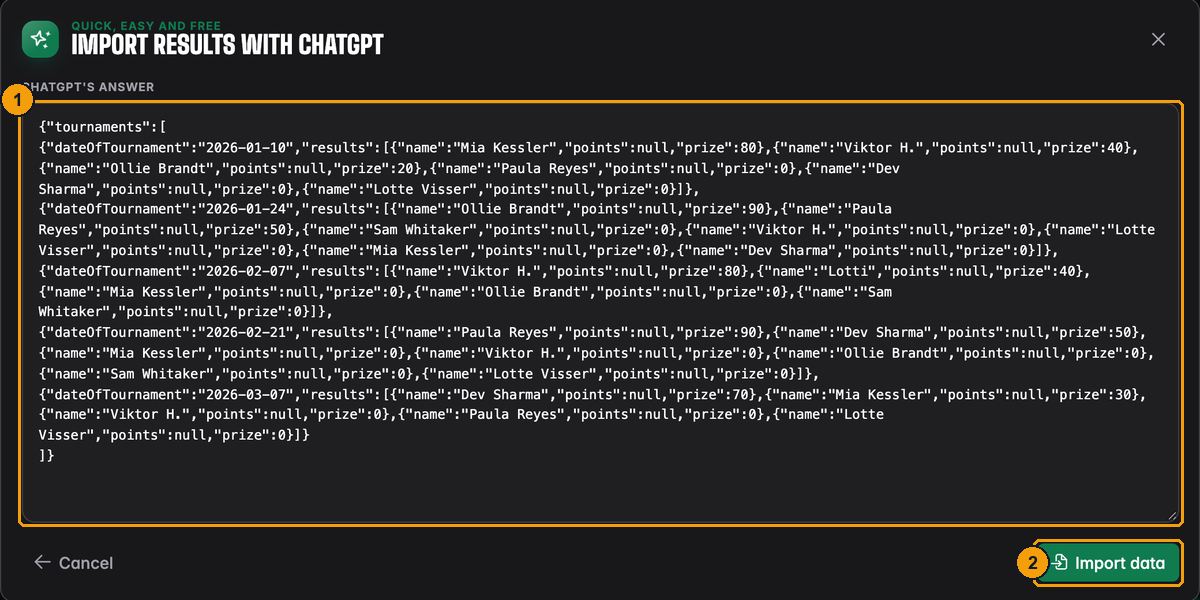
- Paste the complete answer. It starts with
{and ends with}. - Import data checks it and fills in the columns.
If something in the answer does not fit, UHT says exactly what:
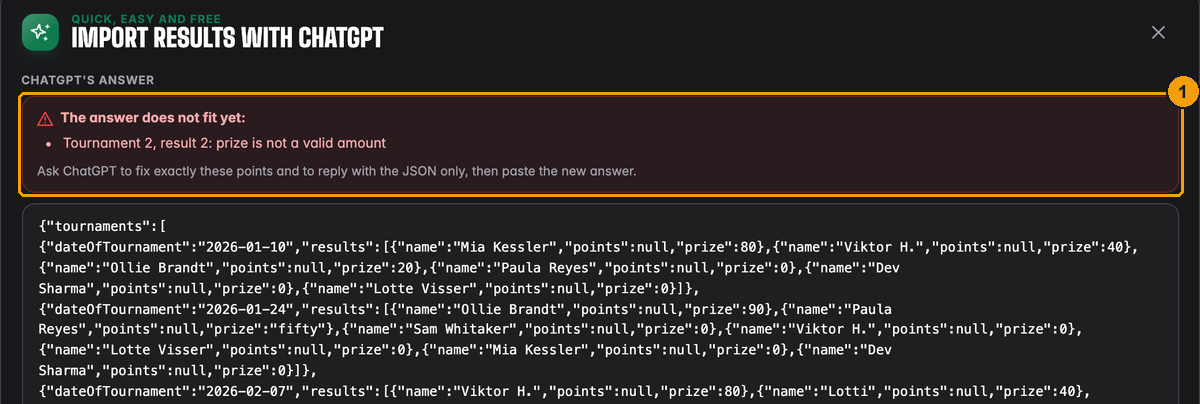
- Here the second tournament has the word "fifty" as a prize. Copy the list of problems back into the ChatGPT chat, ask it to fix exactly these points and to send only the corrected answer, then paste the new answer.
Names that match none of your players are shown at the end:
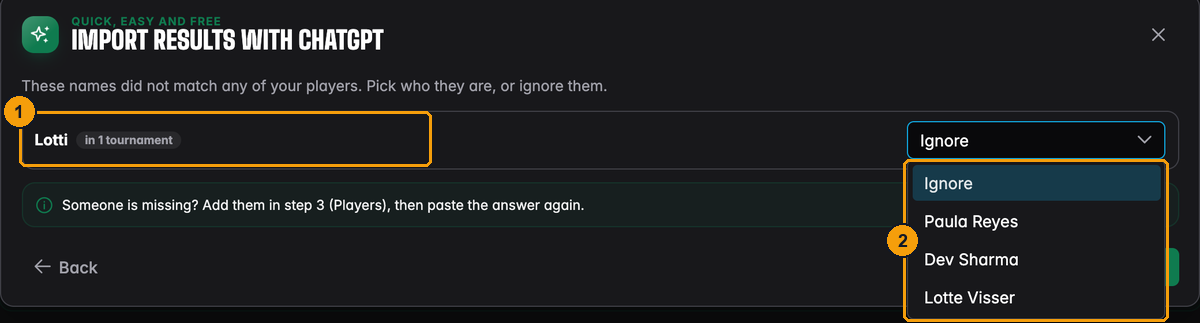
- "Lotti" appears in one tournament and matches nobody.
- Pick the right player (UHT only offers players who are not already in that tournament), or choose Ignore to leave that line out. If the person is missing completely, go back to step 3, add them, and paste the answer again.
Apply fills in the columns. Check them before going on; you can still drag, type and remove as described above. One import takes at most 200 tournaments.
Step 6: Summary
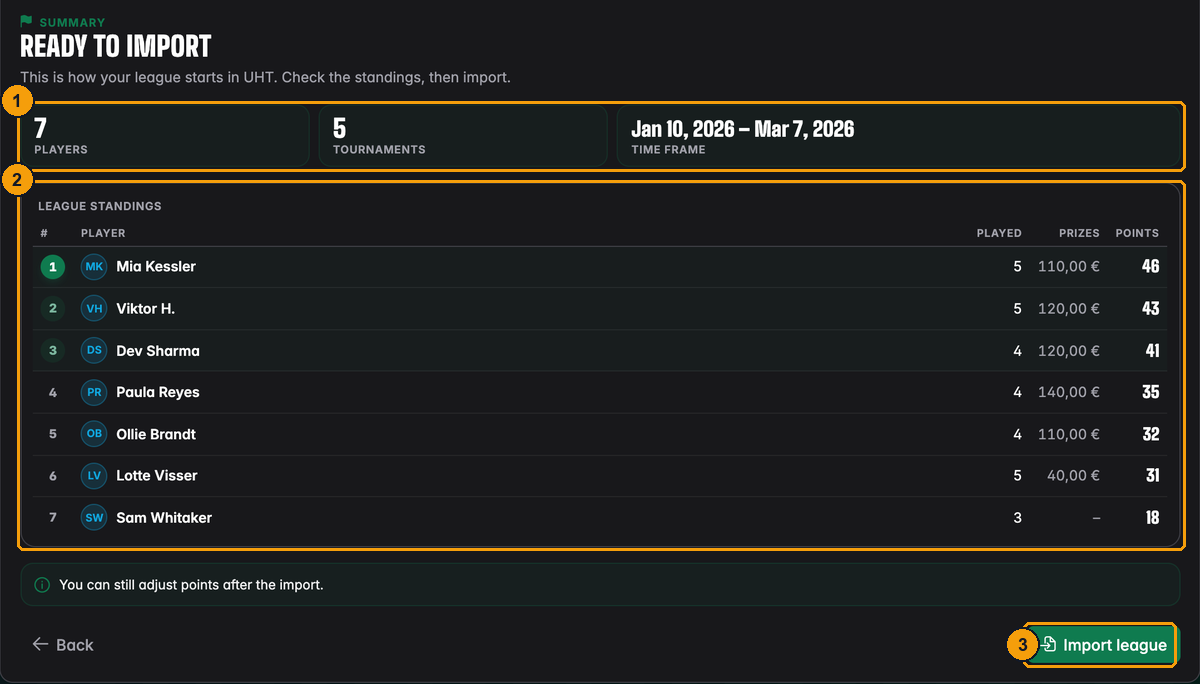
- Players, tournaments and the time span from the first to the last imported tournament.
- League standings: the table exactly as it will look in UHT, with tournaments played, prizes won and points.
- Import league creates everything in one go.
If the table looks wrong, go back to Results and fix it. Once you press Import league, UHT shuffles the cards for a moment:
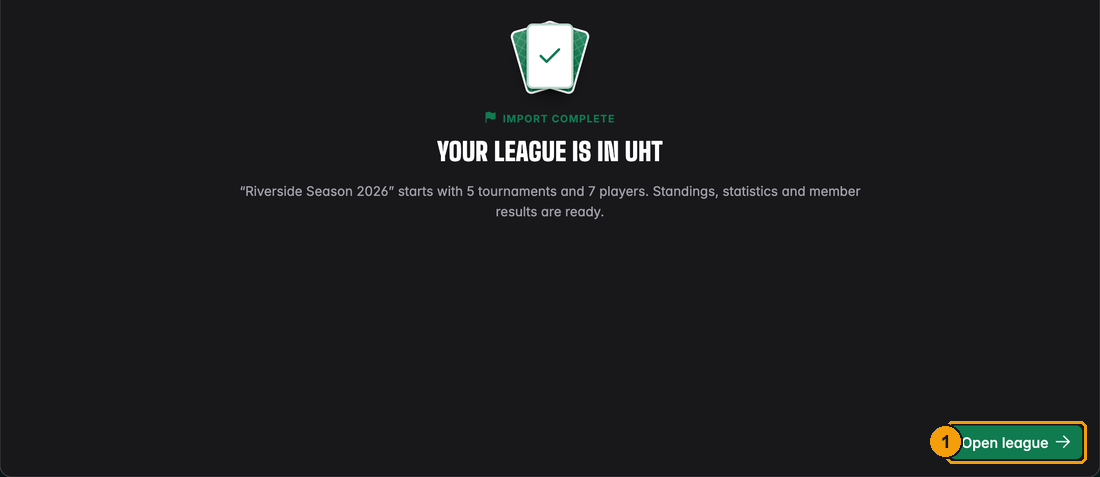
- Open league takes you to the new league.
After the import
The imported league is an ordinary league. It has a leaderboard with movement arrows and trophies, statistics, its tournaments and its players.
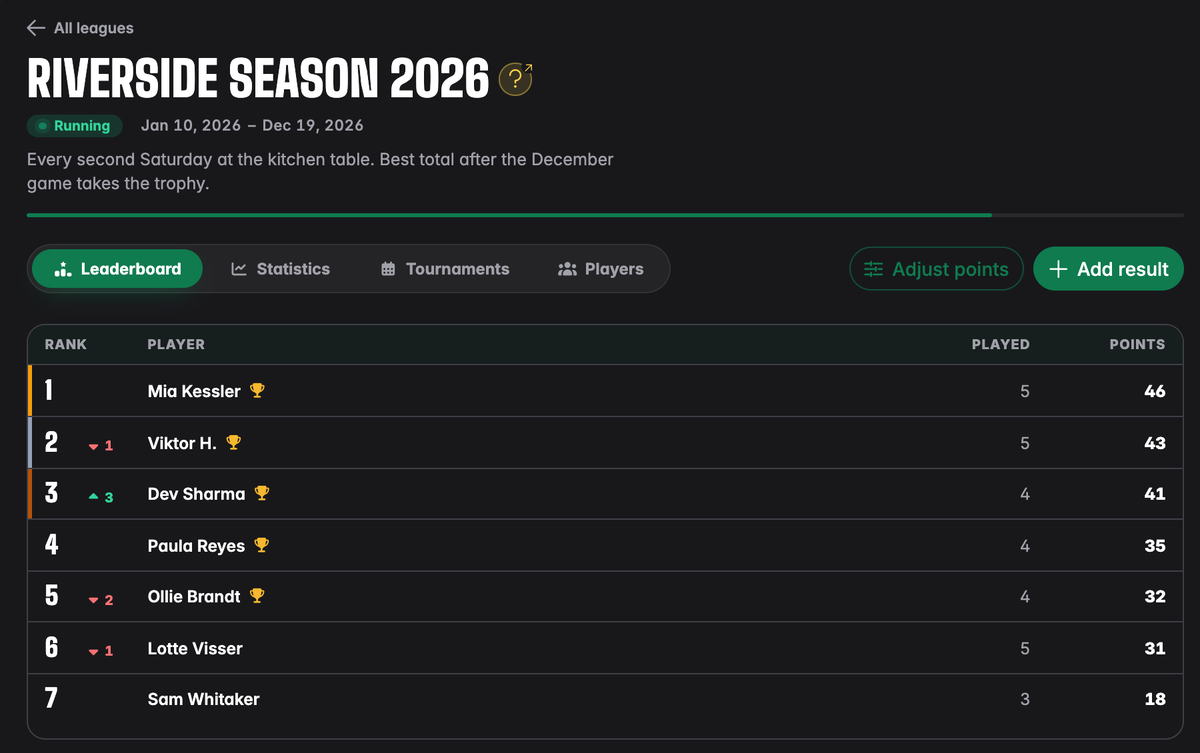
The Tournaments tab lists the five imported tournaments with their winners:
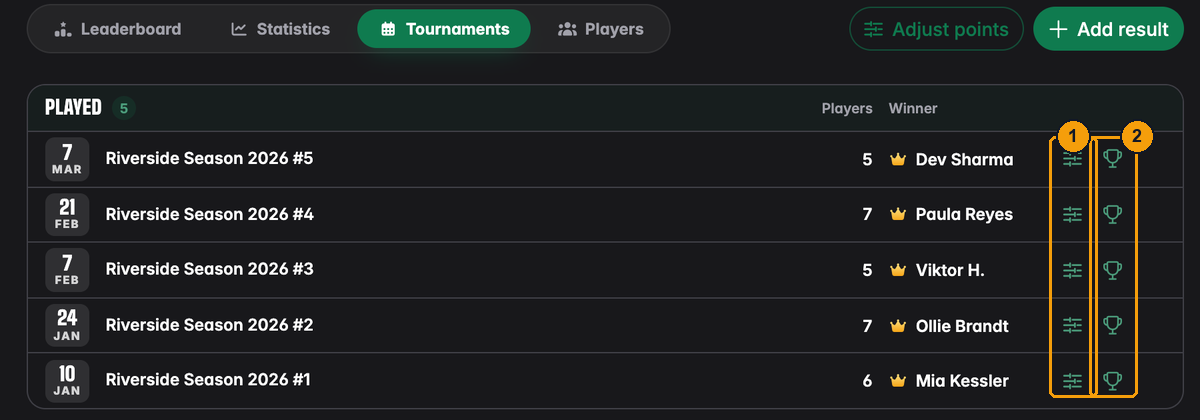
- Adjust points for one tournament.
- Final standings of the tournament, as for any tournament played with the timer.
Opening Adjust points for the fifth tournament shows the typed 20 points for Dev:
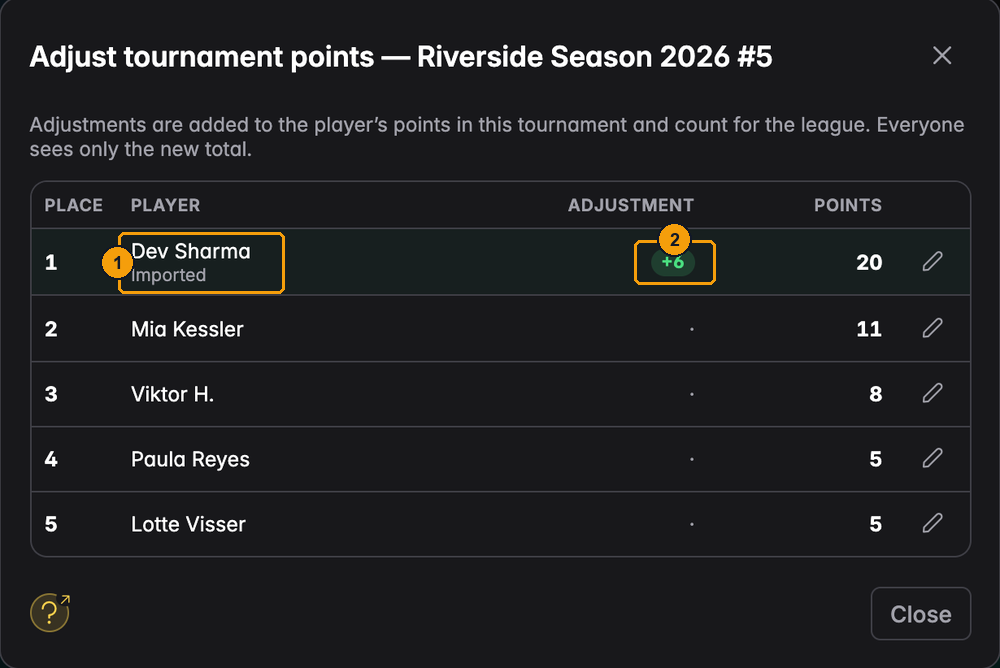
- The reason "Imported" shows where the adjustment came from.
- +6 on top of the calculated 14 gives the 20 Viktor typed. Change or remove it like any other point adjustment.
The Statistics tab works too. Because the import only knows places and prizes, records that need more detail stay empty:
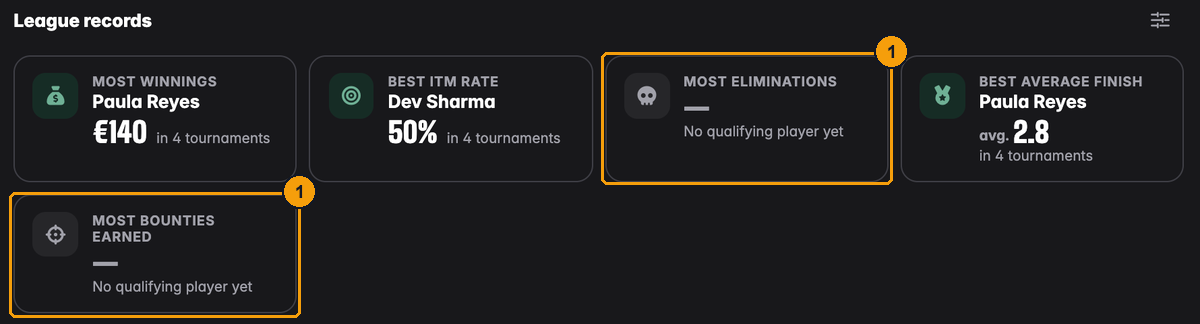
- Most eliminations and Most bounties earned show "No qualifying player yet": imported tournaments carry no knockouts and no bounties. Tournaments you play with the timer from now on fill them in. If they bother you, hide them (see League statistics).
Members also find the imported tournaments in their own results, and new tournaments are assigned to the league as usual (see League tournaments).
When the import is refused
UHT checks every tournament before writing anything. If one fails, nothing is imported, not even the league, and you see a message. Your entries stay in the wizard so you can fix them.
| Message | What to do |
|---|---|
| "... was not played within the league runtime. Change its date or the runtime." | Go to League and widen the runtime, or fix the tournament's date. |
| "... has a player who is not on the league list." | A player in that tournament was removed in step 3. Add them again or set them to "Did not play". |
| "A player is no longer a member of the club." | Someone left the club while you were importing. Remove them in step 3. |
| "The league needs its players." | Add at least two players in step 3. |
| "One of the points values is not valid." | Check the Points column for empty or odd values. |
| "One import takes at most 200 tournaments." | Import the first 200 now. Add the rest afterwards with Add result on the league page. |
| "That is too much data for one import." | Split the season and import fewer tournaments. |
| "... could not be imported. Check its results and try again." | Usually a column with fewer than two players or odd re-entry and add-on counts. |
The Next button on the Results step also tells you what is missing: "Pick the date this tournament was played.", "The date lies outside the league runtime." or "At least two players must have played."