Keyboard shortcuts at a glance
When the tournament is running you usually have a laptop next to the table and a lot going on. Finding the right button with the mouse every time a player busts gets old fast. That is what the keyboard shortcuts (we call them hotkeys) are for: one key starts the clock, one key opens the players, one key busts a player.
They work the moment you open the clock. You don't have to switch anything on.
The five keys most people use
| Key | What it does |
|---|---|
| Space | Starts the clock, pauses it, and starts it again |
| → and ← | Jumps to the next or the previous level |
| B | Busts a player |
| P | Opens the player list |
| ? | Shows every key you can use right now |
If you only remember one key, make it ?. It opens a list of all keys, so you never have to learn them by heart.
Where to find your keys during a game
There are three places that tell you which key does what.
1. The cheat sheet. Press ? or click Hotkeys in the top right corner of Tournament Controls. You get one screen with every key that works in this tournament. More about it in Using hotkeys during a tournament.
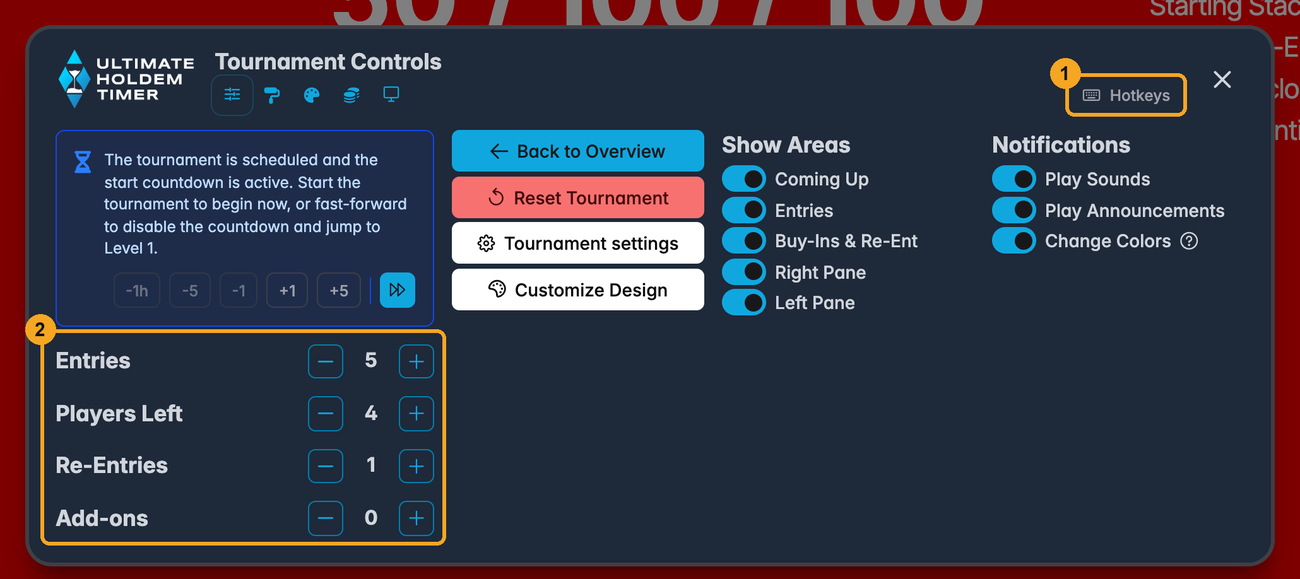
- The Hotkeys button opens the cheat sheet. On a phone it only shows the keyboard icon.
- If you don't track players, the counters here have keys too: A adds an entry, B takes one player away from "players left", and so on.
2. The tooltip on a button. Rest your mouse on a button for a moment. If the button has a key, the key is shown in brackets, for example Start Tournament (Space).
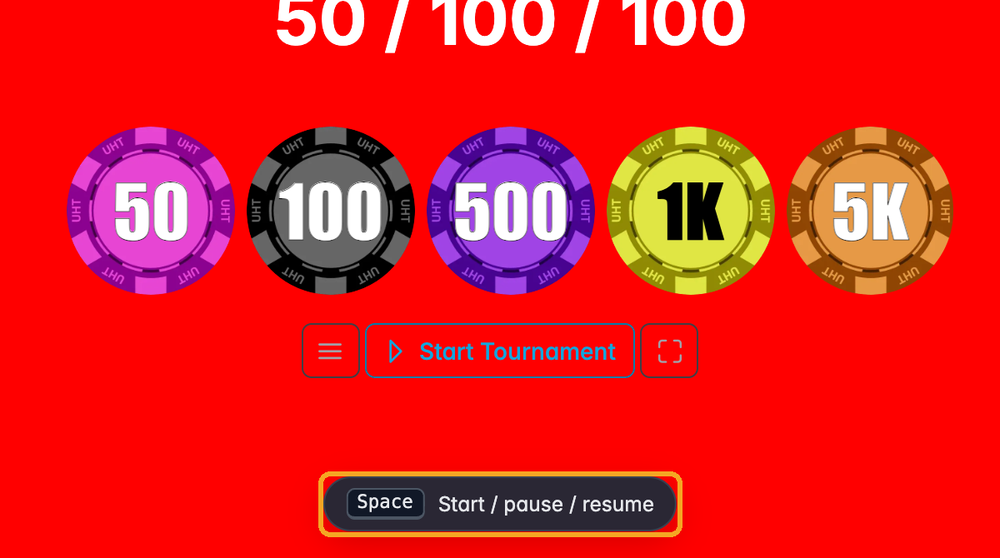
3. The little message at the bottom. Each time you press a key, a short note at the bottom of the screen shows the key and what it just did. If something did not work, it tells you that too.
When keys do nothing
This is on purpose, so you can't trigger something by accident:
- While you type. In a search box or a name field, letters are just letters.
- While a question is open. If UHT asks you to confirm something, the hotkeys wait until you have answered.
- When you hold a key down. Holding → jumps exactly one level, not ten.
- When the action doesn't fit the tournament. For example, R for a re-entry does nothing if re-entries are switched off. The message at the bottom tells you so.
Anything that can't be undone easily still asks first, exactly like the button does.
Make the keys your own
Every key can be changed. You can also keep several sets of keys side by side, for example one for your home game and one for the club, and switch between them. You do this in Settings → Hotkeys:
- Changing a key shows how the settings page works.
- Hotkey profiles explains how to save and switch between your own sets.
Not signed in? Then the standard keys from the list of all keys apply. Your own keys need an account, because UHT keeps them with your account and brings them to every computer you sign in on.
All topics in this section
- Using hotkeys during a tournament: the clock, the dialogs, the cheat sheet
- Hotkeys for your players: add, bust and re-enter players, book add-ons, or count them without names
- Changing a key: the settings page, step by step
- Hotkey profiles: several sets of keys and how to switch
- List of all keys: every standard key on one page