Joining clubs and leagues
This page is for players. It shows what joining a club looks like from your side, and what you can do once you are in. Club directors can read it too, to know what their players see.
Clubs in UHT are private. There is no public list to browse: you join a club because the club gives you a way in. That can be a link, a poster with a QR code, an email invitation, or the director scanning your phone at the venue.
You need a free UHT account for all of them.
Joining with the club's link or poster
Most clubs share a join link in their group chat or hang up a poster with a QR code. Scan it with your phone camera or tap the link. If you are not logged in yet, UHT asks you to log in or create an account first.
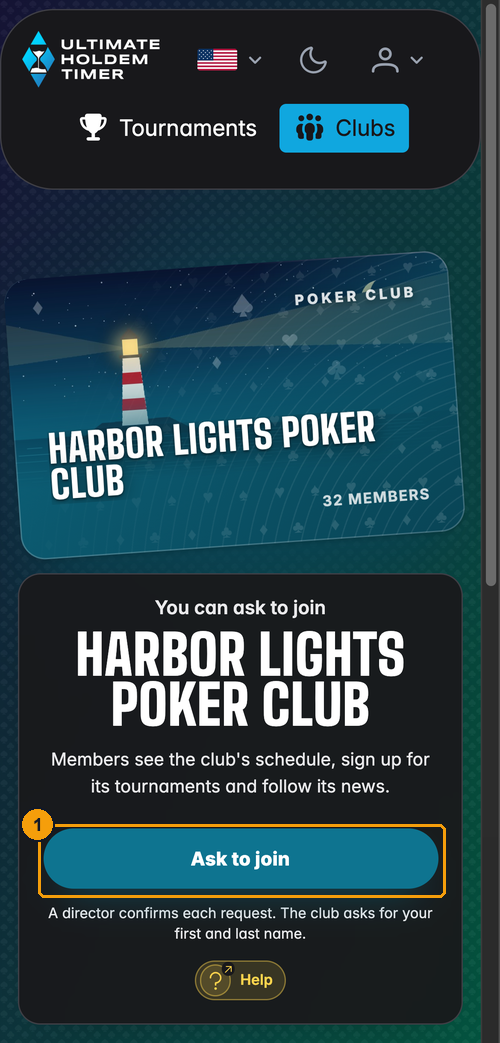
- Ask to join sends your request to the club.
On a computer the page looks the same, only wider:
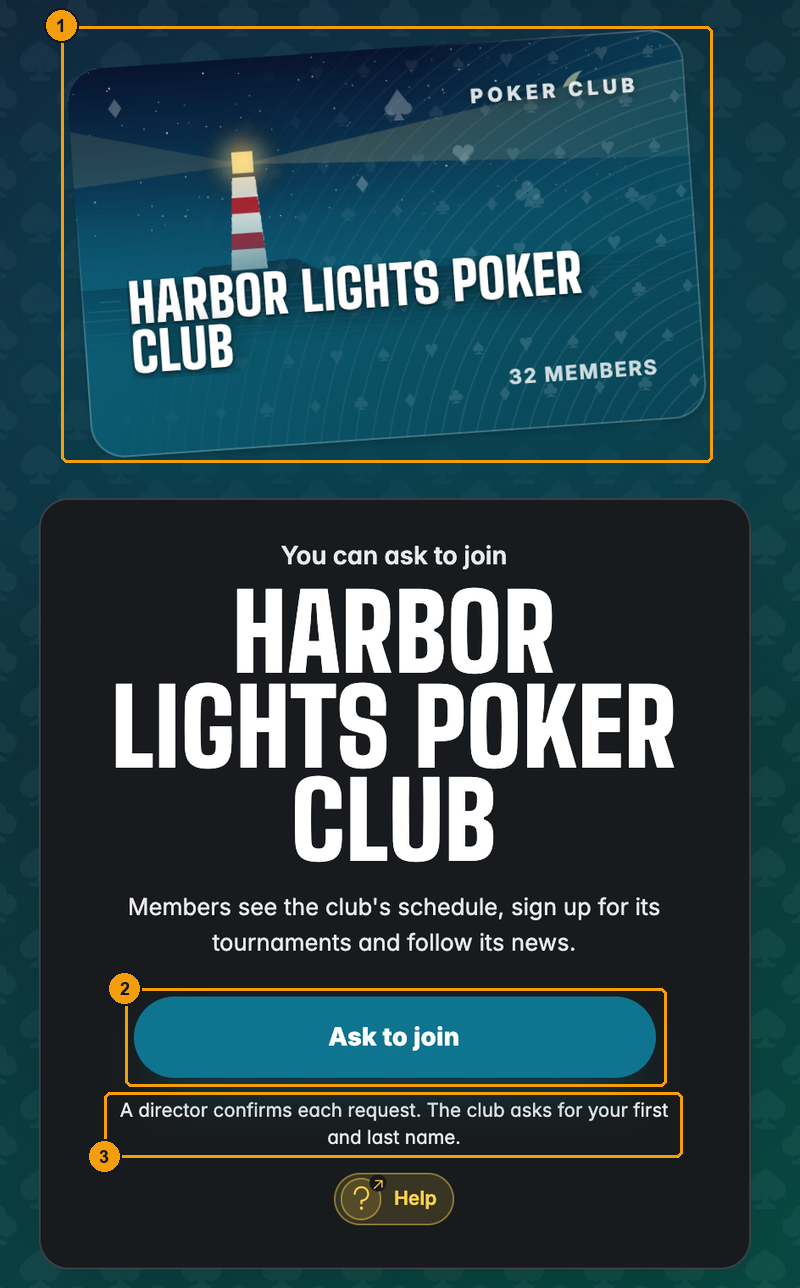
- The club's card, so you know you are in the right place.
- Ask to join.
- The small print tells you how the club works: here, that a director confirms each request and that the club wants your first and last name.
If the club wants your real name
Some clubs only admit members under their real name. If yours is not on your account yet, UHT asks for it before sending the request:
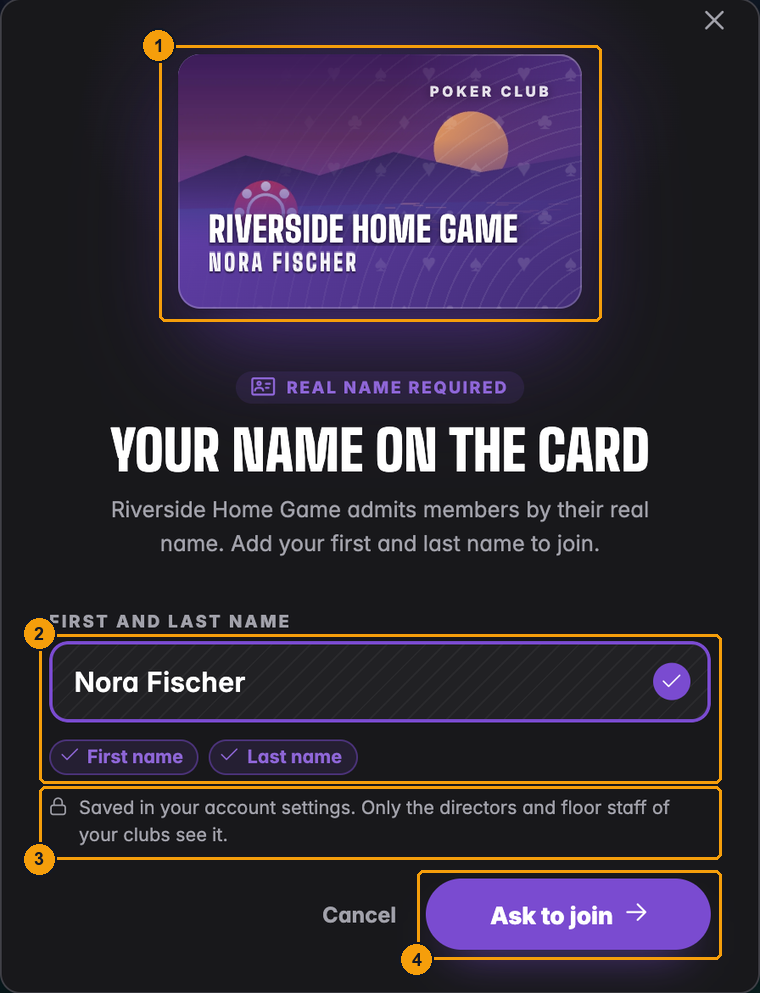
- Your name appears on the club card as you type.
- Enter your first and last name.
- The two ticks turn green once both are there.
- Ask to join saves the name and sends the request.
The name is saved in your account settings. Only the directors and floor staff of your clubs see it; other players do not.
Waiting for the director
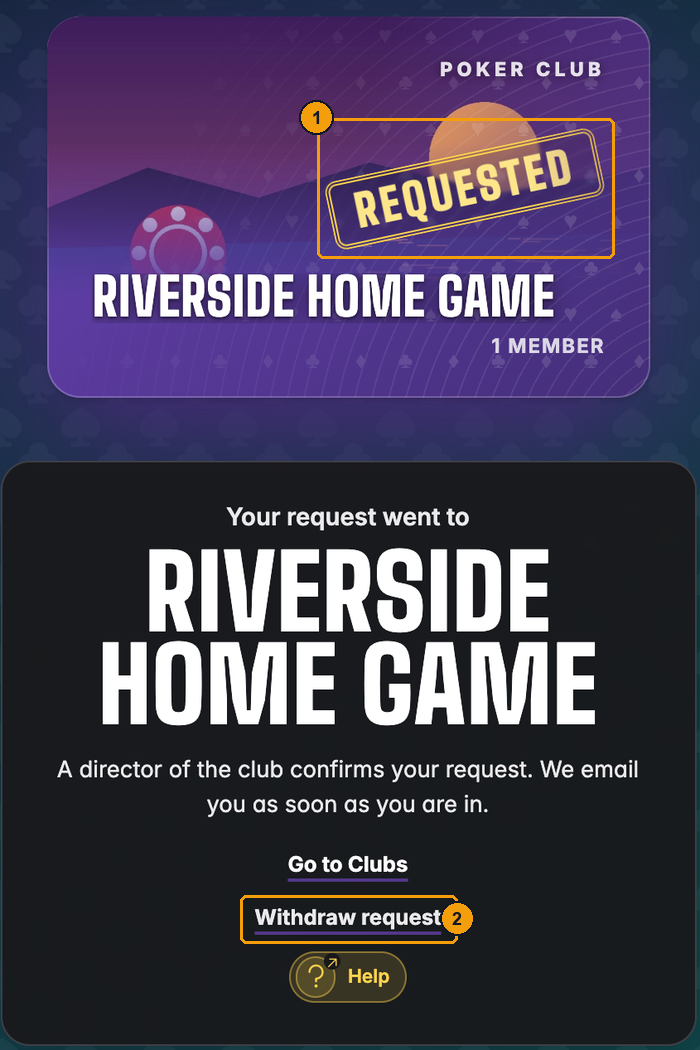
- The card now carries a Requested stamp.
- Changed your mind? Withdraw request takes it back.
A director of the club now sees your request, together with your display name, real name and email address. You get an email as soon as they approve it. You can open the same link again at any time to check the state.
Once you are in, the link shows a Member stamp and takes you straight to the club:
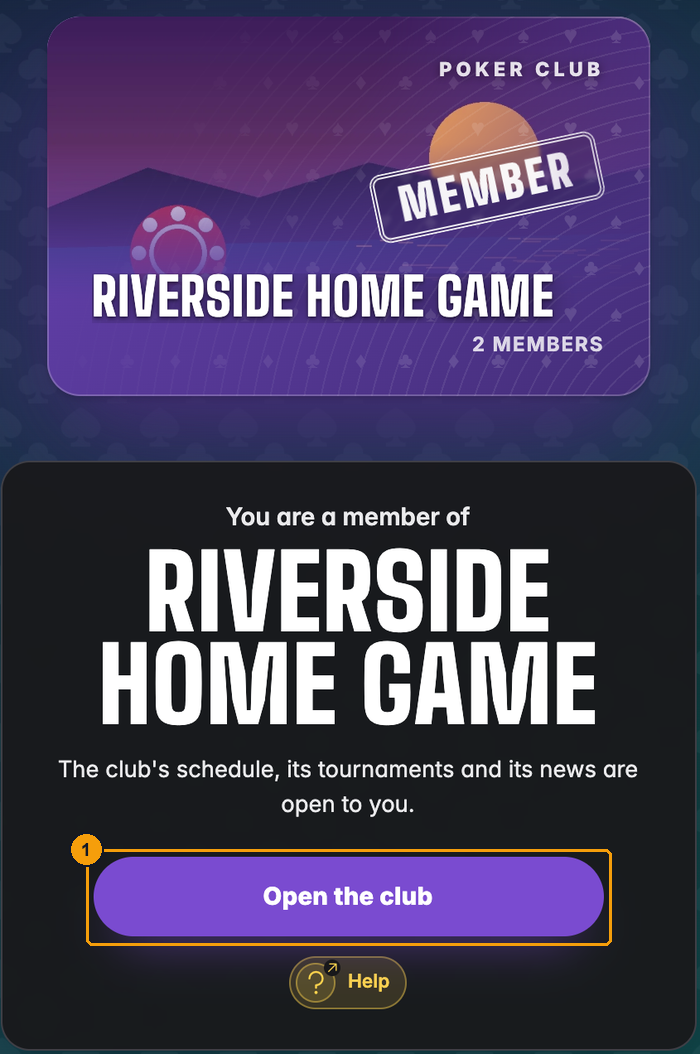
- Open the club.
Joining with an invitation email
If the club invited you by email, the email contains a personal link. Open it and press Join the club: you are a member at once, no waiting.
- Log in with the account that uses the same email address the invitation was sent to, and make sure that address is confirmed. Otherwise UHT shows This invitation is for someone else.
- The link works once and expires after 30 days. If it says This invitation does not work, ask the club for a fresh one or for its join link.
Joining at the venue with your QR code
The fastest way in, when the director is standing next to you. On your phone open Tournaments → My Tournaments and press Show my player QR code:
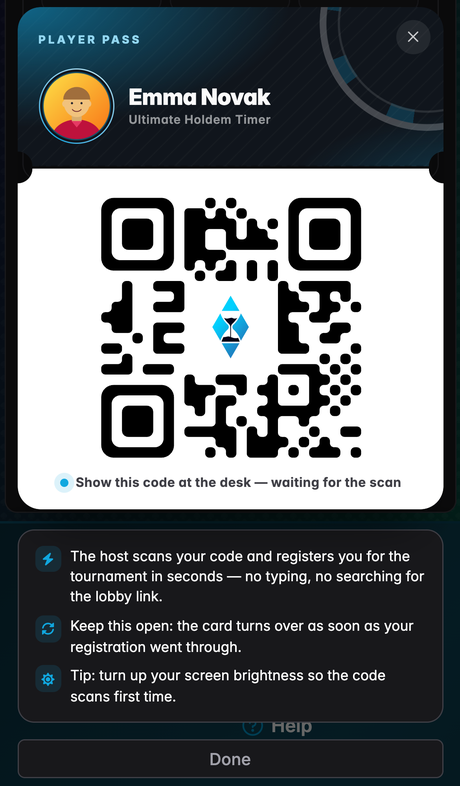
The director scans it with the club's Add players dialog and you are a member immediately. The same code also registers you for tournaments at the desk. Turning up the screen brightness helps the camera read it.
What you see as a member
Your club appears on the Clubs page as a card. If you are in more than one club, you see one card per club:
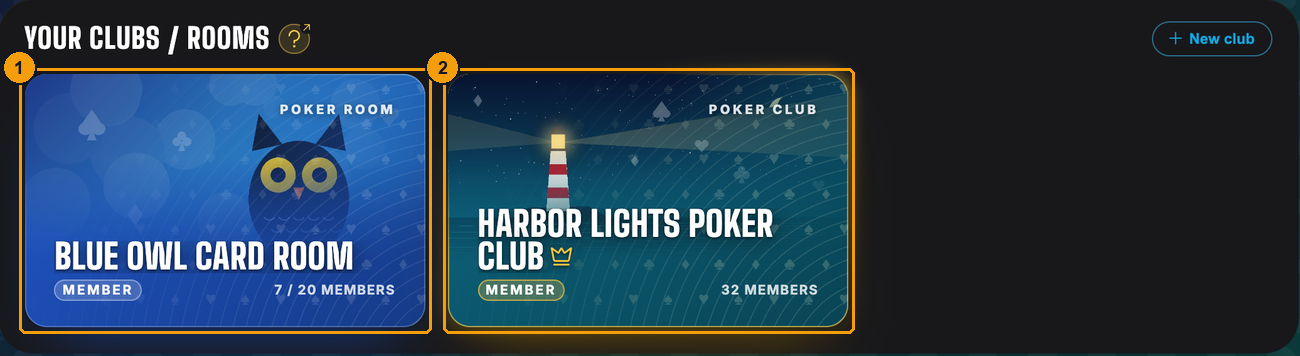
Open the card to get to the club:
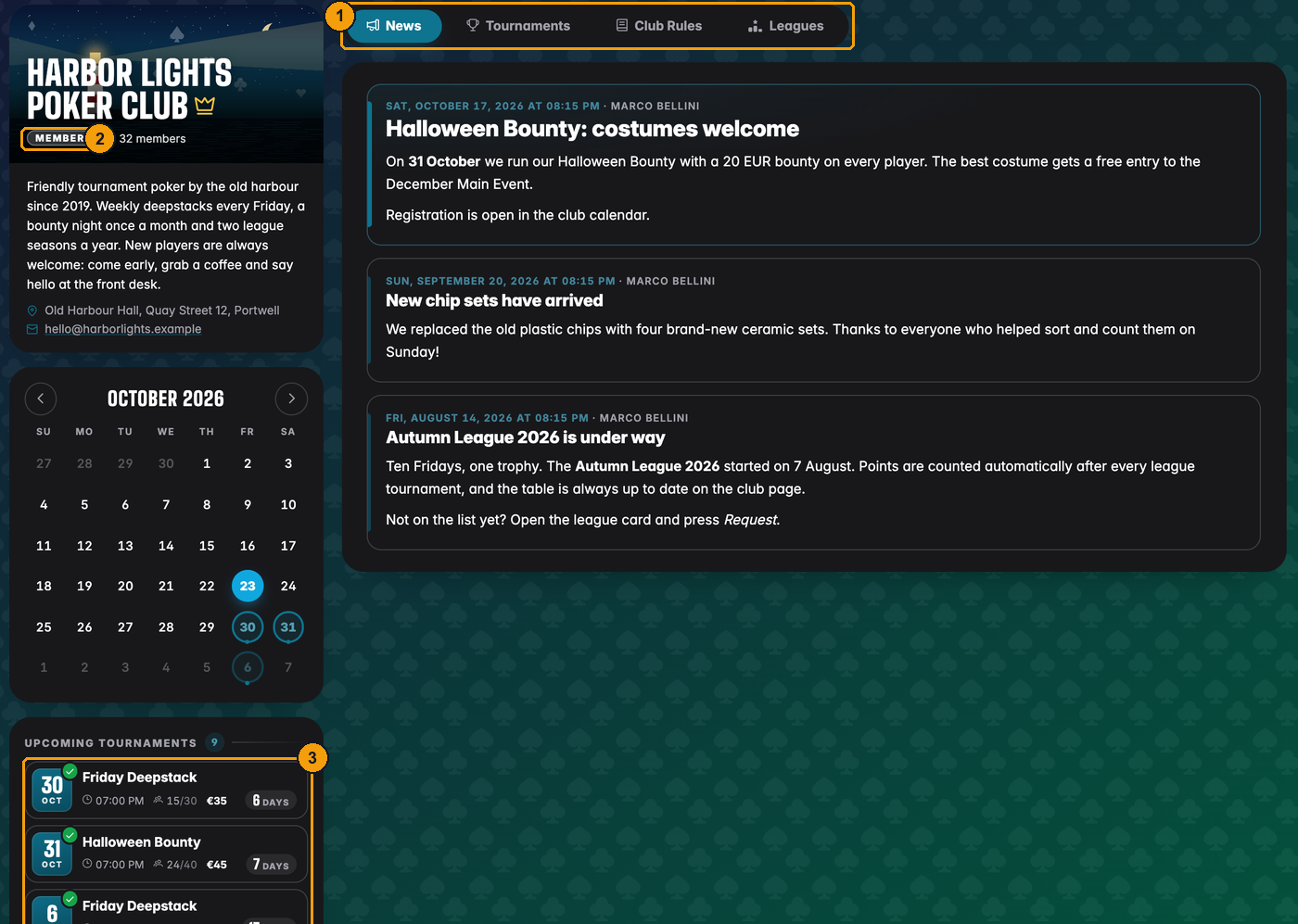
- Your tabs: News, Tournaments, Club Rules and Leagues.
- Your role in the club.
- The upcoming tournaments. A green tick means you are registered.
As a member you can:
- read the club's news and house rules,
- see the schedule in the calendar and the tournament list,
- register for tournaments and unregister again (see The lobby page),
- look up finished tournaments and their results,
- follow the leagues you play in, and ask to join others.
Your own results from club tournaments also show up in My Results, together with everything else you have played.
Joining a league
Many clubs run leagues: a season of tournaments with a points table. Open the Leagues tab of your club.
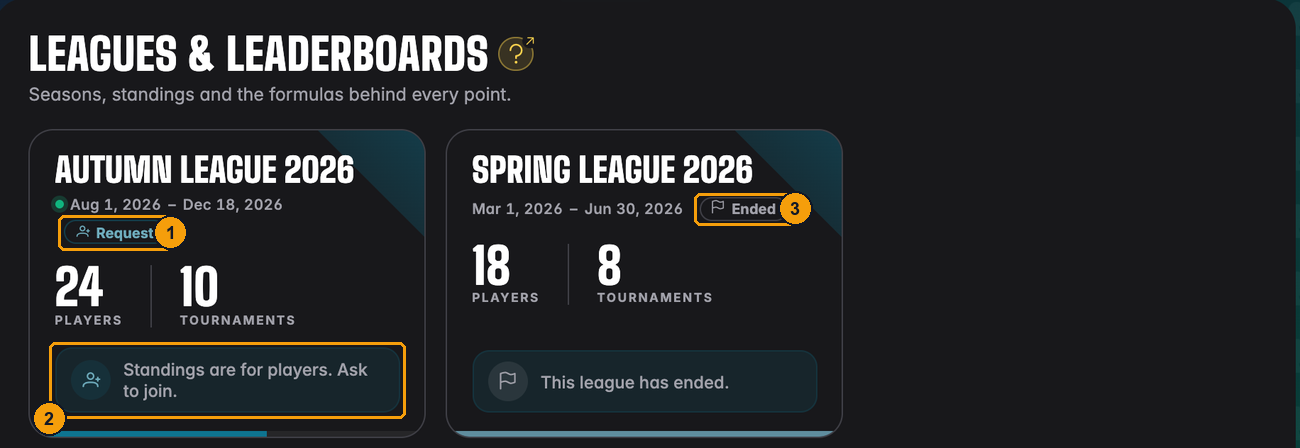
- Request means you can ask to join this league.
- The standings are for league players only. Until you are in, you see this note instead of the table.
- Ended leagues can no longer be joined. Their tables stay with the players who took part.
A club can make a league members-only. You do not see such a league, or its tournaments, until a director or league admin adds you. There is no request button for it.
Click the league card to open the join window:
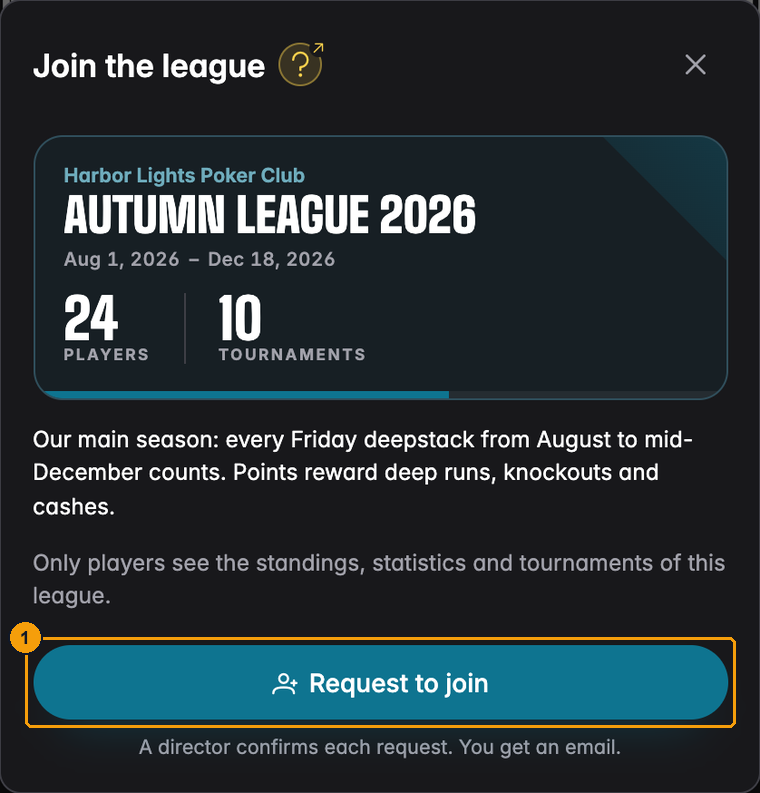
- Request to join sends your request to the directors. The line below tells you what happens next.
There are two kinds of leagues:
- The director approves every player. The button reads Request to join. Your request waits until a director decides, and you get an email either way.
- Open to every club member. The button reads Join league and you are in at once.
While you wait, the card says so:
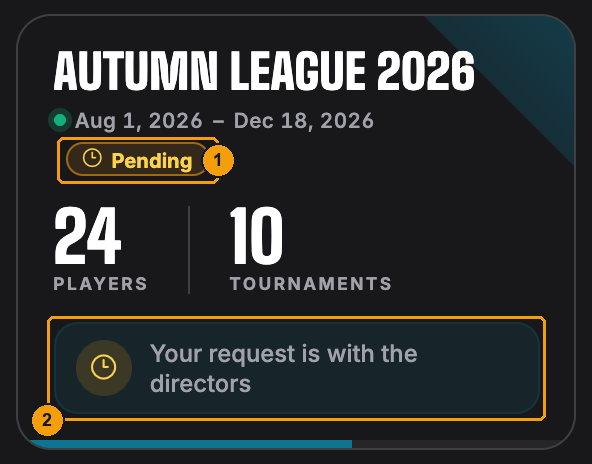
- The Pending chip.
- Your request is with the directors. Open the card to withdraw the request if you change your mind.
Once you are in, the league opens fully: leaderboard, statistics and its tournaments. More about what you find there is in League statistics.
Leaving a club
At the bottom of the club page, on the right, is Leave club:
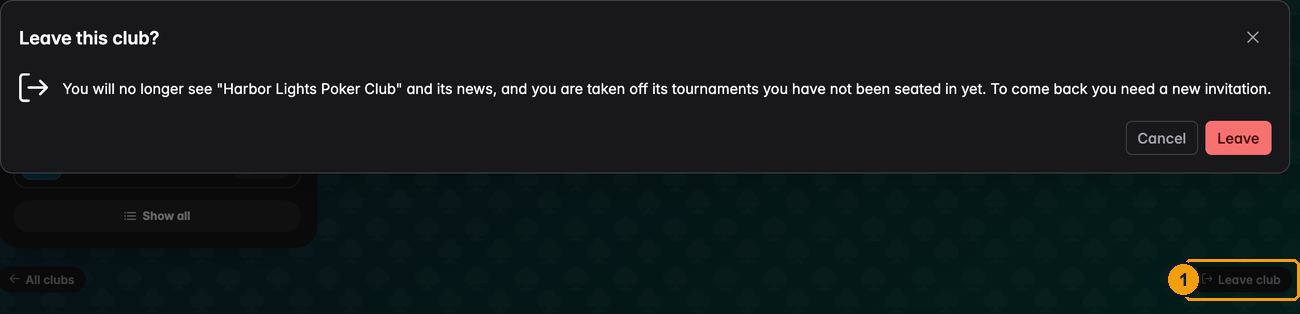
- Leave club asks you to confirm.
When you leave:
- you no longer see the club, its news or its schedule,
- you are taken off its tournaments you have not been seated in yet,
- you leave all of the club's leagues, and your league points stop counting,
- your own results stay in your statistics.
To come back you need a new invitation or the join link, like a new player.
The founder of a club cannot leave it (they can only delete it), and the last remaining director has to make someone else a director first.