Changing a key
Don't like B for a bust? Want a key for skipping the countdown? Everything is set up on one page: open your account menu in the top right corner, choose Settings, then the Hotkeys tab.
You need to be signed in for this page. Your keys are kept with your account, so they follow you to every computer you use.
The page at a glance
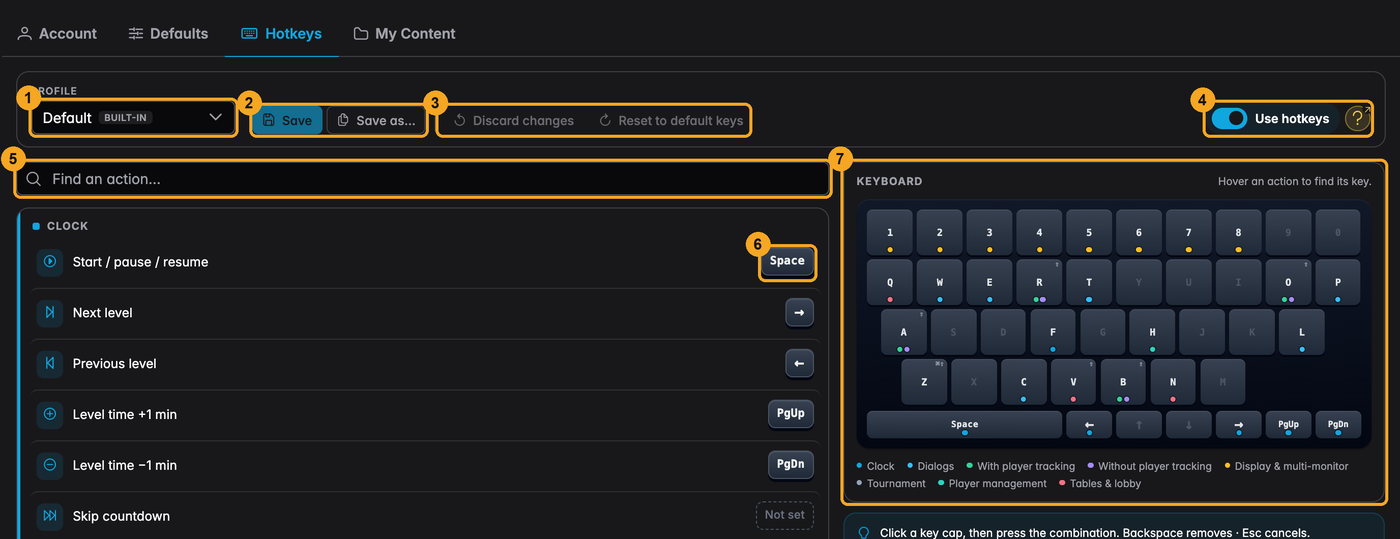
- Profile. The set of keys you are looking at and using. Default is the standard set that comes with UHT. See Hotkey profiles.
- Save and Save as… keep your changes.
- Discard changes throws away what you changed since the last save. Reset to default keys puts the standard keys back into the profile you are editing.
- Use hotkeys switches all keys on or off. The ? next to it opens this help.
- Find an action. Type a word like "bust" or "level" to find an action quickly.
- The key. Every action shows its current key on the right. Click it to change it.
- The keyboard. It shows which keys are in use. The coloured dots tell you which group a key belongs to, for example blue for the clock and green for players.
Giving an action a new key
-
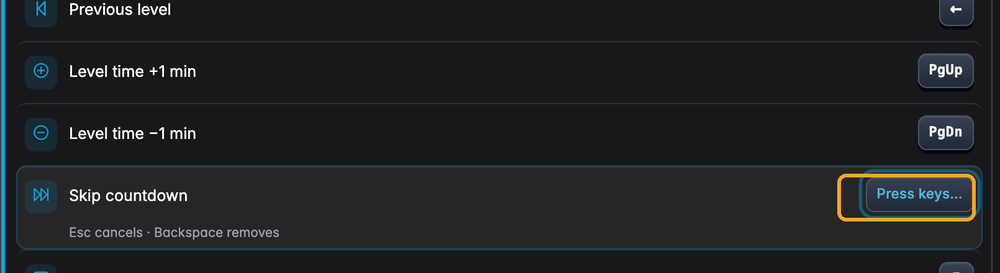
Click the key next to the action. It changes to Press keys….
-
Press the key you want, for example K. You can also hold Shift, Ctrl, Alt or ⌘ and press a letter, like Shift + K.
-
The new key shows up straight away. A dot next to the profile name reminds you that there are unsaved changes.
-
Click Save. If you are on the Default profile, click Save as… instead (more on that below).
While UHT waits for a key:
- Esc cancels and keeps the old key.
- Backspace removes the key, so the action has no key at all. It then shows Not set.
Finding a key on the keyboard
Not sure what a key is used for? Move the mouse over an action in the list. Its key lights up on the keyboard to the right.
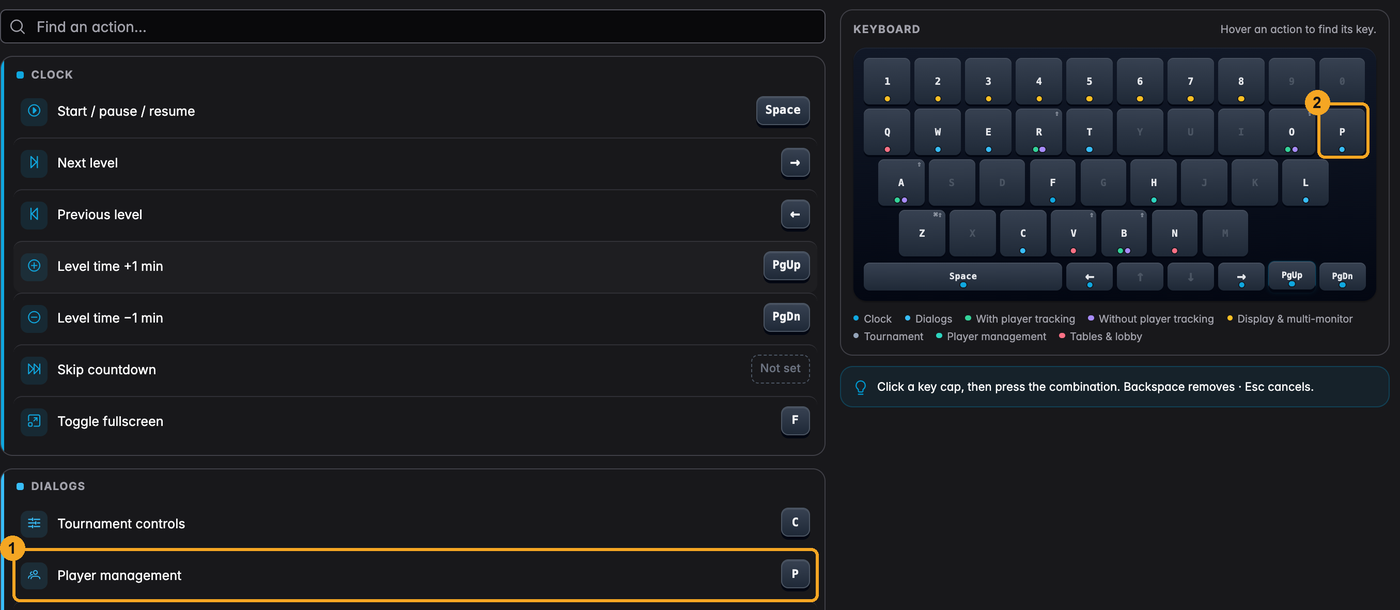
- The action under the mouse.
- Its key on the keyboard.
Keys without a dot are free. If you use UHT in German, the keyboard is shown in the German layout (with Z and Y swapped), so it looks like the one in front of you.
When a key is already taken
Each key can only do one thing during the game. If you pick a key that another action already uses, UHT tells you right away and shows ways out. Nothing breaks: you just can't save until it is sorted out.
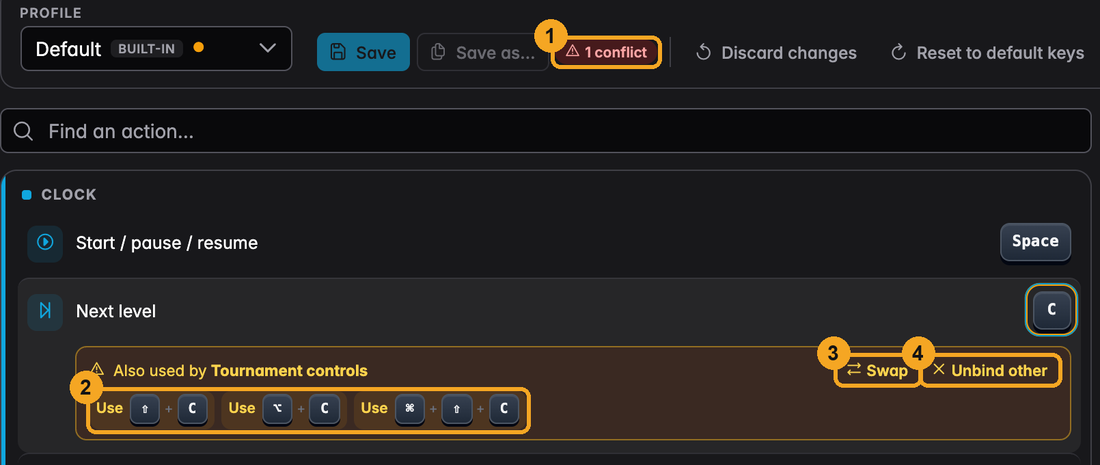
- The top bar counts how many keys are taken twice. While this is shown, Save and Save as… stay greyed out.
- Use … suggests free keys that are close to the one you wanted. Click one to take it.
- Swap gives the other action your old key. In the picture, Tournament Controls would get → and Next level would keep C.
- Unbind other takes the key away from the other action. That action then has no key until you give it a new one.
You can of course also just click the key again and press a different one.
Some keys can be used twice without any problem, because they only work in different places. / searches in the player list and in Tables & Lobby, because only one of the two is ever open. The same goes for the player keys A, B, R and O, see Hotkeys for your players. UHT knows this and only complains when two actions would really get in each other's way.
Keys you can't use
A few keys belong to your browser or your computer. UHT won't take them and tells you Reserved by your browser if you try:
- Tab, Shift + Tab, Esc and Enter
- F5 (reload), F11 (full screen in the browser), F12
- Ctrl or ⌘ together with W, T, N, Q, R, L, P, S, F, C, V, X or A, because these close tabs, print, copy, paste and so on
- Alt + F4 and Ctrl + Tab
- A modifier key on its own, like just Shift
Saving your changes
- On your own profile, click Save.
- On Default, the Save button is greyed out, because the standard keys can't be changed. Click Save as…, give your keys a name and click Save profile. Your new profile is switched on right away.
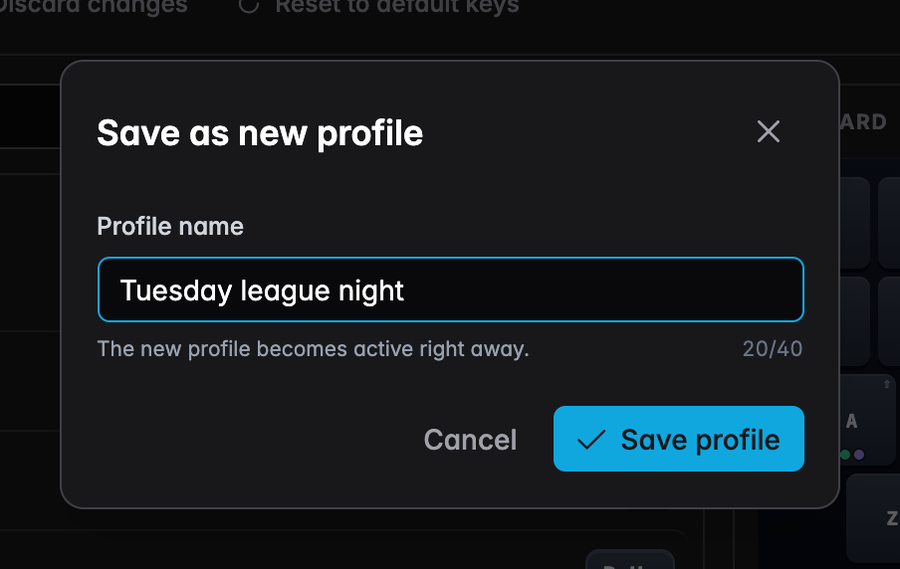
Changed your mind? Discard changes goes back to what you saved last.
Switching hotkeys off
Don't want any hotkeys at all, for example because your keyboard sits where players can reach it? Switch off Use hotkeys in the top right corner. The change counts immediately, no need to save. The list goes grey and none of the keys do anything during the game until you switch it back on.
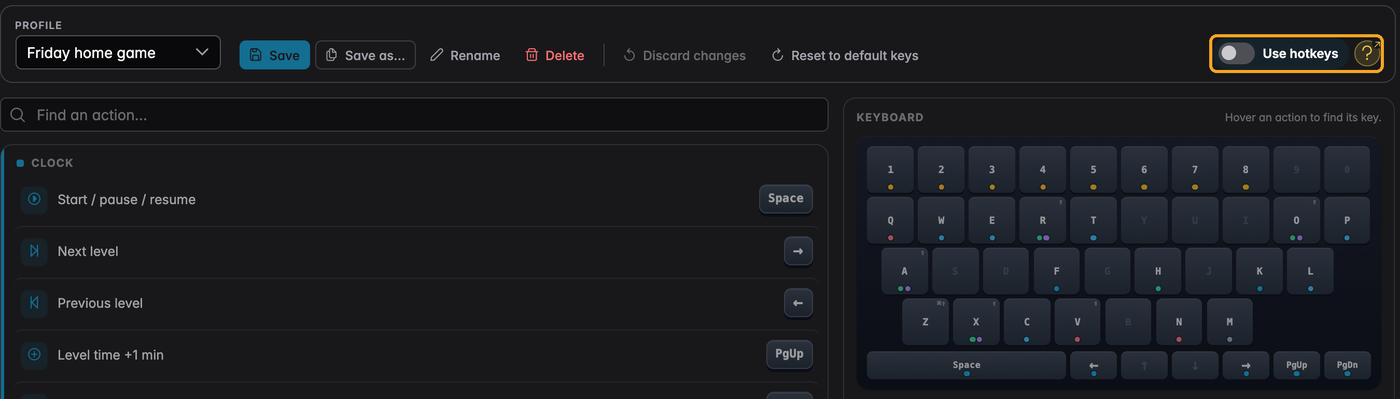
Your keys and profiles stay as they are. Switching back on brings everything back.
On a phone or tablet
The page works on small screens too. To save room, the buttons in the top bar only show their icons there. They are the same buttons as on a computer, in the same order: Save, Save as…, Discard changes and Reset to default keys.
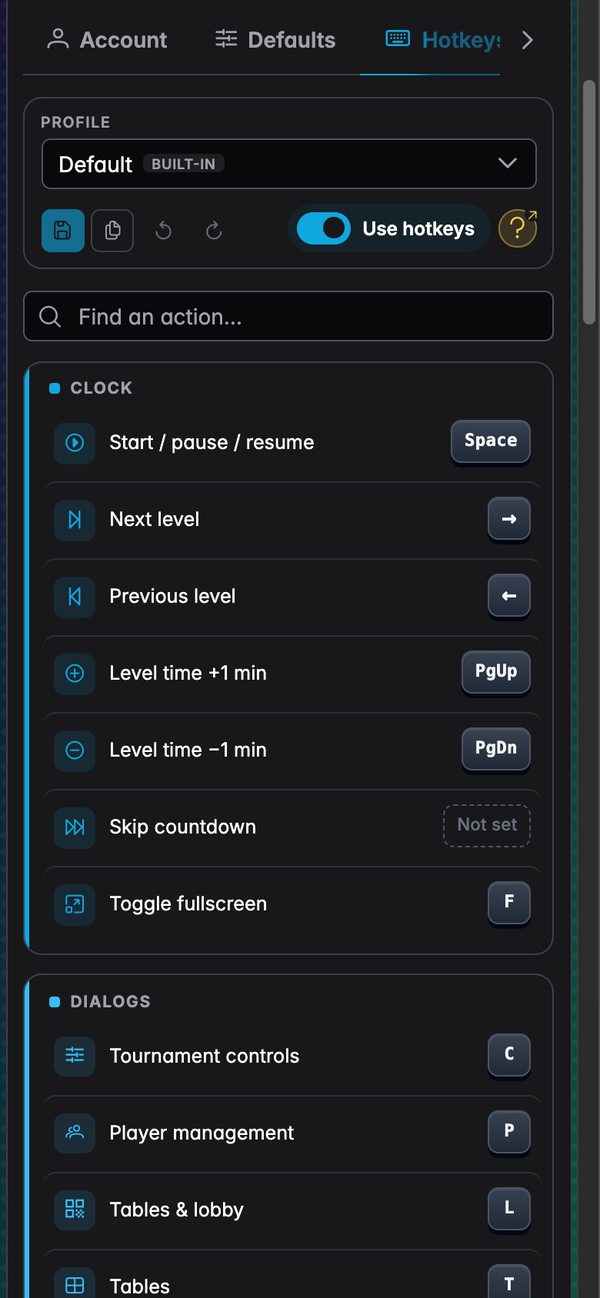
The keys themselves are of course only useful with a keyboard. A tablet with a Bluetooth keyboard works fine.