Using hotkeys during a tournament
This page walks through the keys you use while the clock is running. All of them work as soon as the clock is on screen. The keys listed here are the standard ones; if you changed them in Settings → Hotkeys, your own keys apply instead.
The cheat sheet
Press ? at any time. A window opens with every key that works right now, sorted into groups. The line at the top tells you which profile you are using.
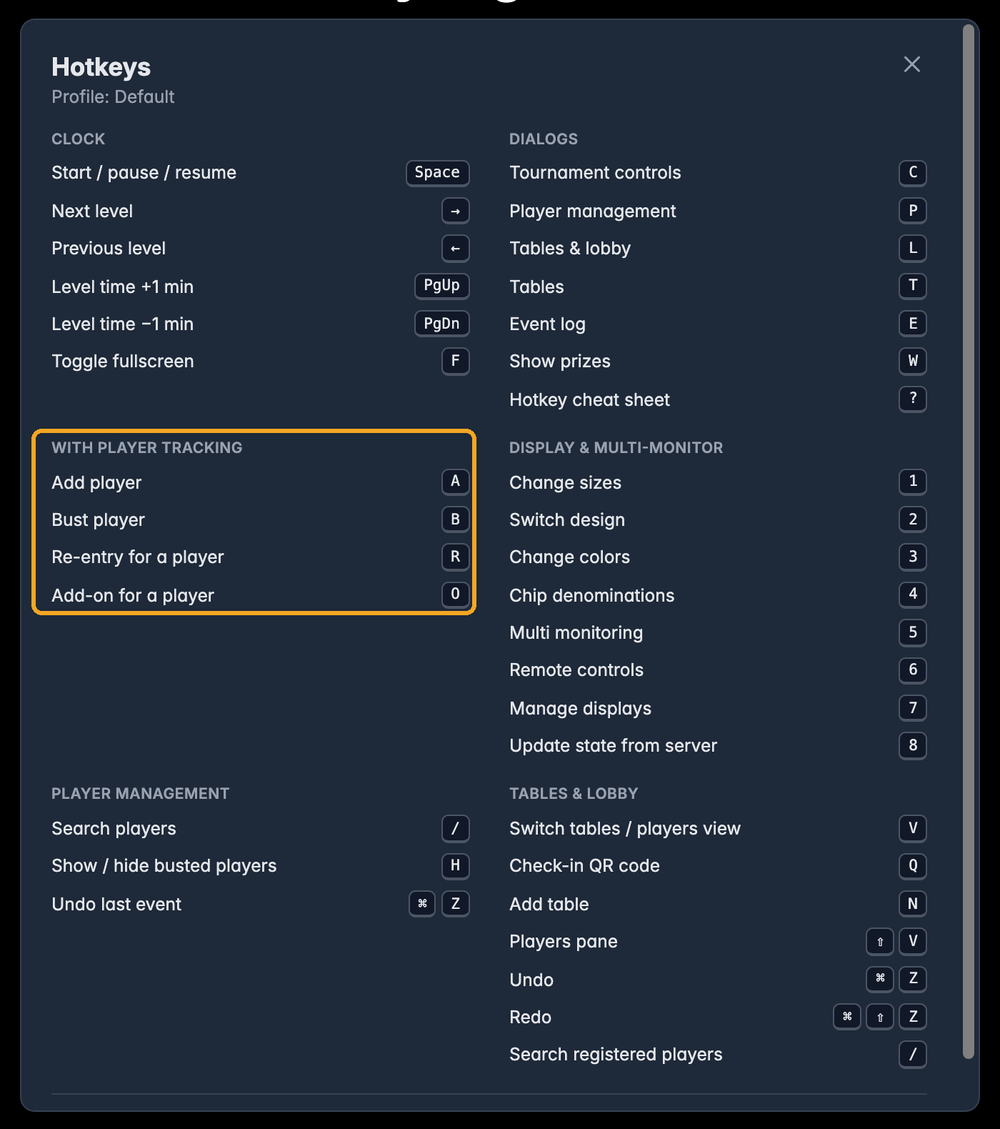
The cheat sheet only lists what fits the tournament in front of you. A tournament that tracks players by name shows the keys for adding and busting players (highlighted above). A tournament without names shows the counter keys instead, see Hotkeys for your players.
You can also open the cheat sheet with the Hotkeys button in the top right corner of Tournament Controls. Press Esc or click the × to close it.
The clock
| Key | What it does |
|---|---|
| Space | Starts the tournament. Once it runs, the same key pauses and resumes it. |
| → | Next level |
| ← | Previous level |
| Page Up | One minute more on the clock |
| Page Down | One minute less on the clock |
| F | Full screen on and off |
Page Up and Page Down change the time that is left in the current level. Before the start they change the countdown to the start in the same way. Many presenter remotes send exactly these two keys, so a cheap clicker becomes a remote control for your clock.
There is no standard key for skipping the countdown to the start. If you need it often, give it a key in Settings → Hotkeys. Changing a key shows how.
Opening dialogs
| Key | Opens |
|---|---|
| C | Tournament Controls |
| P | The player list |
| L | Tables & Lobby, on the players page |
| T | The tables |
| E | The event log |
| W | The prize distribution |
| ? | The cheat sheet |
Each key only works where the matching button exists. L, for example, needs a tournament that tracks players.
The buttons along the top of Tournament Controls
The number keys 1 to 8 open the small dialogs behind the icons in the header of Tournament Controls:
| Key | Opens |
|---|---|
| 1 | Display sizes |
| 2 | Switch design |
| 3 | Change colors |
| 4 | Chip denominations |
| 5 | Multi-monitor |
| 6 | Remote controls |
| 7 | Connected displays |
| 8 | Load the latest state from the server |
4 only works when the tournament shows chips, and 6 to 8 only when you control other screens with multi-monitoring.
The message after each key
Every key you press shows a short message at the bottom of the screen for about a second. It tells you which key you pressed and what happened.
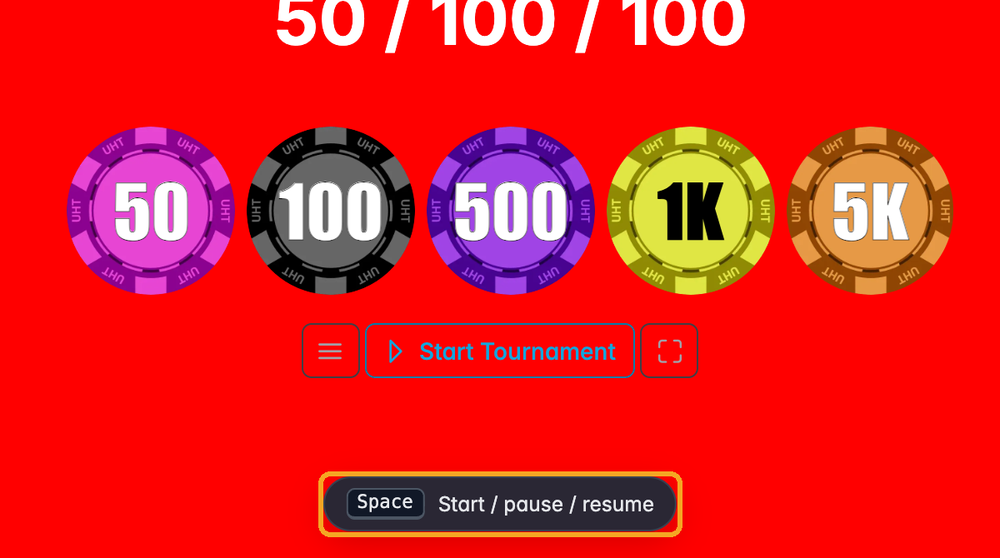
If the key could not do anything, for example R in a tournament without re-entries, the message says so. Nothing else happens, so you can simply carry on.
Keys shown on the buttons
Rest your mouse on a button for a moment. If a key belongs to it, the tooltip shows the key in brackets, for example Open Tournament Controls (C) or Reduce Entries (⇧+A). The ⇧ symbol stands for the Shift key.
If you change a key in the settings, the tooltips change with it. If a button has no key, or you switched hotkeys off, the tooltip shows just the normal text.
A second screen
If you run the clock on several screens with multi-monitoring, the extra screens only react to F (full screen) and ? (cheat sheet). Everything else, like pausing the clock or busting a player, you do on the computer that controls the tournament. This way nobody can change your tournament from the TV in the corner.