Hotkey profiles
A profile is a complete set of keys with a name. Most people never need more than one. Profiles come in handy when:
- you play on different computers with different keyboards, for example a laptop at home and a computer with a number pad at the club,
- you use a presenter remote on some nights and the keyboard on others,
- several people run tournaments on your account and each likes their own keys.
Default and your own profiles
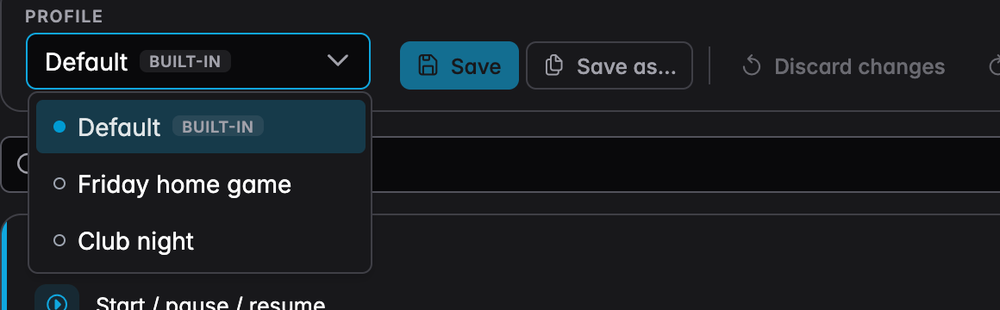
- Default (marked built-in) holds the standard keys from the list of all keys. It is always there and can't be changed or deleted, so you can always go back to it.
- Everything below it is a profile you made yourself.
The profile that is selected in this list is the one UHT uses in your tournaments. The dot in front of the name shows which one that is.
Making your own profile
- Open Settings → Hotkeys. Default is selected.
- Change the keys you want to change. Changing a key explains how.
- Click Save as….
- Give the profile a name, for example "Tuesday league night", and click Save profile.
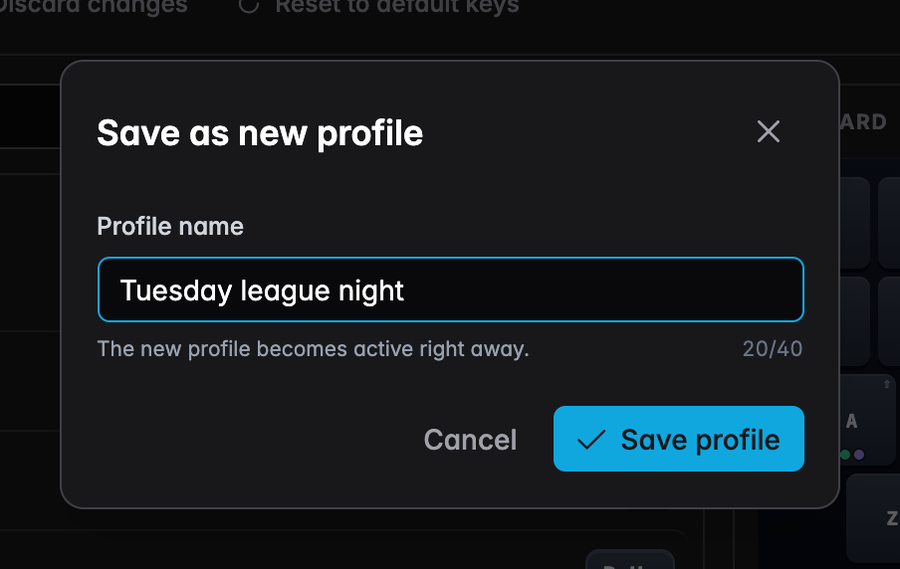
Your new profile is used from now on. Default stays exactly as it was.
You can also start from one of your own profiles: select it, change a few keys and use Save as… again. That gives you a copy with the changes, and the profile you started from stays as it was.
A few rules for names: up to 40 characters, every name only once, and "Default" is taken. You can have up to 20 profiles.
Switching profiles
Pick a different profile in the list. That's it. UHT uses it right away, no need to click Save. The next time you press a key in a tournament, the keys of the new profile apply.
If you changed keys without saving and then pick another profile, UHT asks first whether you want to throw those changes away.
Profiles are switched on the settings page only. There is no key that switches profiles during a tournament, so nobody changes your keys halfway through the evening by accident.
Renaming and deleting
When one of your own profiles is selected, two more buttons appear in the top bar:

- Rename opens the same window as Save as… with the current name filled in.
- Delete removes the profile after asking you once more. This can't be undone. UHT then goes back to Default.
Your profiles on other computers
Your profiles are saved with your UHT account, not on the computer. Sign in on another laptop and your keys are there. The same goes for the Use hotkeys switch.
Without an account, UHT always uses the Default keys.