Free up space
Sooner or later UHT tells you it can't save something. Almost always the reason is the same: the space your content is allowed to take up is used up.
This page shows you what the warning looks like, how to find out what is eating the space, and how to get rid of it. It covers both cases — with an account and without one.
First, where your data actually lives
That answer decides everything else on this page.
| Where it is stored | How much you get | |
|---|---|---|
| Signed in | On UHT's servers, attached to your account | 5 MB Free, 50 MB Supporter, 500 MB Commercial |
| Not signed in | In this browser only, on this device | Whatever the browser allows — usually about 5 MB |
If you are signed in, carry on reading. If you are not, jump to Without an account.
Signed in: read the storage meter
Go to Settings → Account and scroll to Account Storage.
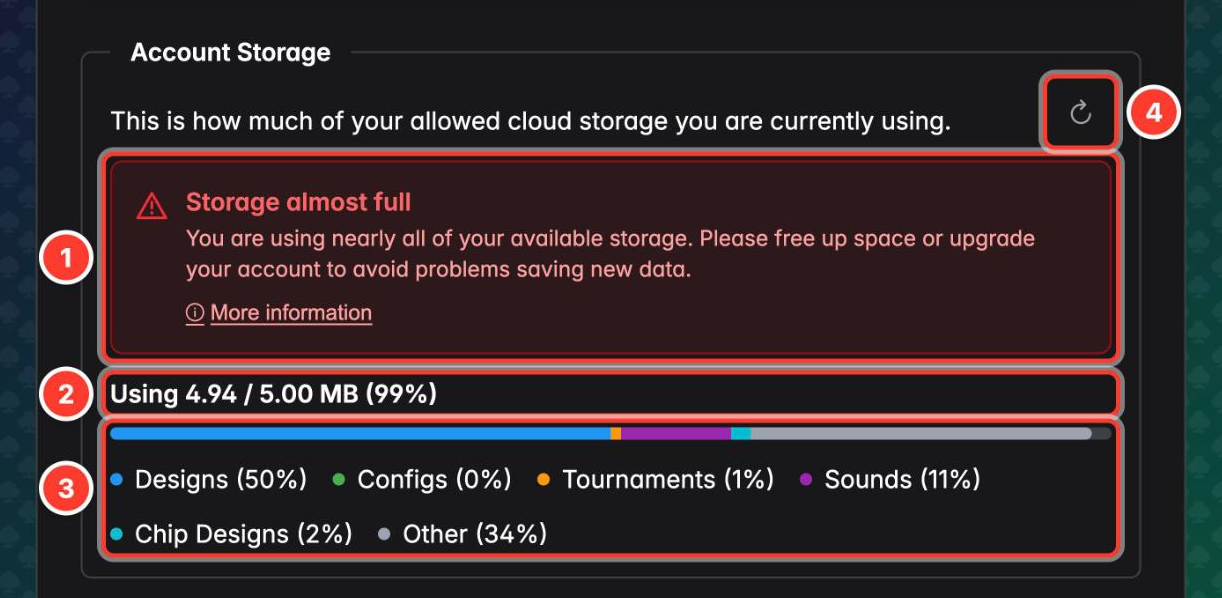
- The warning. It appears from 95% and turns into a harder "Storage full" message at 100%.
- The usage line — used, allowed, and the percentage.
- The breakdown. Every colour is a category: designs, configurations, tournaments, sounds, chip designs, and other. This is the important part: it tells you where to go looking.
- Recalculate. Re-measures your account from scratch. Use it after you delete something — the figure otherwise stays as it was when the page loaded. It can be run once every five minutes.
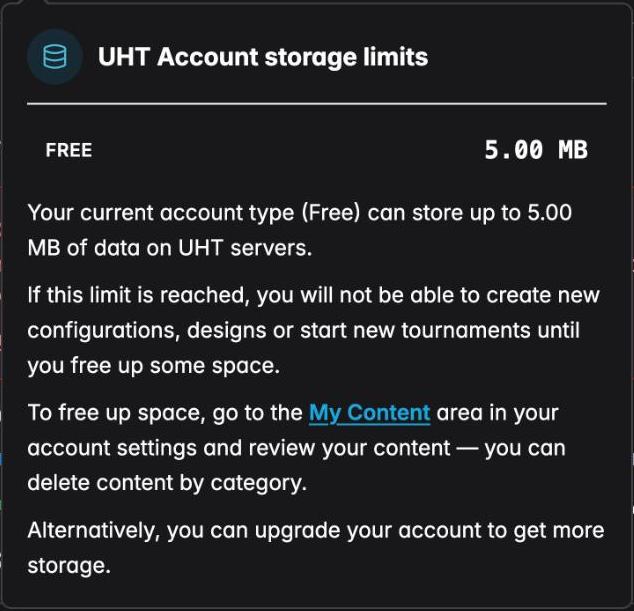
More information opens a short summary of your plan's limit and what happens when you reach it:
What "full" looks like
There are two states, and they are deliberately different.
Almost full — from 95%. A warning, nothing more. Everything still saves.
Full — at 100%. Nothing new is saved until you make room:
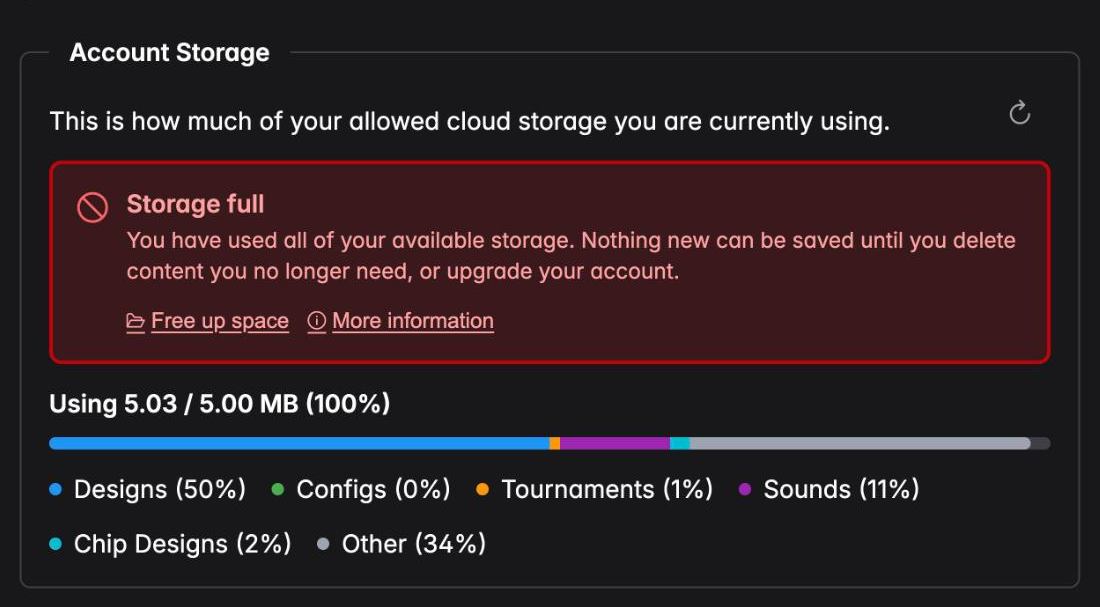
From 95% onwards a warning triangle also replaces the usual icon on the account menu in the header and on the Account tab in the settings, so you don't have to be on this page to notice.
When a save is refused, UHT says so where you are working rather than silently dropping it:
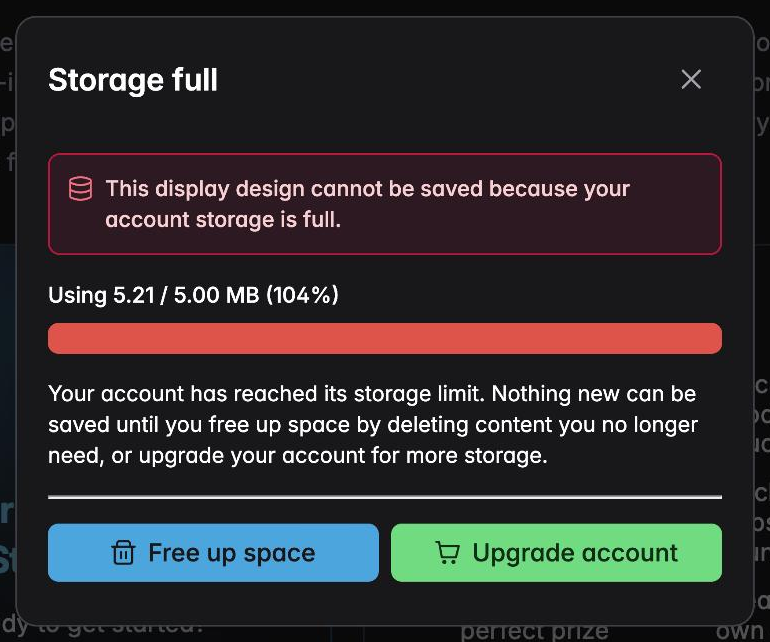
Everything that writes to your account is affected: starting or scheduling a tournament, creating a configuration, saving a display design, a blind structure, a starting stack, a prize distribution, a chip set or chip design, adding a player, uploading a sound, sharing content, and importing a backup.
Then the limit is not being applied to your account yet and your work still saves. It is a grace period, not a reprieve — the numbers in the meter are real, so tidy up anyway.
Find what is actually using the space
The breakdown on the storage meter tells you the category. Settings → My Content tells you the individual items, with a size for each one.
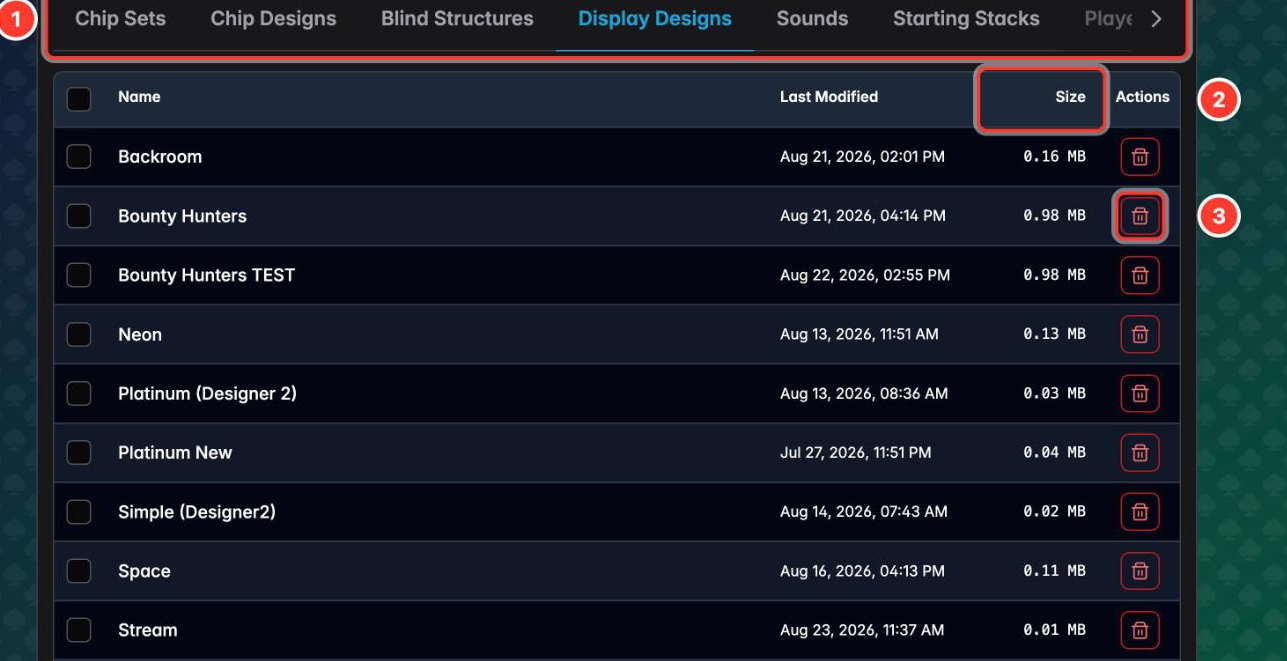
- One tab per category. The tab that matches the biggest slice of your meter is where to start.
- Size is listed per entry, in MB.
- Delete removes that single entry.
On the Tournaments tab you can sort — click Size and the biggest offenders come to the top:
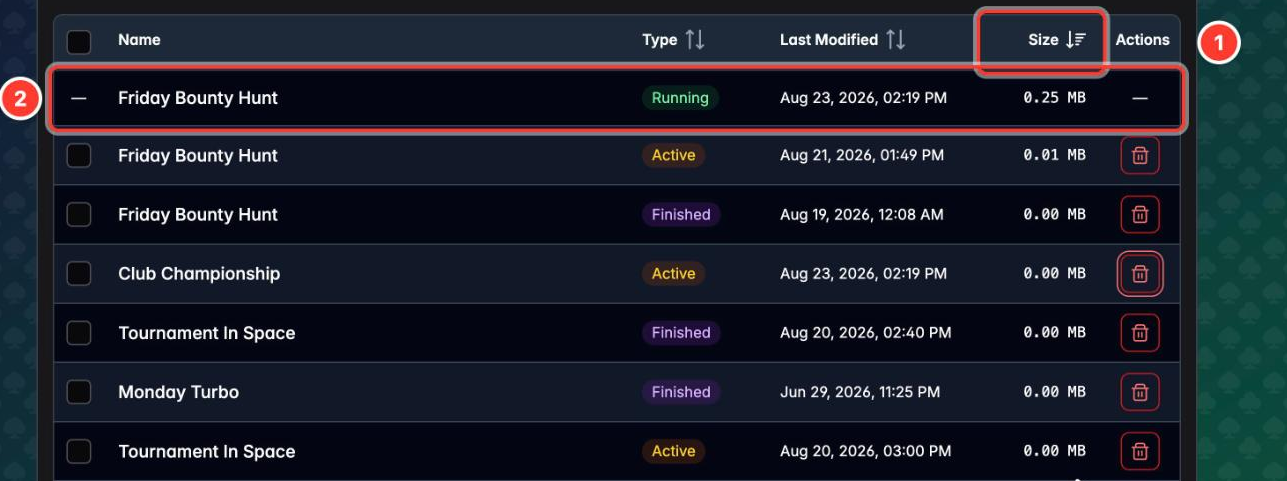
- Size, sorted. Click the header once for largest first, again to reverse it. Type and Last Modified sort the same way — useful for clearing out everything you finished months ago.
- A tournament that is currently running cannot be deleted. It shows a dash instead of a checkbox and a delete button. Finish it first.
In practice it is almost always designs and sounds. A display design carrying background images is bigger than a hundred tournament configurations put together, and uploaded sound files add up fast. Text-only things — blind structures, starting stacks, prize distributions — cost essentially nothing, and deleting them frees essentially nothing.
Delete what you no longer need
Three ways, depending on how much has to go:
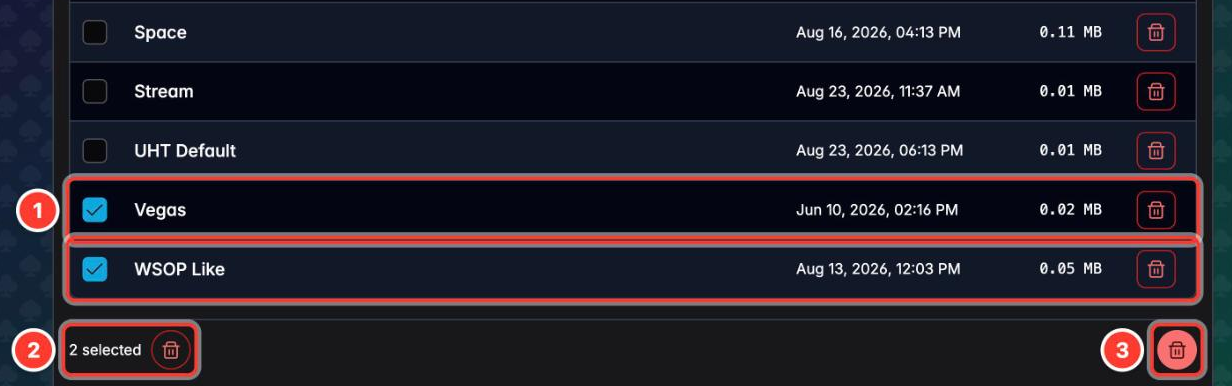
- One entry — the trash button on its row.
- Several — tick the rows, then use the delete button that appears bottom left.
- The whole category — the filled trash button bottom right. It empties the tab you are currently on, not your entire account.
Each one asks first, and none of them can be undone:
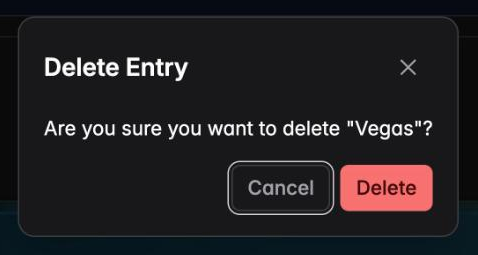
When you are done, go back to Settings → Account and press Recalculate to see the new figure.
Before you delete: keep a copy
If you are deleting something you might want back, export it first. The buttons sit at the bottom of My Content:

- Export backup — writes your content to a single
.backupfile on your computer. - Import backup — reads one back in.
The file lives on your computer, not on your account, so keeping it costs you no storage. Export, delete, and if you ever need the design again, import it back.
Without an account
Nothing of yours is on our servers, so there is no account meter. Your data sits in this browser's own storage, and the browser — not UHT — decides how much that is. Roughly 5 MB is typical.
The tool is on the Tournaments page, bottom right:

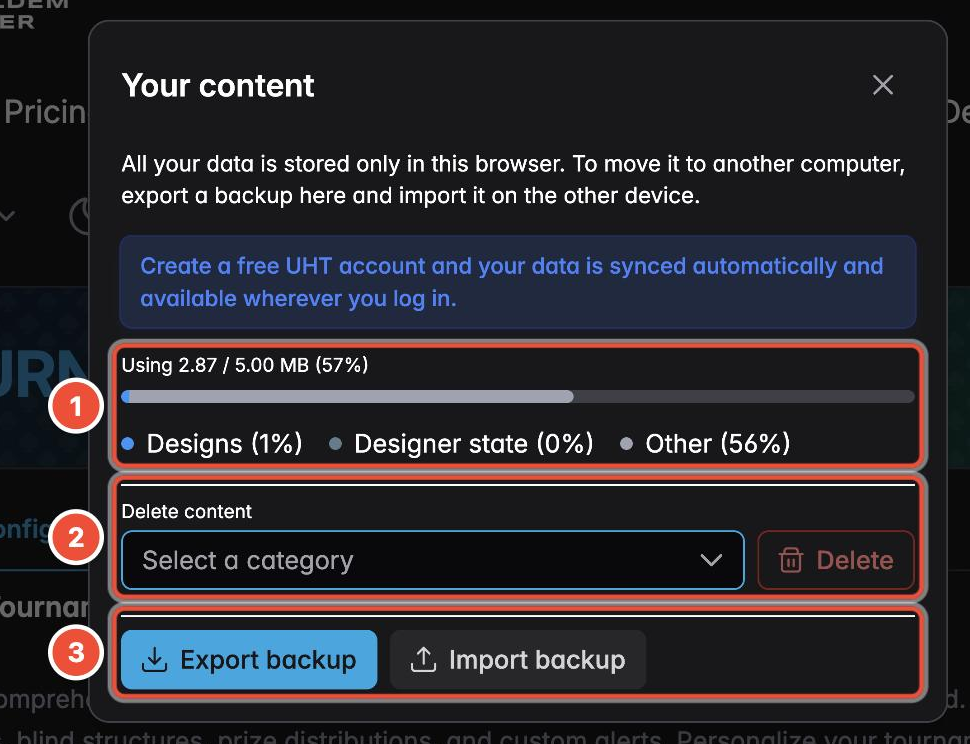
- Usage, measured against what this browser will actually give the page, broken down the same way as an account: designs, configurations, tournaments, sounds, chip sets, players, and so on.
- Delete by category. Pick one from the list and press Delete. Only categories that contain something are offered, plus All data to clear everything. There is a confirmation, and it cannot be undone.
- Export a backup first if there is anything in there you'd miss. Without an account this is the only copy that exists — the same file can be imported on another computer, which is also how you move your work between devices.
There is no 95% early warning here, because the browser doesn't tell the page how close it is until it refuses. When it does refuse, you get a storage error where you were working — in the display designer, a dialog telling you the design no longer fits — rather than the gentle red panel an account gets days beforehand. Which is the strongest argument for the next section.
The permanent fix
Create a free account. It moves your content onto your account with a proper 5 MB allowance, a meter you can watch, a warning at 95%, and per-item deletion instead of delete-by-category. It also survives clearing your browser and follows you to other devices. See UHT account benefits.
Or upgrade. Supporter is 50 MB and Commercial is 500 MB — ten and a hundred times the free allowance. The pricing page has the full comparison.
Or work smaller. A few habits keep you well under any limit:
- Reuse one display design instead of keeping six variants of the same one.
- Compress background images before you add them to a design — the design stores what you gave it.
- Delete finished tournaments you have already read the results from.
- Keep sounds short. A 30-second announcement costs more than every blind structure you will ever write.
Next
- UHT account benefits — what an account changes
- Pricing — the storage allowance per plan
- Something not working? — the other common problems