Default settings
Some things you set before almost every tournament: hide the cents, shorten the level-end warning, keep the announcements off. Settings → Defaults lets you decide them once. Every tournament you start afterwards uses your choices automatically.
The tab holds two groups: Display Defaults for how a tournament display behaves, and Multi Monitoring Defaults for how you work with a multi-monitor tournament.
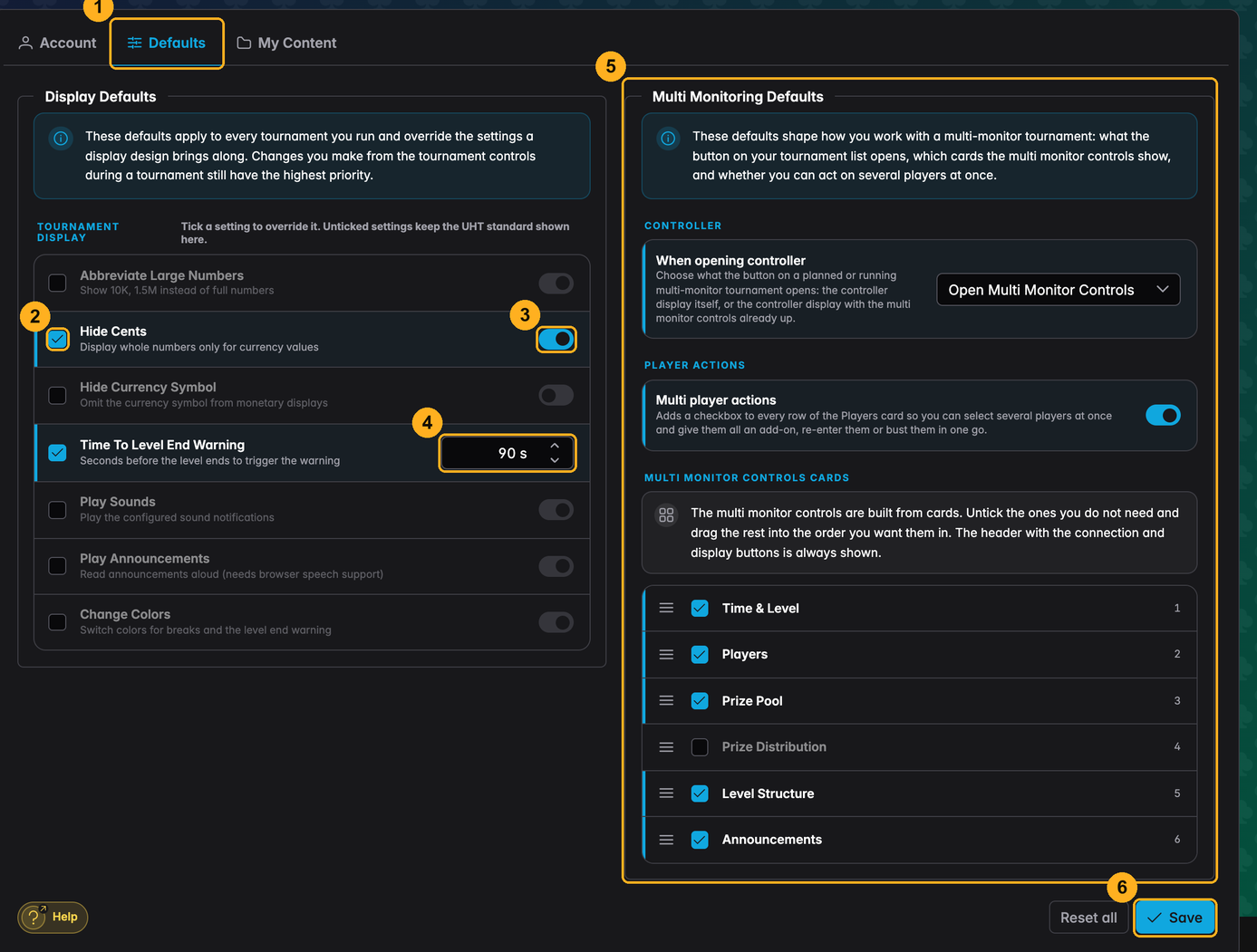
1 — Defaults tab. Sits right next to Account. You need a UHT account for it; the values are stored with your account, so they follow you to any device you sign in on.
2 — Checkbox. Tick it to take control of that setting. A setting you leave unticked is not touched at all — UHT keeps using its own standard value, which the row shows you.
3 — Value. Once a row is ticked, pick the value you want. A switch for on/off settings, a number for the level-end warning.
4 — Level-end warning. How many seconds before a level ends the display starts warning the room (colour change and sound). 60 seconds is the UHT standard.
5 — Multi Monitoring Defaults. The second group, covered further down.
6 — Save. Nothing changes until you save — and one Save covers both groups. Reset all unticks every row and puts the multi-monitor group back to the UHT standard.
Display Defaults
All seven settings are things you would otherwise flip in the tournament controls while a tournament runs:
| Setting | What it does |
|---|---|
| Abbreviate Large Numbers | Shows 10K and 1.5M instead of 10,000 and 1,500,000 |
| Hide Cents | Shows 50 instead of 50.00 |
| Hide Currency Symbol | Shows 50 instead of €50 |
| Time To Level End Warning | Seconds before the level ends when the warning starts |
| Play Sounds | Whether the configured sounds play |
| Play Announcements | Whether the display reads announcements aloud |
| Change Colors | Whether the display switches colours for breaks and the warning |
When a value comes from somewhere else
Three places can decide one of these settings. From the weakest to the strongest:
- The display design. A designer can ship a design with its own preferences, for
example "abbreviate large numbers" because the layout only has room for
1.5M. See Design defaults. - Your defaults — this page. They override whatever the design asks for.
- The tournament controls. Anything you change while a tournament is running wins for that tournament, and stays changed even after a reload. Your defaults do not undo it.
So: the design suggests, you decide, and the person running the tournament has the last word.
The next time a tournament display loads. A display that is already open keeps its current values until you reload it.
Every device connected to one of your multi-monitor sessions uses your defaults as well — including a TV that is not signed in. See Multi monitoring.
Multi Monitoring Defaults
This group shapes the multi-monitor workflow itself: which button your tournament list offers, what the multi monitor controls look like when you open them, and whether you can act on several players at once.
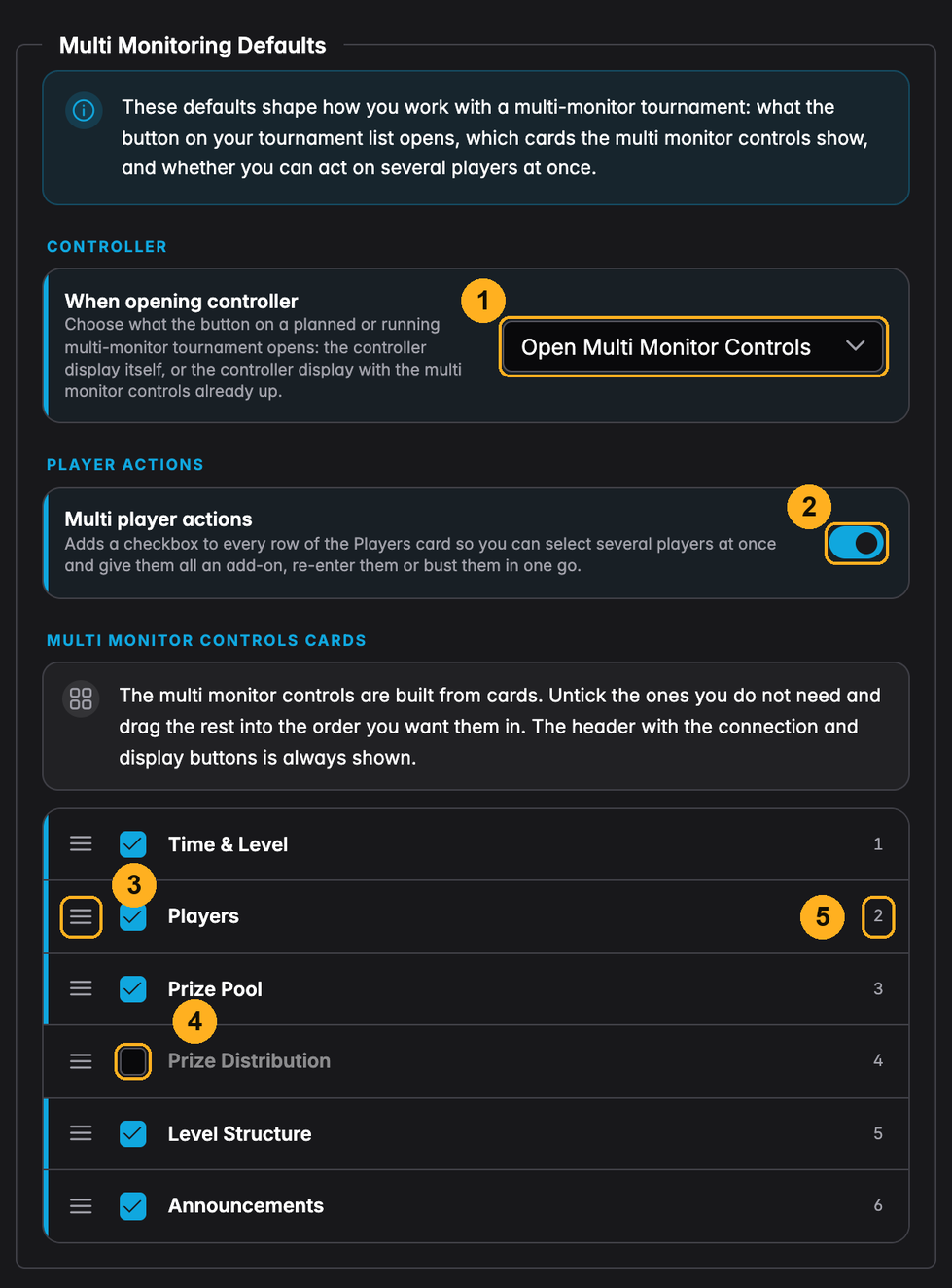
1 — When opening controller. What the button on a planned or running multi-monitor tournament does. See the table below.
2 — Multi player actions. Turns on the checkboxes in the Players card, so you can act on several players at once. See Multi player actions.
3 — Drag handle. Grab it to move a card up or down. The order here is the order the cards appear in when you open the multi monitor controls.
4 — Card checkbox. Untick a card to hide it. Prize Distribution is unticked in the picture, so those controls simply will not be there.
5 — Position. The card's place in the list, so you can see at a glance what the controls will look like.
When opening controller
| Choice | The tournament list shows | What it opens |
|---|---|---|
| Open Controller Display (standard) | Open Controls | The controller display. The multi monitor controls are one click away in the tournament controls menu. |
| Open Multi Monitor Controls | Open MM Controls | The same controller display, with the multi monitor controls already open on top of it. |
Only one of the two buttons is shown at a time — picking the second choice replaces the first button rather than adding to it. Either way you land on the same controller display, so nothing else about the session changes.
If you run your tournaments from a laptop or tablet next to the table and hardly ever look at the controller's own timer, Open Multi Monitor Controls saves you a click at every tournament.
Multi Monitor Controls Cards
The multi monitor controls are built from six cards:
| Card | What it holds |
|---|---|
| Time & Level | The timer ring, start/pause, the level slider and the level jump buttons |
| Players | Entries, players left, rebuys, and the player/table management buttons |
| Prize Pool | Buy-ins, rake, add-ons and what the pool is made of |
| Prize Distribution | The payout list and the prizes already awarded |
| Level Structure | The current level and the ones coming up |
| Announcements | Sending a message to your displays, and what you sent before |
Untick the ones you do not need and drag the rest into the order you want. The header — the tournament name, the connection state, the Displays and Notifications buttons and the close button — is not part of this and is always shown.
The controller device usually is not signed in — it just opens a link. Your card selection and order travel to it with the session, so the controls look the same no matter which device opens them.
Multi player actions
Off by default. Turn it on and every row of the Players card gets a checkbox, so an add-on, a re-entry or a bust can go to a whole group of players in one step instead of one button click each.
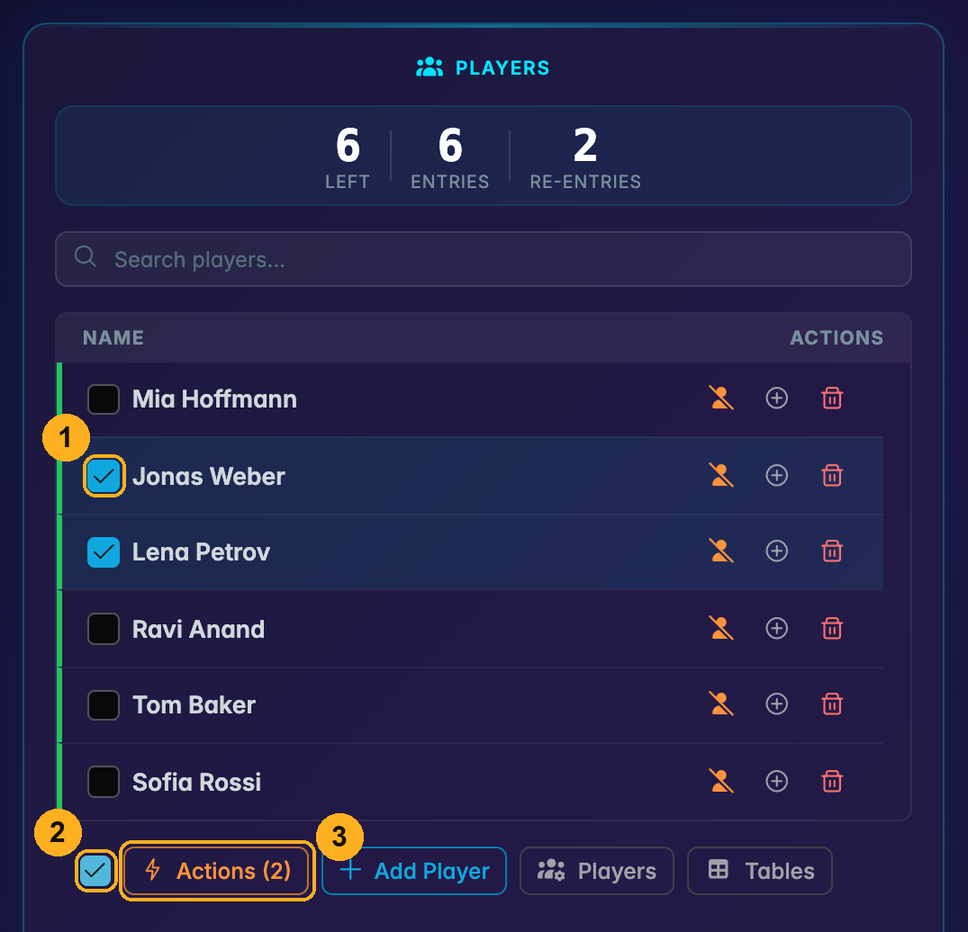
1 — Row checkbox. Tick the players you want to act on. Clicking anywhere else on the row does the same, so you do not have to hit the small box — only the action buttons on the right keep their own meaning.
2 — Select all. Clicking it while nothing is ticked asks whether you mean all players, all active players or all busted players, and ticks them for you. Clicking it again clears the selection. It only ever covers the players the list is currently showing — if a search filter is active, the players it hides stay untouched.
3 — Actions. Appears as soon as one player is ticked and carries the number of selected players. It opens the list of things you can do with the selection.
What you can do with a selection
| Action | Offered when | What happens |
|---|---|---|
| Add-on | The tournament has add-ons enabled | Every selected player gets one add-on |
| Re-enter / Rebuy | Re-entry is enabled and every selected player is busted | Every selected player comes back in |
| Bust | The tournament does not track knockouts | Every selected player is busted |
Re-entry asks for a selection of busted players only, because a mixed selection has no single meaning — all busted players in the select-all menu gets you there in one click. Bust is offered only where knockouts are not tracked: with knockouts on, every bust has to record who eliminated whom, and a bulk run cannot answer that — use the bust button on the row instead.
Before it runs, and after
Each action first shows what it is about to do — how many players, and for an add-on the price and the chips each one gets. If the tournament tracks payments, the add-on step also offers a Mark as paid toggle, on by default.
Afterwards you get a summary: how many players the action reached, and for an add-on how much went into the prize pool and how many chips went into play. Anyone the action had to leave out is listed by name with the reason — already at the add-on maximum, at the re-entry limit, already busted. Nothing is silently skipped.
A bulk run does not send a notification to your displays for each player and does not play the elimination sound. Your displays still pick up the new state right away; they just do not announce fifty things at once.