Creating a club
Creating a club takes about two minutes. You need a UHT account, a name and, if you like, a picture for the club card. Everything else can be added or changed later.
In this guide Daniel creates the Riverside Home Game, a small Thursday game with friends.
Step 1: open the dialog
Go to Clubs in the top menu. If you are not in any club yet, press Start your club. If you already have clubs, use New club at the top of your club list.
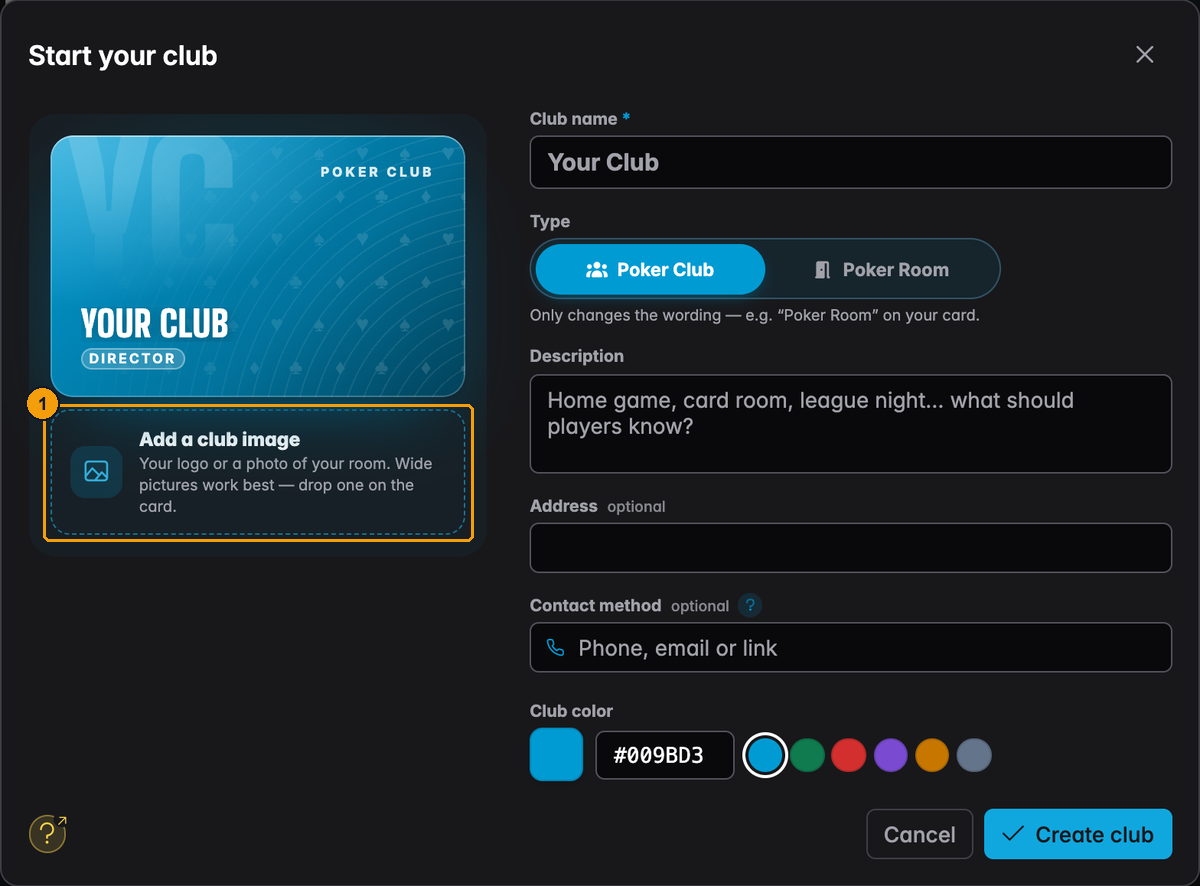
The left side is a live preview of your club card. Everything you type on the right shows up on the card straight away.
- Click the card, or drop a picture on it, to add a club image.
Step 2: fill in the details
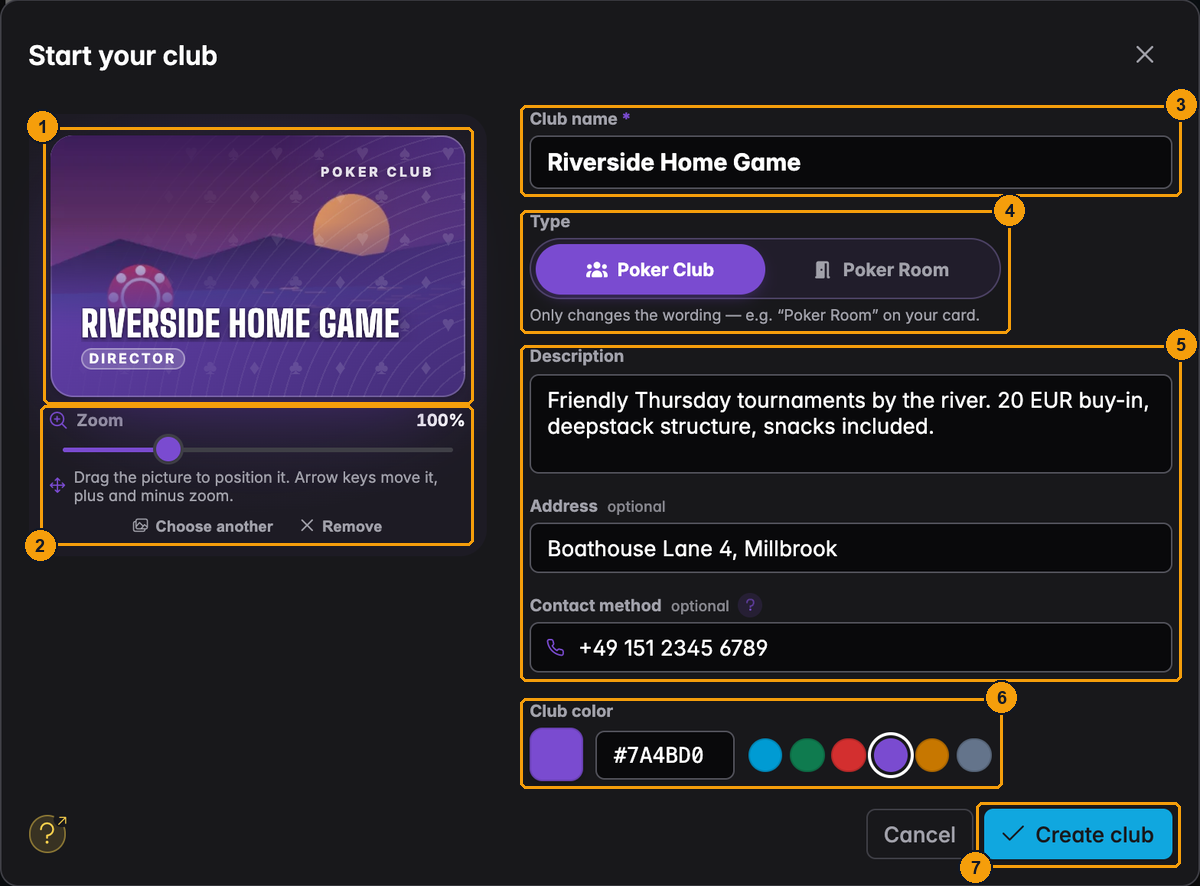
- The club image. Your logo or a photo of your room. Wide pictures work best. Drag the picture to move it and use the Zoom slider to frame it. PNG, JPEG and WebP work.
- Choose another and Remove change or drop the picture.
- Club name. This is the only field you must fill in.
- Type. Poker Club or Poker Room. This only changes the wording, for example "Poker Room" on your card and "Room Rules" instead of "Club Rules".
- Description, Address and Contact method. The description tells new players what your club is about. The contact can be a phone number, an email address, a website or a messenger handle; each one becomes a clickable link on the club page.
- Club color. Pick one of the suggestions or enter your own colour. Buttons and tabs in your club use it.
- Create club opens the club.
If your colour is too dark or too light to read buttons on, UHT tells you right below the colour field. The card keeps your colour, but buttons and tabs use the UHT blue instead so they stay readable.
Names with "league"
A club name cannot contain the word "league", in English or in any of the 20 most common languages. UHT shows This is an invalid name for a club as soon as you type it:
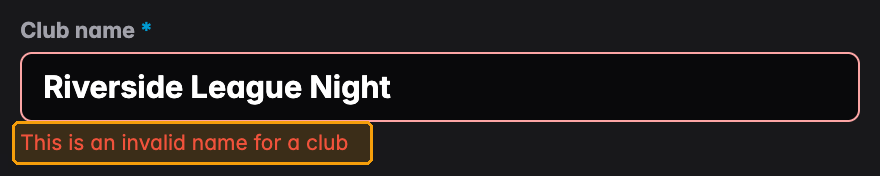
Leagues are a separate thing inside your club (see Leagues), and the rule stops players from mixing the two up. Call the club "Riverside Home Game" and create a league called "Riverside League 2026" inside it.
Step 3: invite your first players
Right after creating the club, UHT congratulates you and suggests the next steps:
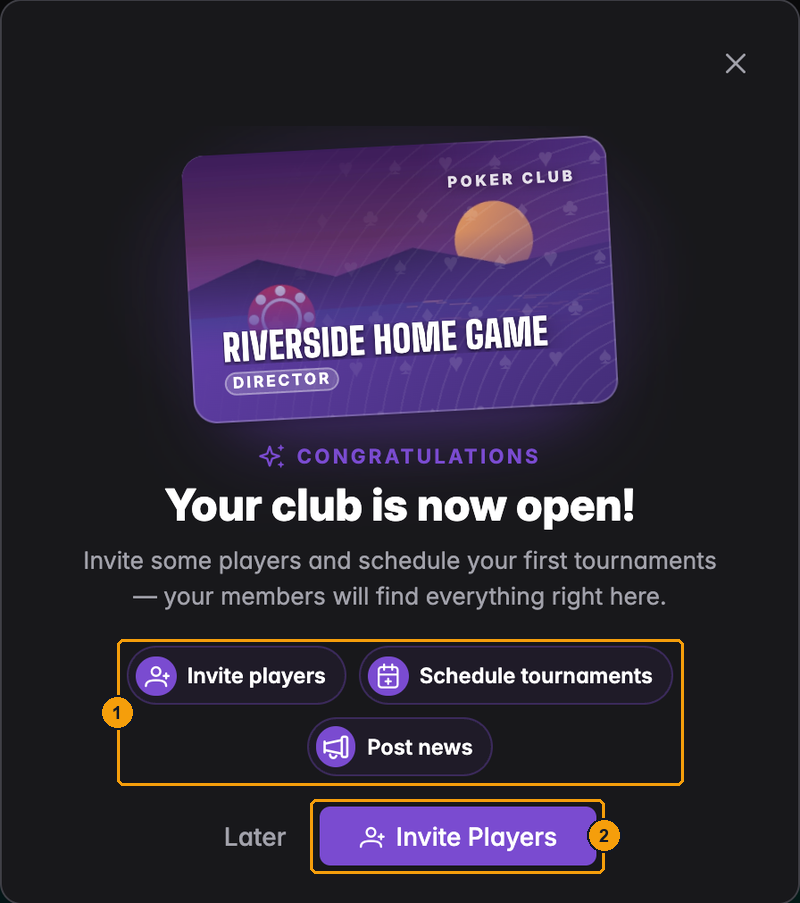
- The three things most new clubs do first: invite players, schedule tournaments and post news.
- Invite Players opens the dialog for adding members. Later closes the window.
How inviting works is explained in Managing members.
You are now the founder of the club and its first director.
Free clubs and Clubs licenses
Every club starts free. A free club is a complete club, with the following limits:
| Free club | Licensed club | |
|---|---|---|
| Members | up to 20 | unlimited |
| Club storage | 5 MB | 50 MB |
| Commercial use | not allowed | allowed |
| Clubs you can found | up to 3 free clubs per account | licensed clubs do not count towards the 3 |
The 20 members include you and your staff. Players who only asked to join (open requests) do not count until you approve them.
A Clubs license is a yearly subscription for one club. You can compare both options under Club Pricing on the Clubs page:
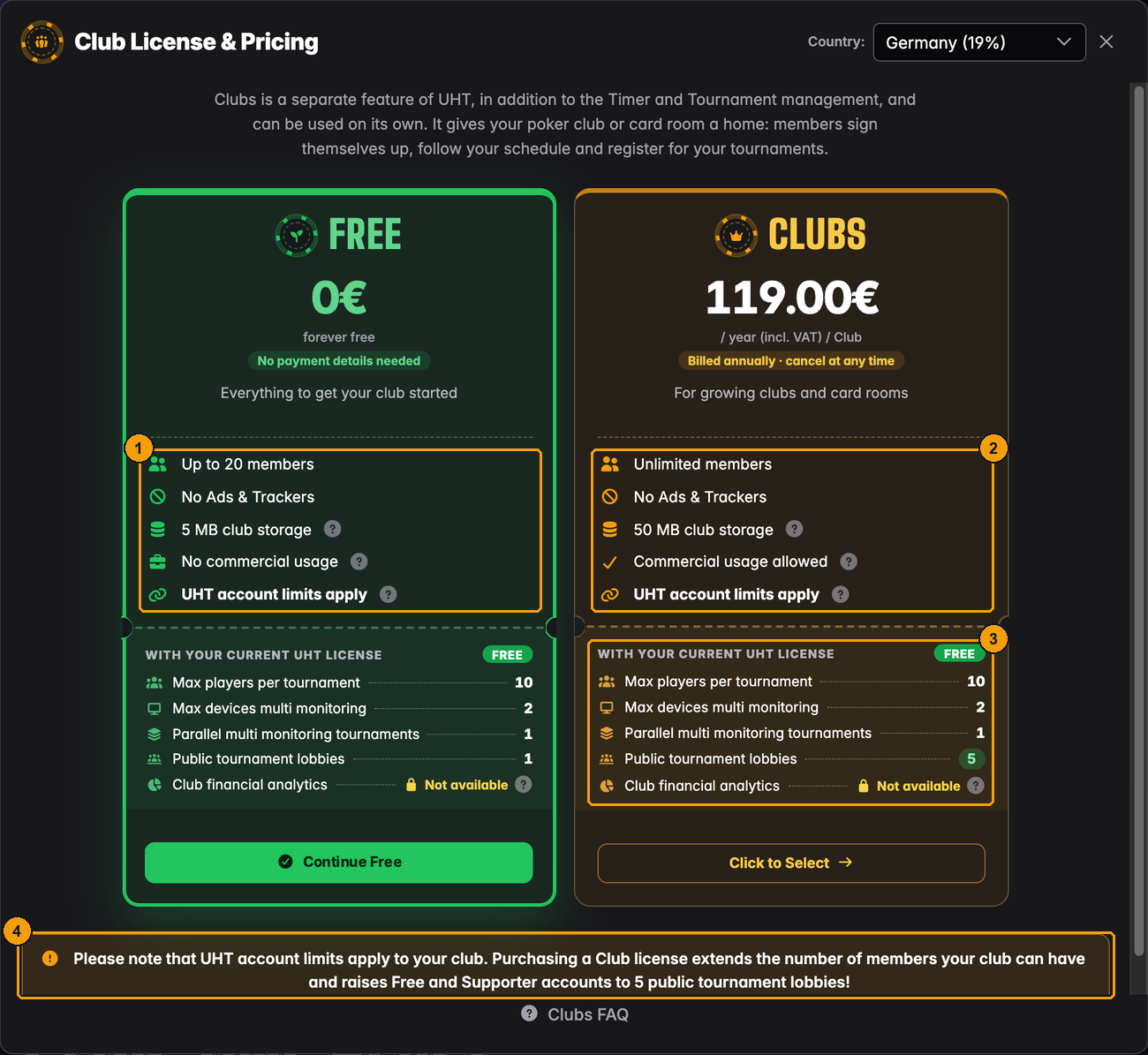
- What a free club includes.
- What a licensed club includes. The price shown depends on your country.
- The limits of your own UHT account still apply in both cases: how many players fit in one tournament, how many screens you can connect, and so on. A Clubs license does not change those.
- One extra: owning a Clubs license raises a Free or Supporter account to 5 open public lobbies.
Your UHT account (Free, Supporter, Commercial) decides what you can do as a tournament host. A Clubs license only lifts the limits of one club. The club financials are tied to a Commercial account of the club's founder, not to the Clubs license.
Upgrading a club
After buying a license, assign it to a club you founded. On the Clubs page press Upgrade club:
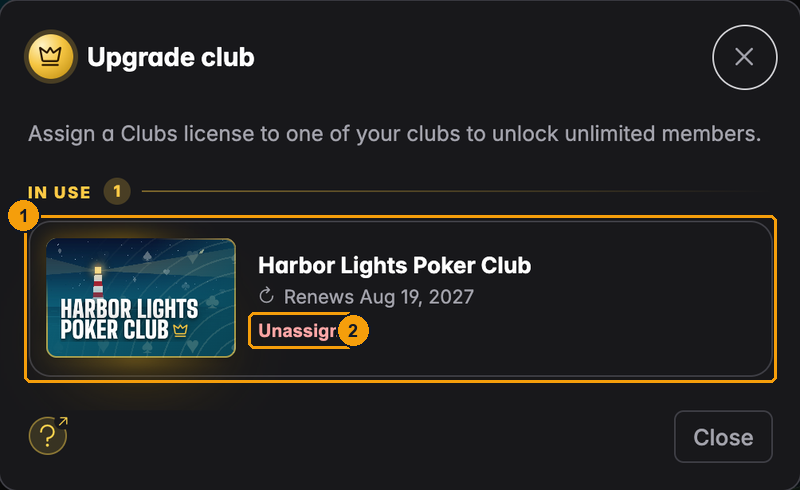
- Each license appears with the club it upgrades and its renewal date. A license that is not in use yet shows an Assign button.
- Unassign takes the license away from the club again, for example to move it to another club.
The upgraded club gets a golden card and a crown, and its member count reads "Unlimited". You can also manage your licenses under Settings → License; see Club settings.
Some rules worth knowing:
- Only the founder of a club can assign a license to it, and only with a license they bought.
- One license per club.
- If you remove the license or it ends, the club is free again. If it then has more than 20 members, it becomes locked until you are back under the limit or assign a license again. See Locked clubs.
- Deleting a club frees its license, so you can give it to another club.