Club tournaments
A club tournament is a normal UHT tournament with a public lobby that belongs to your club. Because it belongs to the club, it shows up on the club calendar, members can register for it from the club page, your staff can run it without borrowing your laptop, and the results stay in the club's history long after the night is over.
This page follows one tournament through its life at the Harbor Lights Poker Club: scheduling it, filling the seats, running it and reading the results afterwards.
The Tournaments tab
Open your club and pick Tournaments. Every tournament that still has an open lobby is listed here, soonest first, as a ticket with the date on the left.
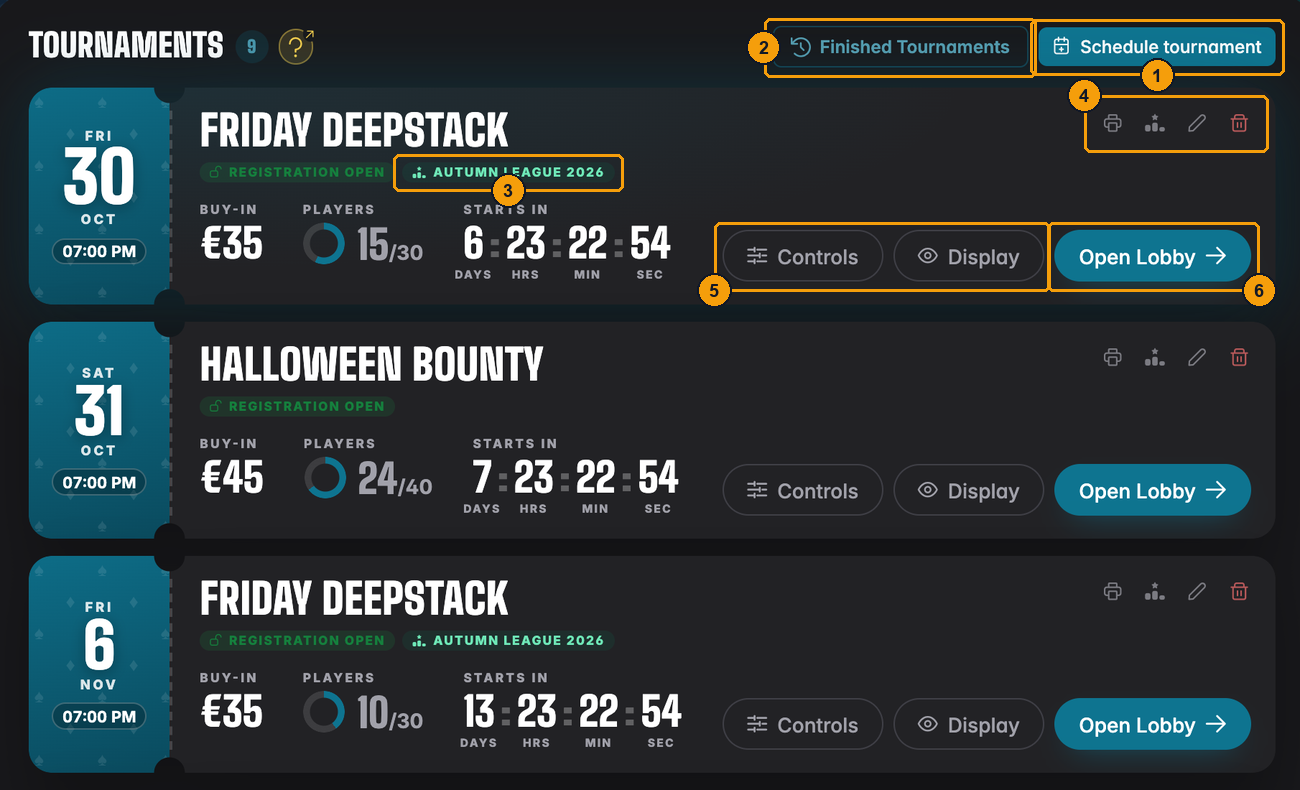
- Schedule tournament opens the schedule dialog. Only directors see it.
- Finished Tournaments takes you to the club's history (see Finished tournaments below).
- A league tag tells everyone that this night counts for a league, here the Autumn League 2026.
- The host tools: print the flyer, put the tournament into a league, edit it, delete it. Directors get them on every tournament of the club; the host gets them on their own.
- Controls and Display open the running tournament for staff (see Running the night with your staff).
- Open Lobby opens the public lobby page with all the details and the player list.
Each ticket also shows the buy-in, how many seats are taken out of the maximum, and a countdown to the start. Tags such as Registration open or Registration opens in … tell players at a glance whether they can sign up yet.
Scheduling a club tournament
Press Schedule tournament. You get the same dialog you know from Opening a lobby, titled Schedule Club Tournament, with the club already filled in.
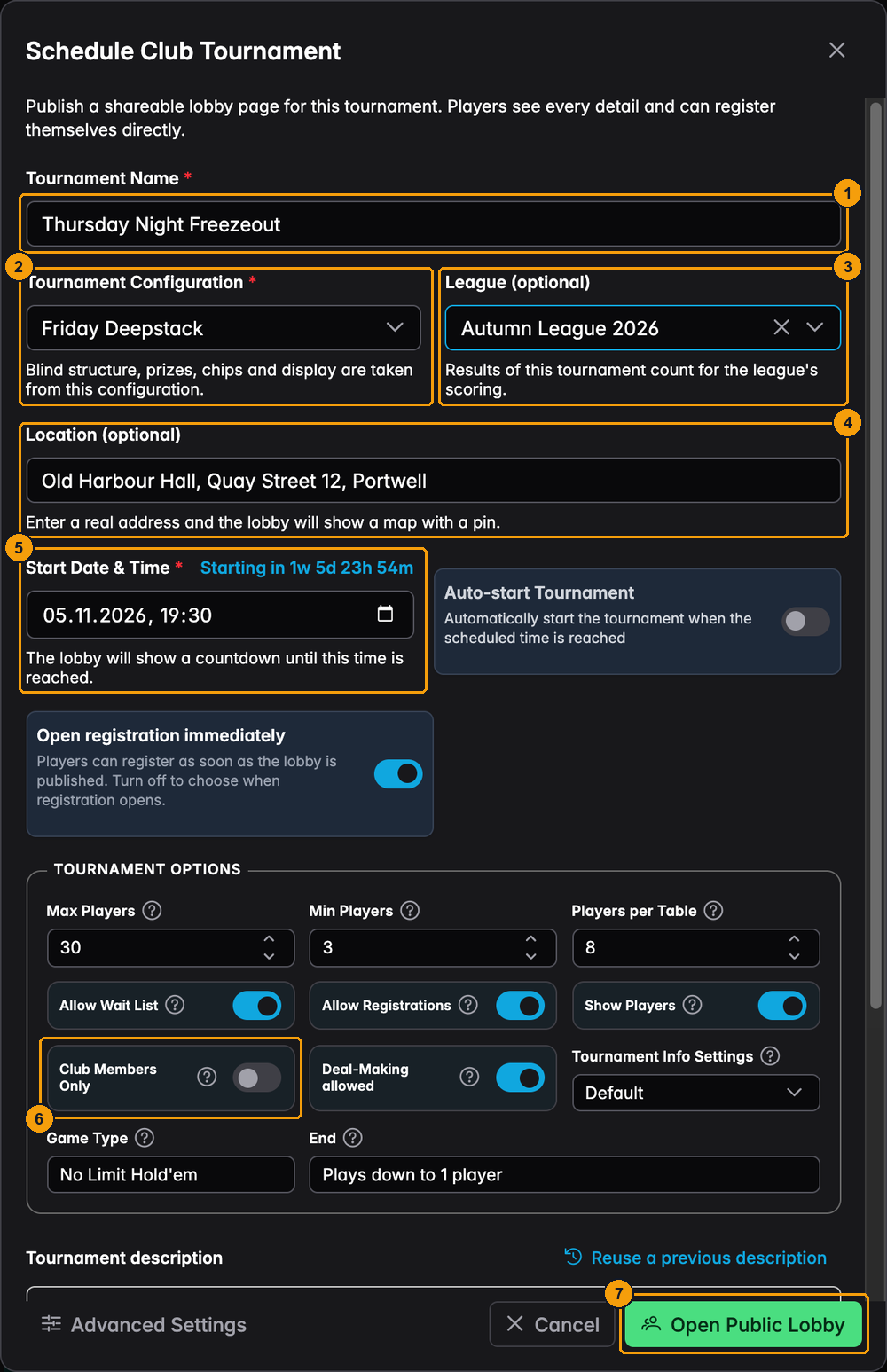
- Tournament Name – what players see on the ticket, the lobby and the flyer.
- Tournament Configuration – the blind structure, prizes, chips and display come from this configuration. Pick one you already use for this kind of night.
- League (optional) – leave it on No league for a normal club tournament, or pick a running or upcoming league. The results of this tournament then count for that league. You can change this later, see League tournaments. Once a league is picked, Scoring system for this tournament appears in the same box. Leave it on the league default, or give this one tournament its own scoring system, see A different scoring system for one tournament.
- Location (optional) – filled in with your club's address. Change it if you play somewhere else that night.
- Start Date & Time – the countdown on the lobby, the club calendar and the flyer runs towards this time.
- Club Members Only – when it is on, only members of your club can register themselves. Anyone else who opens the lobby is told the tournament is for club members only.
- Open Public Lobby creates the tournament and its lobby in one go.
Everything else in the dialog (wait list, opening registration later, the description, auto-start) works exactly as described in Opening a lobby and Scheduled tournaments.
Club and league tournaments are scheduled here, on the club page. Open public registrations on Tournaments → Configurations always creates a tournament of your own, without a club or a league.
Only directors can schedule club tournaments. Floor staff run tournaments but don't create, edit or delete them.
Recurring tournaments
For a weekly or monthly game, schedule the whole series at once. In the schedule dialog, switch Single to Recurring. The start date and time are replaced by a summary of the repetition (for example every Monday at 19:00, 8 tournaments); Edit opens the same recurrence settings as for recurring club events: the first date and time, daily / weekly / monthly / yearly, and when the series ends. Instead of a date for the registration opening you pick how long before each start registration opens, from At tournament start to 1 month before; every tournament of the series gets the same lead. Open Public Lobby then creates one tournament with its own lobby for every date.
Every tournament of the series needs an open lobby, and your plan allows only so many open lobbies at a time. When the series has more dates than you have lobbies left, the dialog says so and offers to create as many as allowed (for example Create 3 tournaments): only the first dates that still fit are created. Upgrade opens the plans with more lobbies. You can schedule the rest later, once earlier tournaments are over.
Tournaments of a series carry a repeat icon on their ticket, in the calendar, in the upcoming list and next to the name in the lobby. When you delete one, or save a change in its lobby, UHT first asks whether you mean This tournament or All upcoming tournaments in the series. For the whole series, the change is written into every tournament still to come: a new start time moves each of them to that time of day on its own date. Tournaments that already started or took place are never changed or deleted.
Editing or deleting a scheduled tournament
The pencil on a ticket opens the tournament for editing, the trash can deletes it. Before anything is deleted, UHT asks you to confirm: the tournament and its lobby are gone for good, every registered player is unregistered and receives an email that the tournament was cancelled. Once a tournament has started, it can no longer be deleted from this list.
Inviting players
Registration only helps if members know about the night. Invite players sends a chosen group of members an email and a push notification (UHT Player) that links straight to the tournament lobby.
Who and when: directors, and the host of a tournament, see an envelope button (tooltip Send out invitations) on the tournament's ticket. It opens the Invite players dialog. Floor staff do not see it. The button is switched off, with a tooltip telling you why, when registration is turned off for the tournament or the club is locked. Once the tournament has started it is gone. A tournament whose registration opens later can be invited to; the email then says when registration opens.
The dialog:
- Search the list by name. Every active member of the club who can see the tournament is listed (manual players have no email or app, so they are not).
- Tick the players you want, or use All club members and All league players (12). The league button only appears for a league tournament and shows how many players it covers. Both buttons only select players who can be invited right now, and turn into Deselect … once everyone is selected.
- Players who are already registered show a Registered tag and cannot be selected.
- Send asks you to confirm how many players will be notified, then sends.
After sending you see how many invitations went out, and how many were skipped (for example because a player is already registered).
What players get: an email "You're invited to the table" with the date, time, buy-in and club, and a button to the lobby, plus a push notification in UHT Player. Players who switched off Tournament invitations under Notification settings, or muted your club, receive neither.
The flyer
The printer icon on a ticket creates a ready-to-print A4 flyer as a PDF. Hang it at the bar or post it in your group chat.
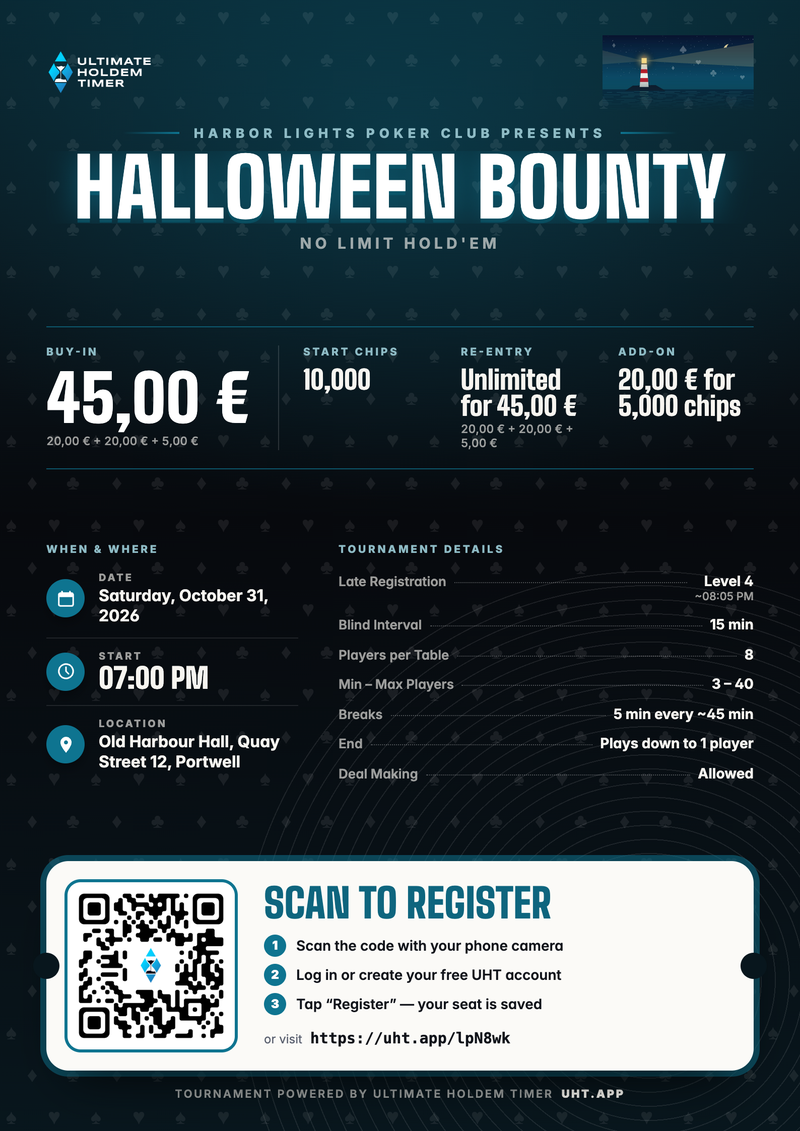
The flyer carries your club's name and card picture, the buy-in and how it splits up, the re-entry and add-on, starting chips, date, time and place, the details from the lobby (late registration, level length, players per table, breaks) and a big QR code. Players scan it, log in and press Register. The short link under the code does the same for anyone who prefers typing.
The flyer always shows the current details. If you move the start time, print it again.
The calendar and the upcoming list
On the left of every club page, under the club card, members find the club calendar and the next tournaments.
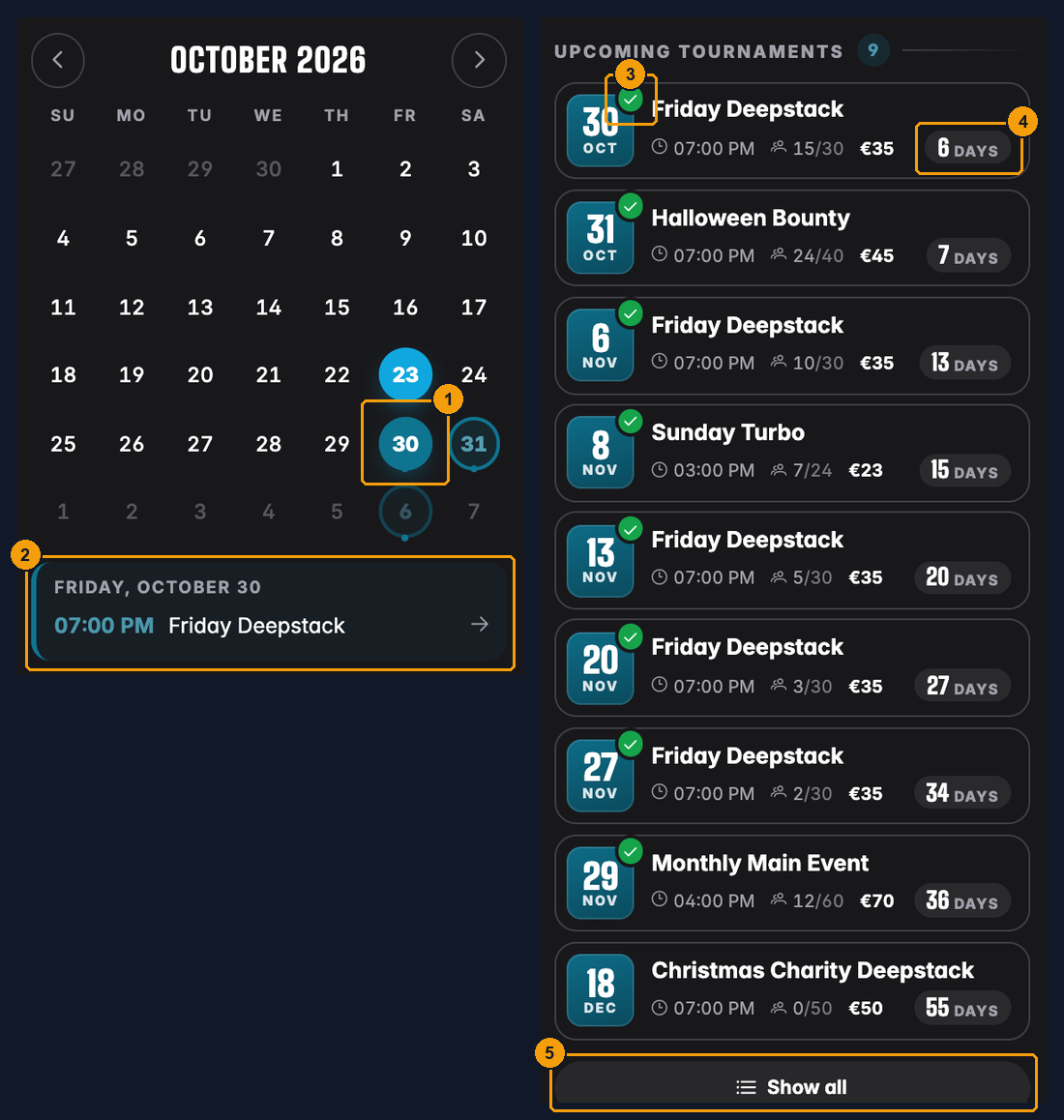
- Days with a club tournament get a ring in the club colour. Today is the filled disc.
- Click a day to list its tournaments underneath. Click one to open its lobby.
- A green tick on the date means you are registered for that tournament.
- The countdown shows how long until it starts.
- Show all opens the Tournaments tab. Directors also get Schedule tournament here.
The list is called Upcoming events and also contains the club's own events, see Club events.
Club events
Not every date on the calendar is a tournament. Directors and floor staff can put any other date into the club calendar too: a clubhouse party, a rules evening, a trip to a casino. These are club events.
- Who adds them: directors and floor staff. Press the + button above the calendar. Any staff member can edit or delete any event, not only their own.
- What an event has: a title, a date and time, a color and an optional description with formatting and images. The color is the one the event gets on the calendar. Club color is preselected and follows your club's color; pick another color from the list to give the event its own.
- Recurring events: switch Single to Recurring above the date to repeat an event, for example every Monday or on the last Friday of every month. The date picker is replaced by a summary of the repetition; Edit opens the recurrence settings (start day and time, daily / weekly / monthly / yearly, every how many days, weeks, months or years, and the end: on a day or after a number of events). A series can have at most 366 events. Every event of a series carries a repeat icon in the calendar and the lists, and its detail view says how it repeats. When you edit or delete one, you are asked whether you mean This event or All upcoming events in the series. Changing only this event moves or renames just that date. Changing or deleting the series only touches the dates still to come: events that already took place stay as they were. A new repetition recreates the upcoming dates.
- Where members see them: on the calendar, in the event's color, and in the Upcoming events list, which mixes tournaments and events in date order. Click an event to read its description. Staff also get Edit and Delete there.
- The big calendar: on a desktop screen, the zoom button above the calendar opens a full page calendar with one card per day and colored chips for every tournament and event. Hovering over a day card with entries shows all of that day's tournaments and events in a popover; click a chip to open it, or click a day to list it below the calendar. On a phone the button is not shown and the calendar stays in the Calendar tab.
- In the apps: UHT Player on iOS and Android shows events in the club calendar with a detail view, read-only. Adding and editing happens on the web.
A locked club (see Club administration) cannot add or change events; deleting still works.
Registering as a member
Members see the same Tournaments tab, without the host tools, and register with one click.
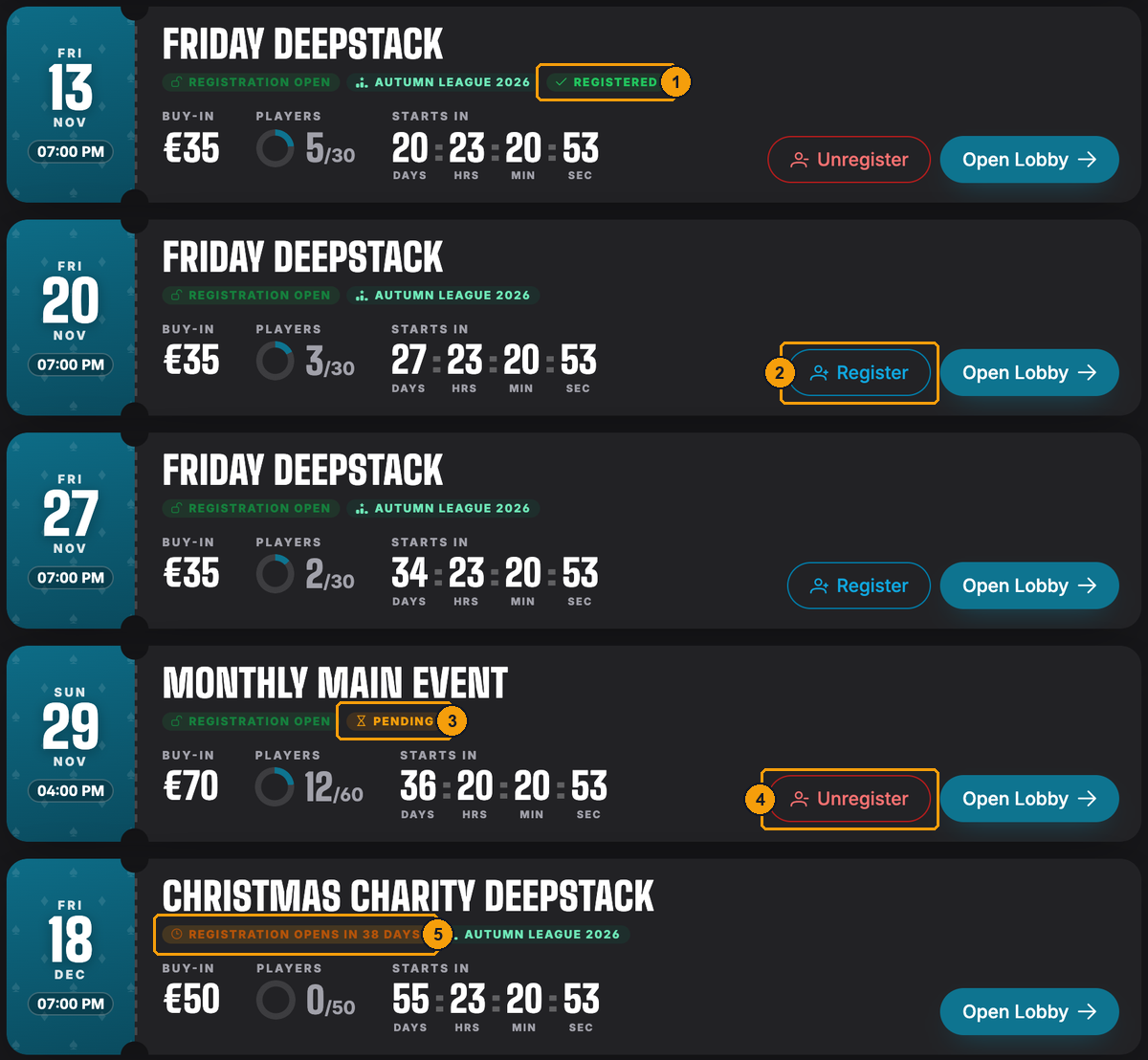
- Registered – your seat is confirmed.
- Register – sign up for this tournament.
- Pending – you asked for a seat and the host or a staff member still has to confirm it.
- Unregister – take your name off the list again.
- Registration opens in 38 days – registration hasn't opened yet. The Christmas Charity Deepstack only takes sign-ups from 1 December.
Pressing Register shows a short summary before anything happens:
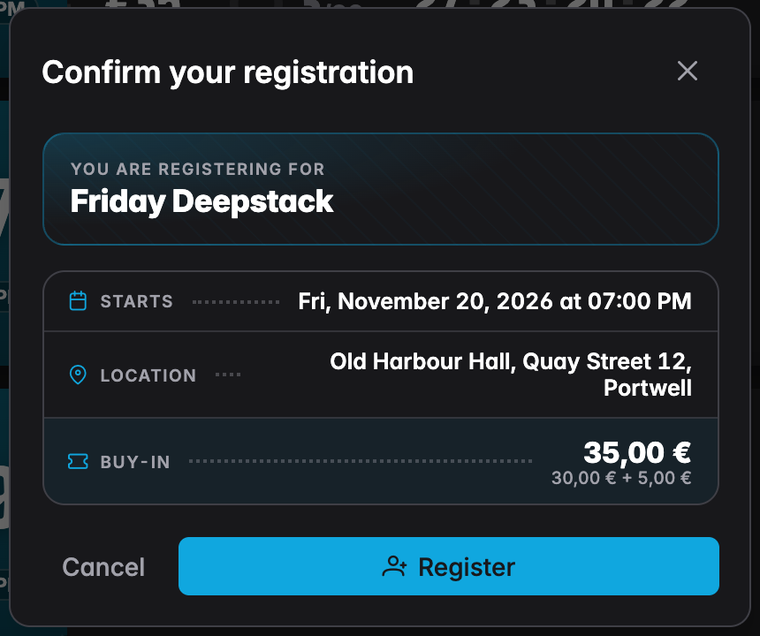
A new registration starts as Pending. The host and the club's staff confirm it on the lobby page; how that works is described in Managing registrations. If the tournament is full and has a wait list, the player lands on the wait list instead.
On a phone the tickets stack up and the buttons shrink to icons:
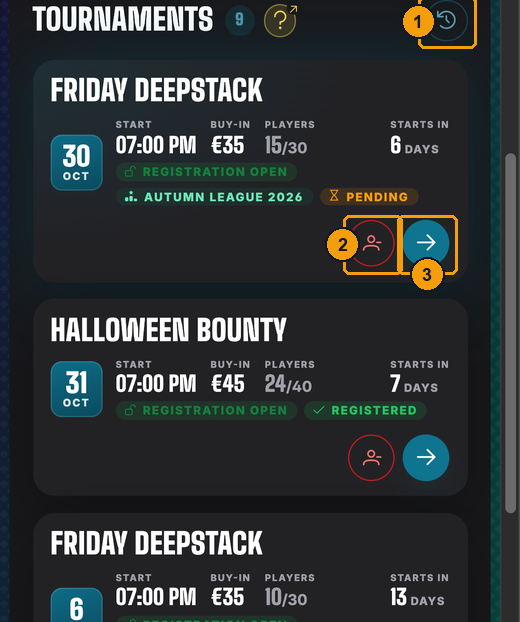
- The clock icon opens Finished Tournaments.
- Unregister (or Register, on a tournament you are not signed up for).
- Open the lobby.
Who sees which tournament
Every member of your club sees the club's normal tournaments. League tournaments are a little different, and you decide how with one setting under Settings:
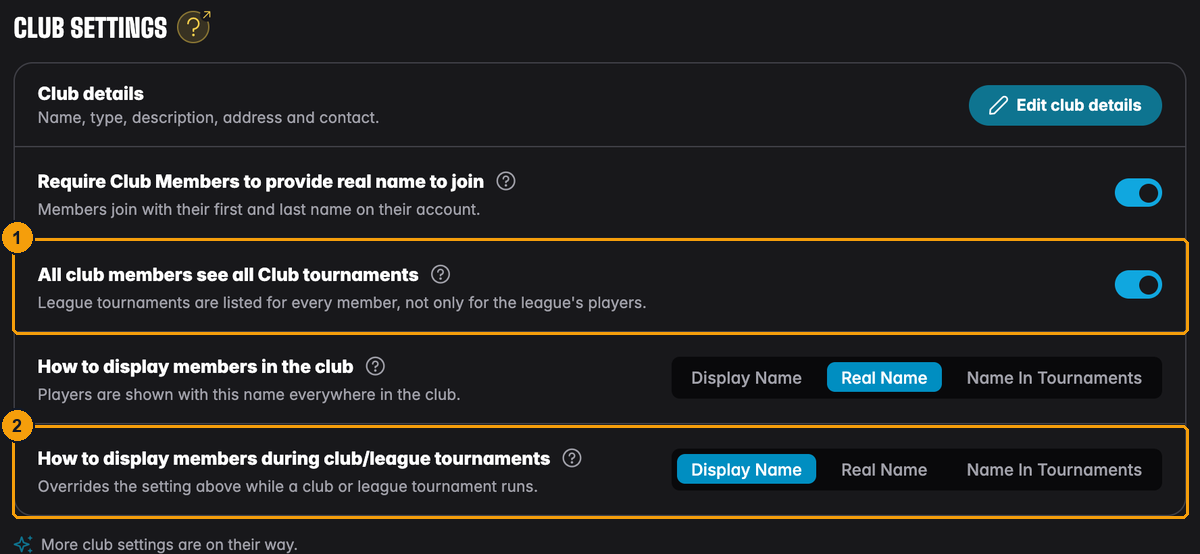
- All club members see all Club tournaments – switch it on and every member sees every league tournament on the calendar, the Tournaments tab and the finished list. Switch it off and a league tournament only shows up for your staff, the host, the players of that league and anyone who registered for it or played in it. That keeps the calendar tidy when you run a members-only league next to your open nights.
- How to display members during club/league tournaments – decides which name appears on the clock and in the standings while a club tournament runs: the account's display name, the real name, or the name the host uses in their own player list.
The lobby link itself is public either way. Anyone you send it to can open the lobby page. Use Club Members Only in the schedule dialog if only members should be able to register.
More settings are explained in Club settings.
Running the night with your staff
On the night itself you don't have to be the one at the laptop. Directors and floor staff see two extra buttons on every tournament of the club:
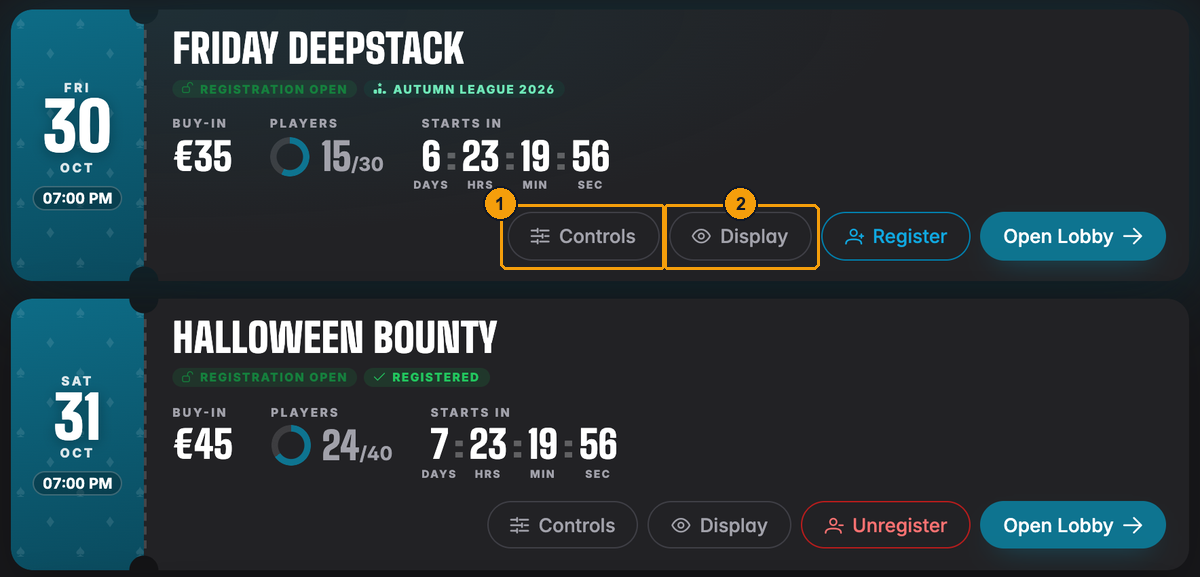
- Controls opens the tournament's controller in a new tab: the clock, players, busts, rebuys, seating. Everything the host can do during play.
- Display opens a display-only view, the screen you put on the TV.
Your staff never get your personal controller link. Each staff member gets their own access to this one tournament, tied to their role in the club. If you demote a floor person to member or they leave the club, their access ends on the spot, and any screen they still have open is closed with a message. You don't have to change anything on your side, and nobody can keep running your tournament with a link they saved last month.
Floor staff can run the clock and manage players, but they can't edit the tournament's setup or delete it. That stays with the host and the directors. The full list of who can do what is on Club administration.
Finished tournaments
When a club tournament is finished, it moves to the club's history. Open it with Finished Tournaments on the Tournaments tab.
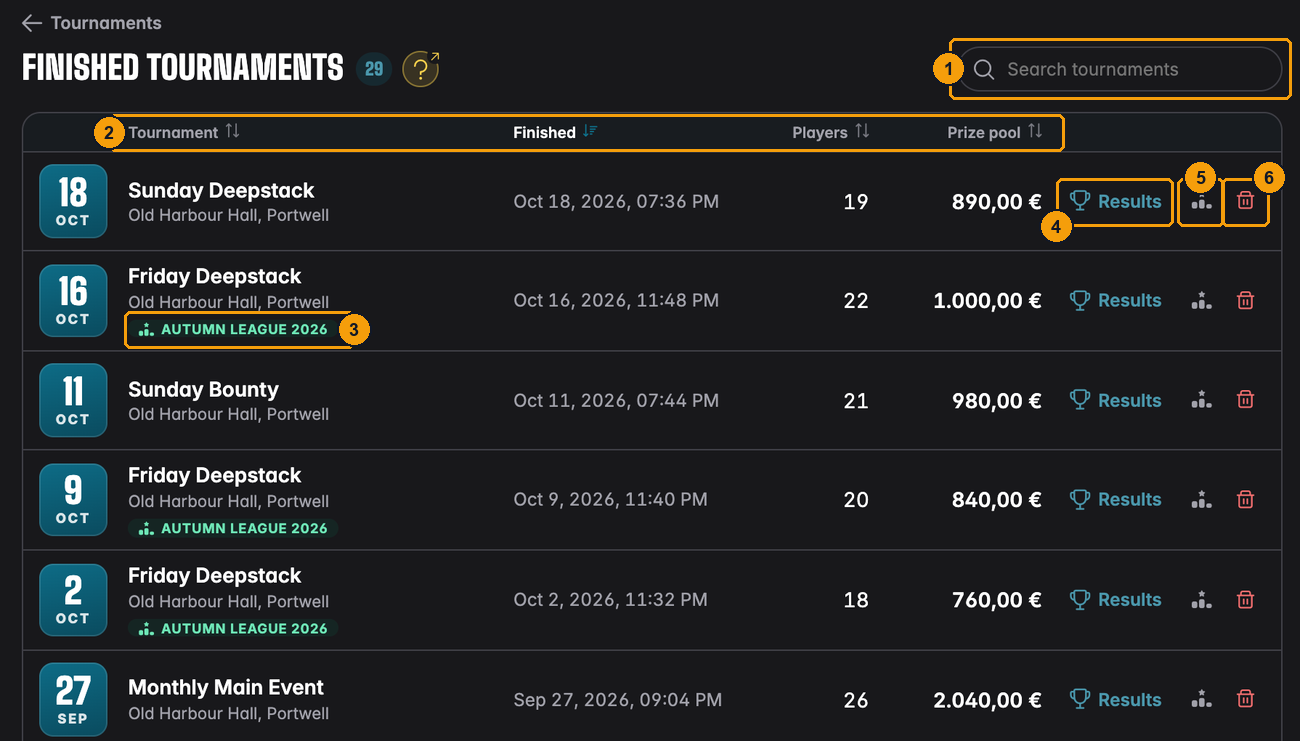
- Search tournaments – find a tournament by name.
- Click a column header to sort by Tournament, Finished, Players or Prize pool.
- A league tag shows which tournaments counted for a league.
- Results opens the final standings (directors). Members see Final standings in this spot.
- League puts a finished tournament into a league, moves it to another one or takes it out. See League tournaments.
- Delete tournament removes the tournament for everyone. UHT asks you to confirm first, because its results are also removed from every player's account and league points change with it.
Final standings for members
A member who presses Final standings sees the same standings the room saw at the end of the night, read-only.
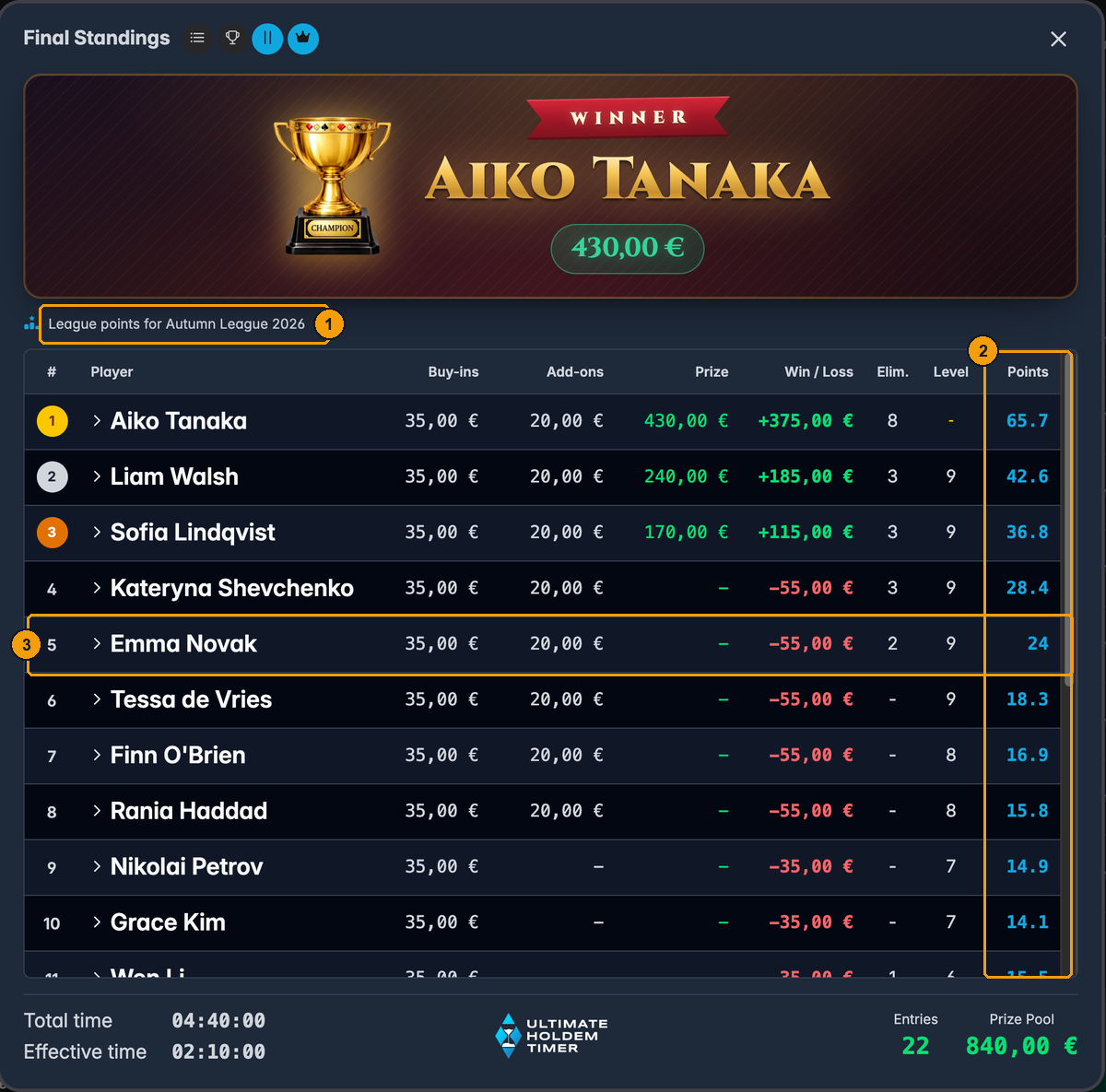
- For a league tournament, the line above the table names the league the points count for.
- Points – the league points each player earned that night. A player who is not in the league shows the points they would have earned, struck through.
- Emma's own row: 5th place, 24 points.
Members only see what belongs on a results board. Payments, notes, phone numbers and email addresses stay with the host and the directors.
Results for directors
Directors open the same standings with Results, but with the host's tools on top:
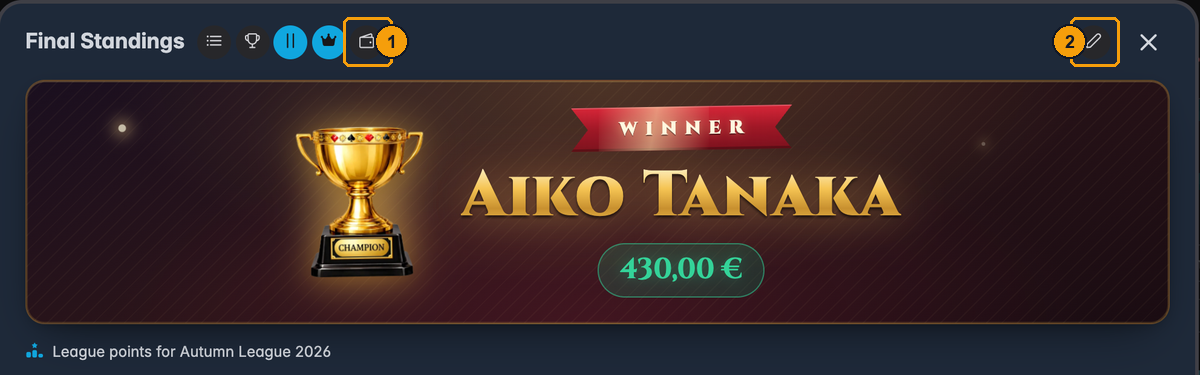
- The wallet opens the payment overview: who paid what, and who still owes the club.
- The pencil lets you correct the tournament's history, for example a bust that was entered for the wrong player. How that works is explained in Correcting a finished tournament. Players' results and league points follow your correction.
A member's results in your club
Directors and floor staff can look up how a single member has done in the club: open Members and click the member. The player window lists every tournament of this club they played, whoever hosted it, with totals and charts. All of it is explained in A member's results in the club.
Members see their own results across all clubs under My Results, see Player results.
Next
- League tournaments – make your tournaments count for a league
- Managing registrations – confirming players and the wait list
- Club financials – what a tournament night brought in for the club