Club settings
Most of what makes your club look and feel like yours can be changed at any time. This page walks through all of it: the club details, the card, the house rules, news, the join and visibility settings, the license, and finally deleting a club.
Unless noted otherwise, only directors can change these things.
The Settings tab
Open your club and click Settings on the right of the tab bar.
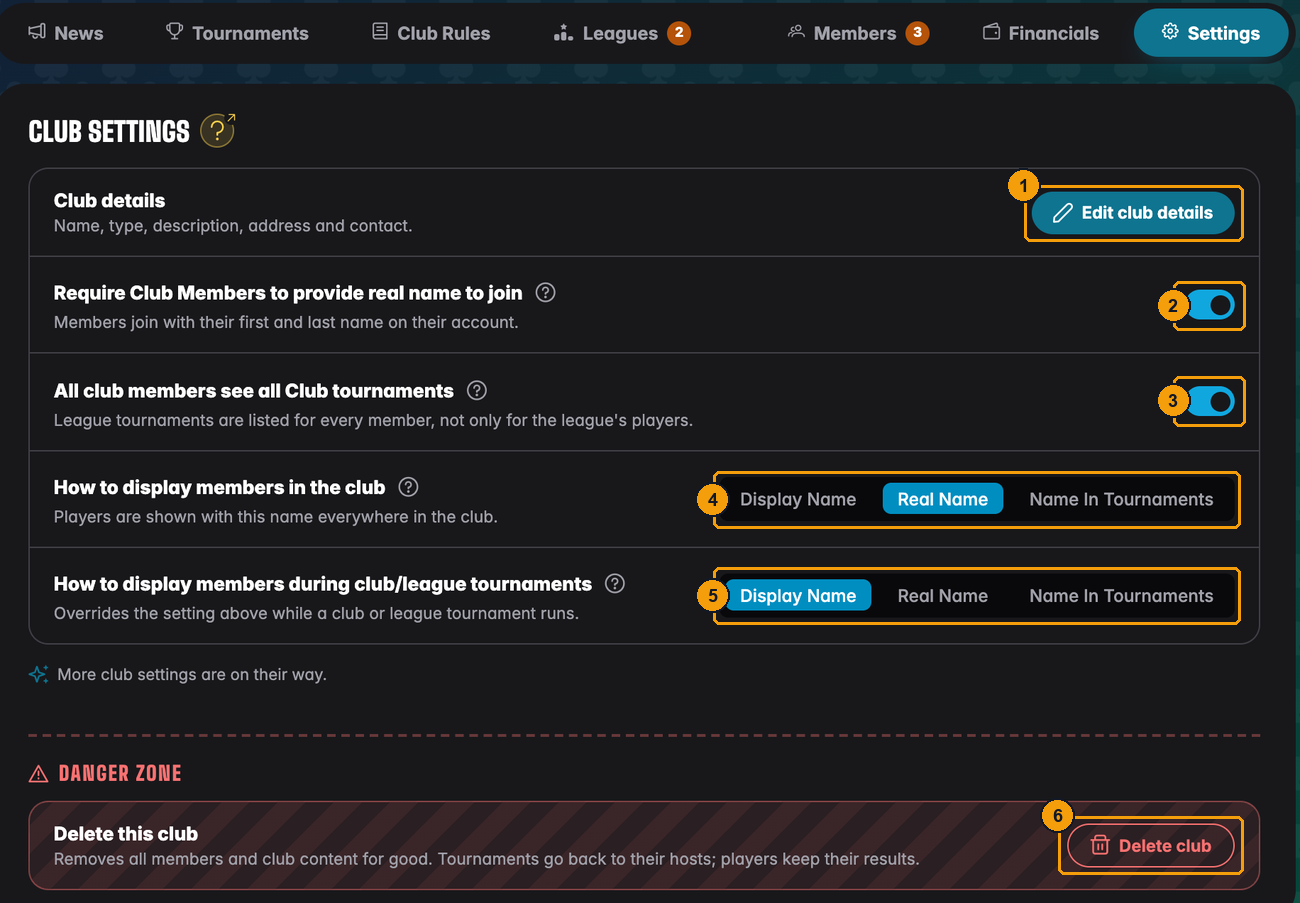
- Edit club details: name, type, description, address and contact.
- Require Club Members to provide real name to join.
- All club members see all Club tournaments.
- How to display members in the club.
- How to display members during club/league tournaments.
- Delete club, in the danger zone. Only the founder sees it.
The switches save as soon as you flip them. The ? next to each setting explains it in a short popup.
Club details
Edit club details opens the same fields you filled in when you created the club:
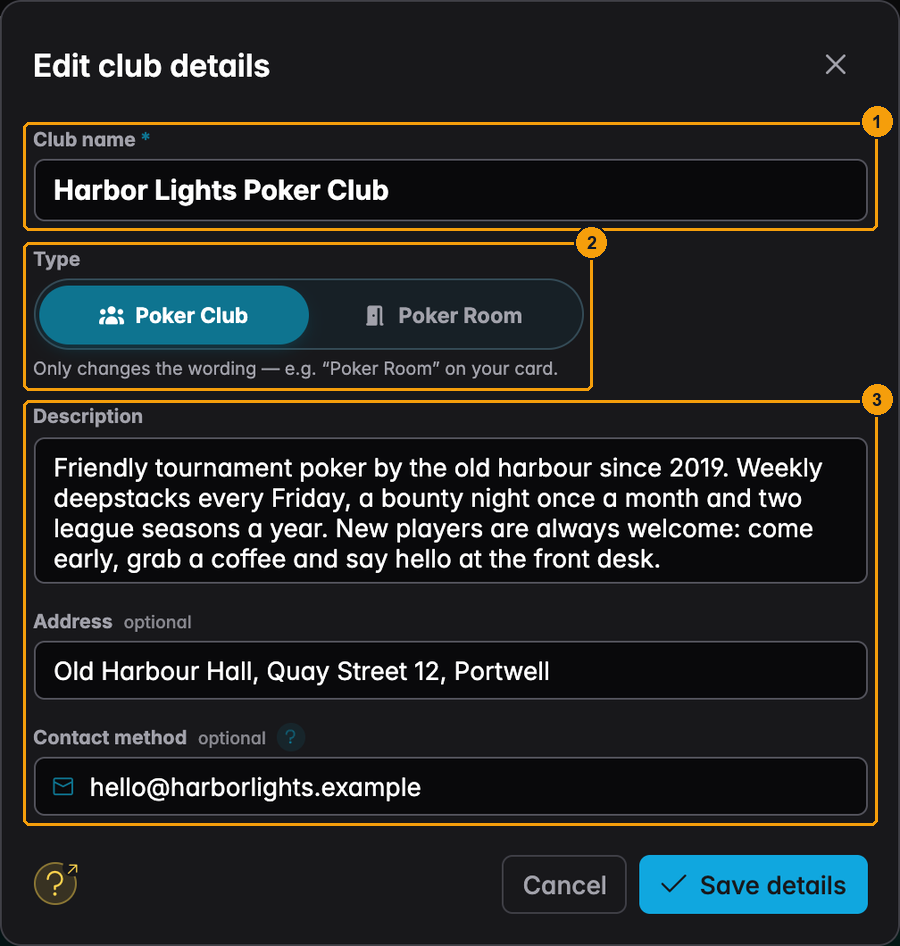
- Club name. The same rule as before applies: no "league" in the name.
- Type: Poker Club or Poker Room. Only the wording changes.
- Description, Address and Contact method. They appear on the club card on the left of every club page. A phone number, email address or web link becomes clickable.
Press Save details to apply.
The club card
The card is the picture with your club name at the top left of the club page. To change it, move the mouse over the card and click the pencil in its corner. On a phone the pencil is always visible.
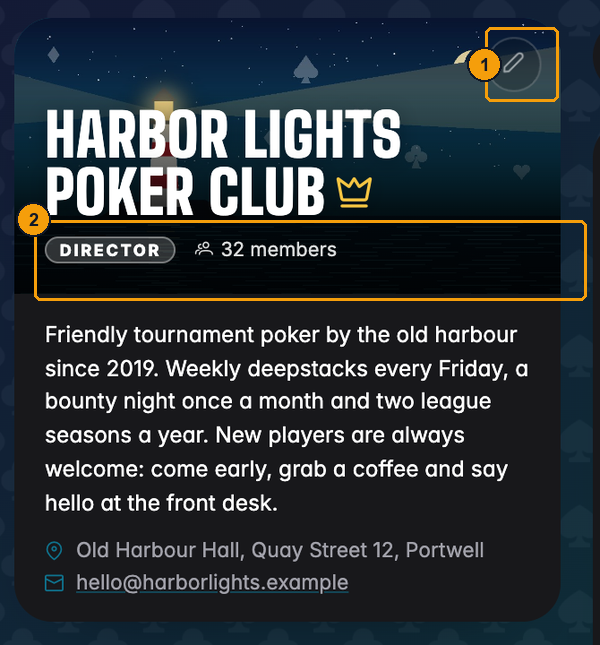
- The pencil opens Edit club card.
- Your role and the member count stay on the card for everyone.
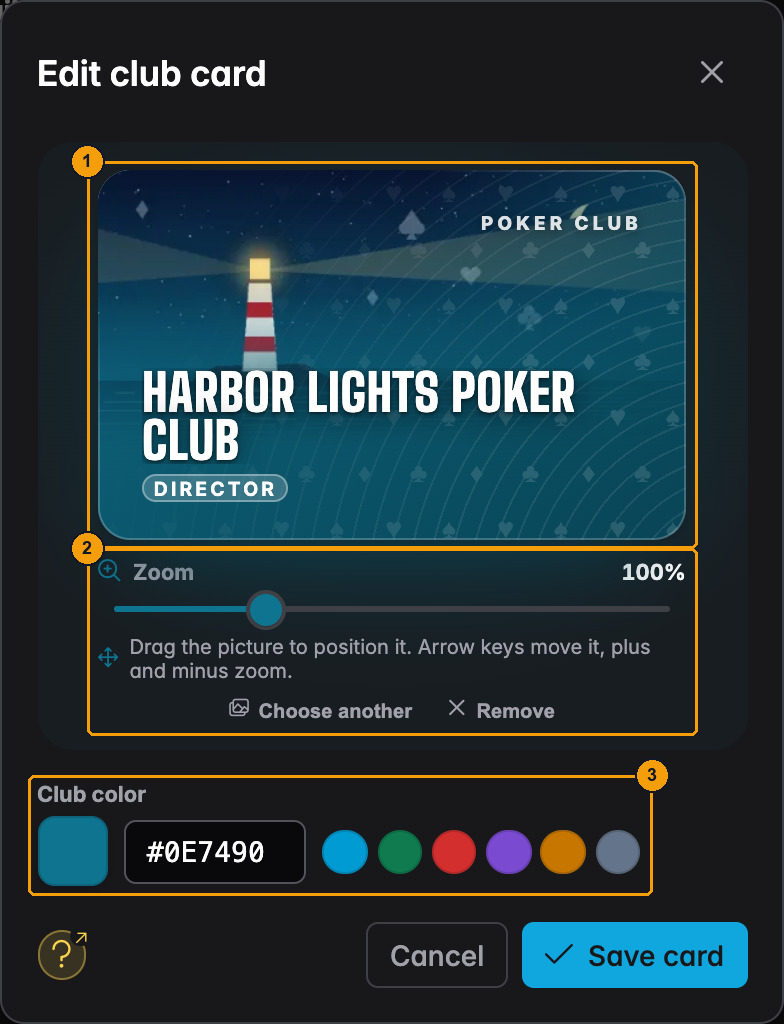
- The live preview of your card.
- Zoom, drag to position, Choose another picture or Remove it.
- Club color. It is also used for buttons and tabs inside your club.
Press Save card. The new card shows up everywhere at once: on the club page, on the Clubs page of every member, on the join page and on printed posters.
House rules
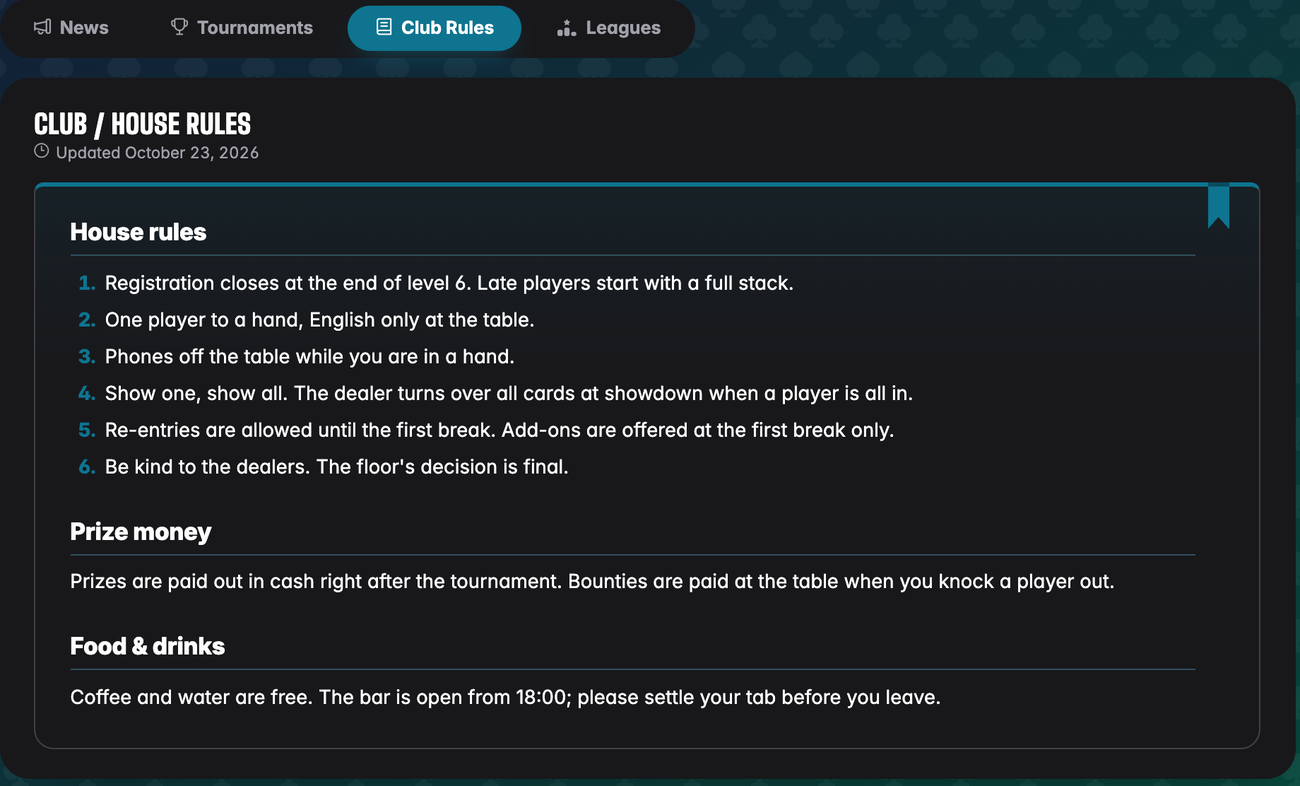
The Club Rules tab holds your house rules: buy-ins, late registration, phones at the table, how disputes are settled. Members only see this tab once you have written something.
Press Edit rules to open the editor:
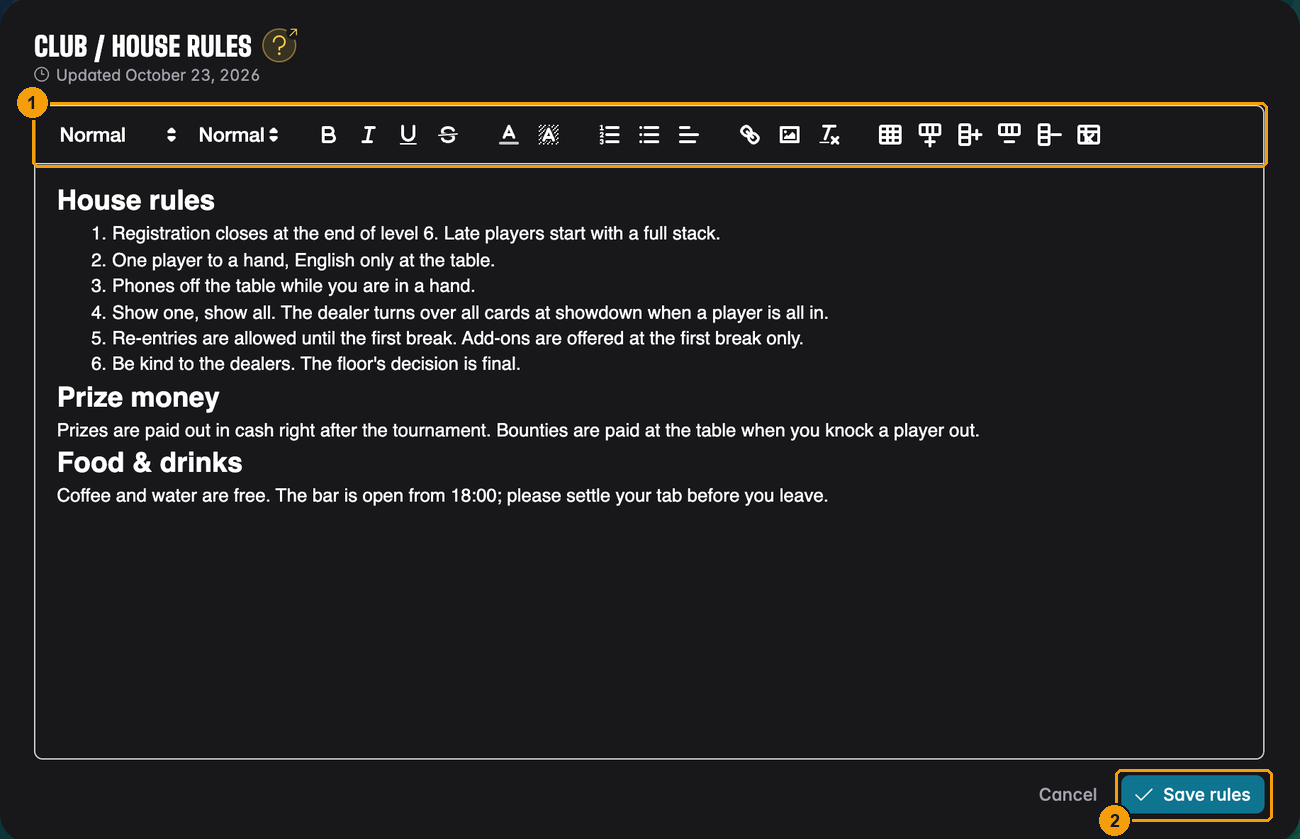
- The toolbar: headings, bold, lists, colours, links, pictures and tables.
- Save rules publishes them. The date under the title tells members when the rules last changed.
This is how your members see them:
News
The News tab is your club's notice board. Directors and floor staff can post; everyone in the club can read. New posts appear at the top.
Press Post news:
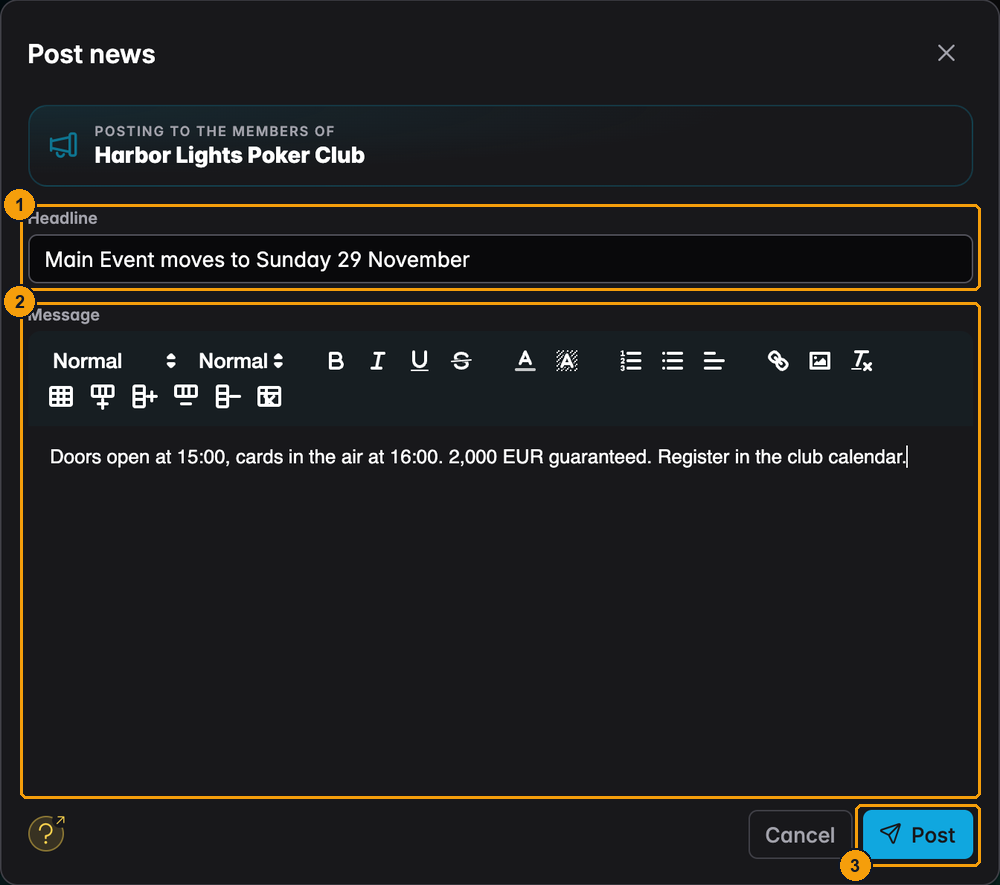
- Headline: keep it short, for example "Main Event moves to Sunday 29 November".
- Message: the details, with the same formatting tools as the house rules.
- Post publishes it to all members.
The bin icon on a post deletes it. There is no edit button: to correct a post, delete it and post it again.
Require real names
Require Club Members to provide real name to join
When this is on, nobody can join without a first and last name on their UHT account. Players are asked for it while joining, both through the join link and with an invitation. When you scan a player's QR code, you are asked to type it in for them.
Turn it on when you need to know who is really at the table: for example for prize money, for a registered association, or simply because "Ace_King_99" is not a name your floor staff can call out.
Real names are private. Only the directors and floor staff of the player's clubs can see them. Members who already joined are not affected when you switch this on later.
Who sees league tournaments
All club members see all Club tournaments
This decides who sees your league tournaments in the calendar and tournament list.
- Off (the default): a league tournament is only shown to the players of that league, plus anyone who is registered for it or played in it. Members outside the league only see your regular club tournaments.
- On: every member sees every club tournament, league or not.
Directors and floor staff always see everything. Turn this on if anyone may play your league nights as a guest; leave it off if league nights are only for league players.
How members are named
Players often have three names: the display name on their account ("Oscar L."), their real name ("Oscar Lindgren") and the name they are known by at the table ("Big O"). Two settings decide which one your club shows.
How to display members in the club applies to the club pages: the member list, news authors, league tables and so on.
How to display members during club/league tournaments applies while a club tournament runs: on the clock display and in the tournament dialogs. You can override it for one running tournament from the tournament controls.
Both offer the same three choices:
| Option | Shows |
|---|---|
| Display Name | the name the player chose for their account |
| Real Name | the player's first and last name |
| Name In Tournaments | the name the player has in someone's own player list: on the club pages the founder's list, during a tournament the list of whoever hosts it |
If a player has no name of the chosen kind, UHT falls back to the display name.
Your Clubs license
Only the club's founder manages its license. Open Settings → License from your account menu (the general settings, not the club's tab):
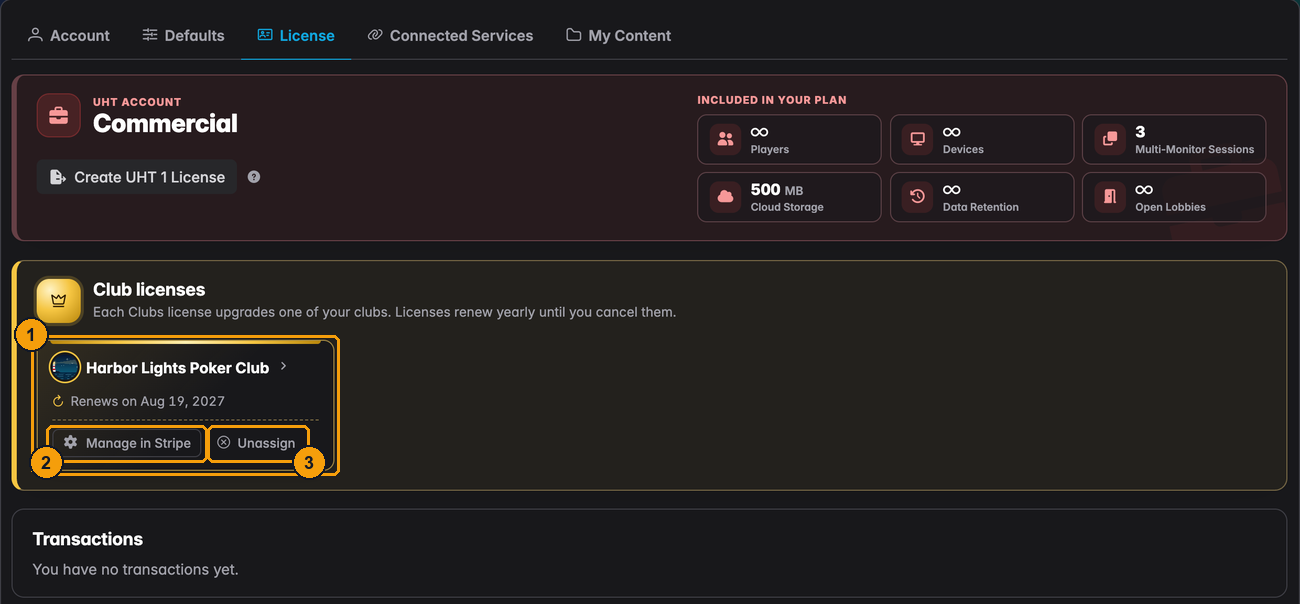
- Each Clubs license you own, with the club it is assigned to and the renewal date.
- Manage in Stripe opens the payment page, where you can change the card or cancel.
- Unassign takes the license off the club. The club becomes free again.
You can also assign a license from Upgrade club on the Clubs page. More about free and licensed clubs is in Creating a club.
Deleting a club
Only the founder can delete a club. Scroll to the Danger zone at the bottom of the Settings tab and press Delete club. UHT shows exactly what will happen before you confirm:
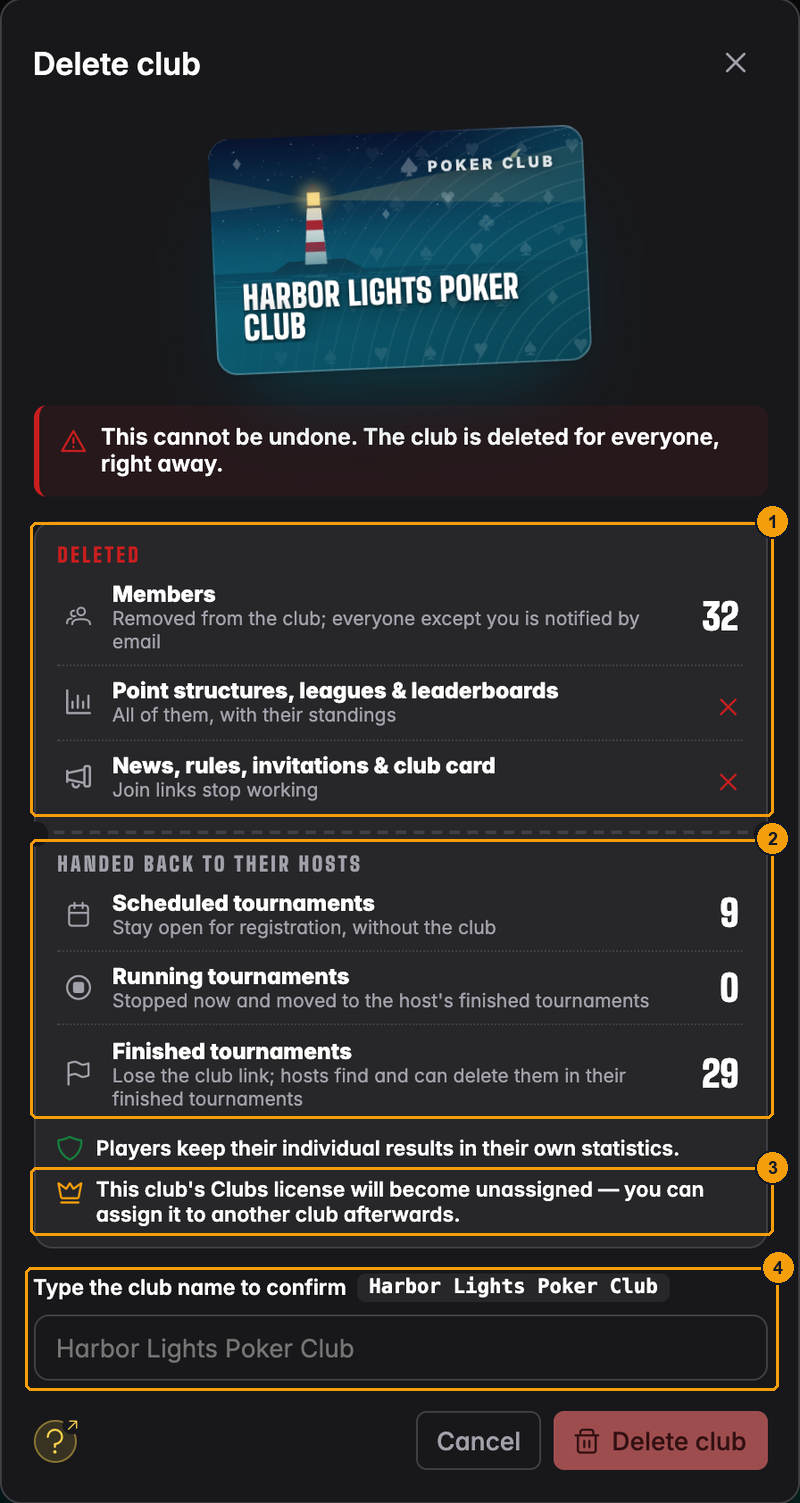
- Deleted: all members are removed and everyone except you gets an email. Leagues, leaderboards and their standings are deleted. News, rules, invitations and the card go too, and join links stop working.
- Handed back to their hosts: scheduled tournaments stay open for registration, just without the club. Running tournaments are stopped. Finished tournaments stay with the person who hosted them.
- Players keep their own results in their statistics. A Clubs license on the club becomes free to use for another club.
- Type the club name exactly as shown and press Delete club.
A deleted club cannot be brought back. Manual players of the club are deleted with it. If you only want to stop using the club for a while, leave it as it is: a club costs nothing while it sits quietly.
Not the founder? You cannot delete the club, but you can leave it with Leave club at the bottom of the club page.