Managing members
A club is only as good as its member list. This page covers the three ways players get in, how you approve requests, and how you look after the list afterwards: roles, real names and removing people.
Everything here happens on the Members tab of your club. Directors and floor staff see this tab; regular members do not.
The member list
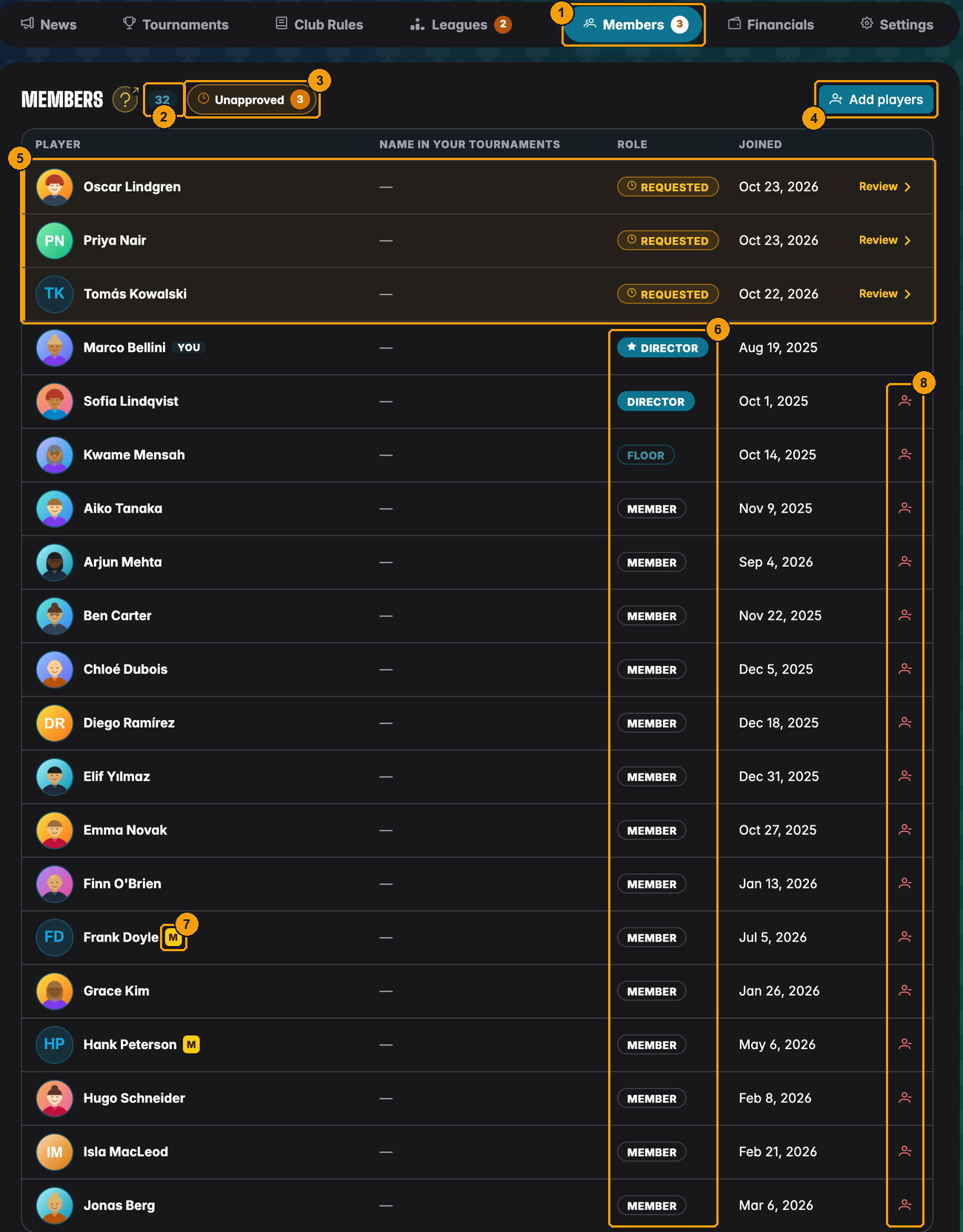
- The Members tab. The orange number counts open join requests.
- How many members the club has. A free club shows it as "12 / 20" so you can see how much room is left; a licensed club shows only the number.
- Unapproved filters the list down to open join requests.
- Add players opens the dialog with all the ways to bring players in. It is greyed out when the club is full.
- Open requests are always listed first, with a Requested badge and a Review link.
- Each member's role. Directors are listed first. The founder's badge has a star.
- The yellow M marks a manual player: someone you added by hand who has no UHT account. Only directors see this mark.
- The remove icon. Directors use it to take someone out of the club.
Click any row to open that member's details (see Member details below).
Above the list, the search field finds members by display name, real name, email or the name they play under in your tournaments. The buttons next to it narrow the list to Directors, Floor or Members; directors also get Manual, which shows only manual players.
The list shows each player under the name your club setting asks for: their display name, their real name or the name they play under. You set this in Club settings. The column Name in your tournaments is your own nickname for that player, from your personal player list.
Three ways to add players
Press Add players. The dialog has three tabs at the top.
| Way | Best for | Needs approval? |
|---|---|---|
| Scan QR code | the player is standing next to you | no, they are in at once |
| Invite by email | you know the player's email address | no, the invitation itself is the approval |
| Join link | sharing in a group chat, on a poster, on your website | yes, a director approves each request |
Players who never want a UHT account can still be in your club as manual players.
Scan a player's QR code
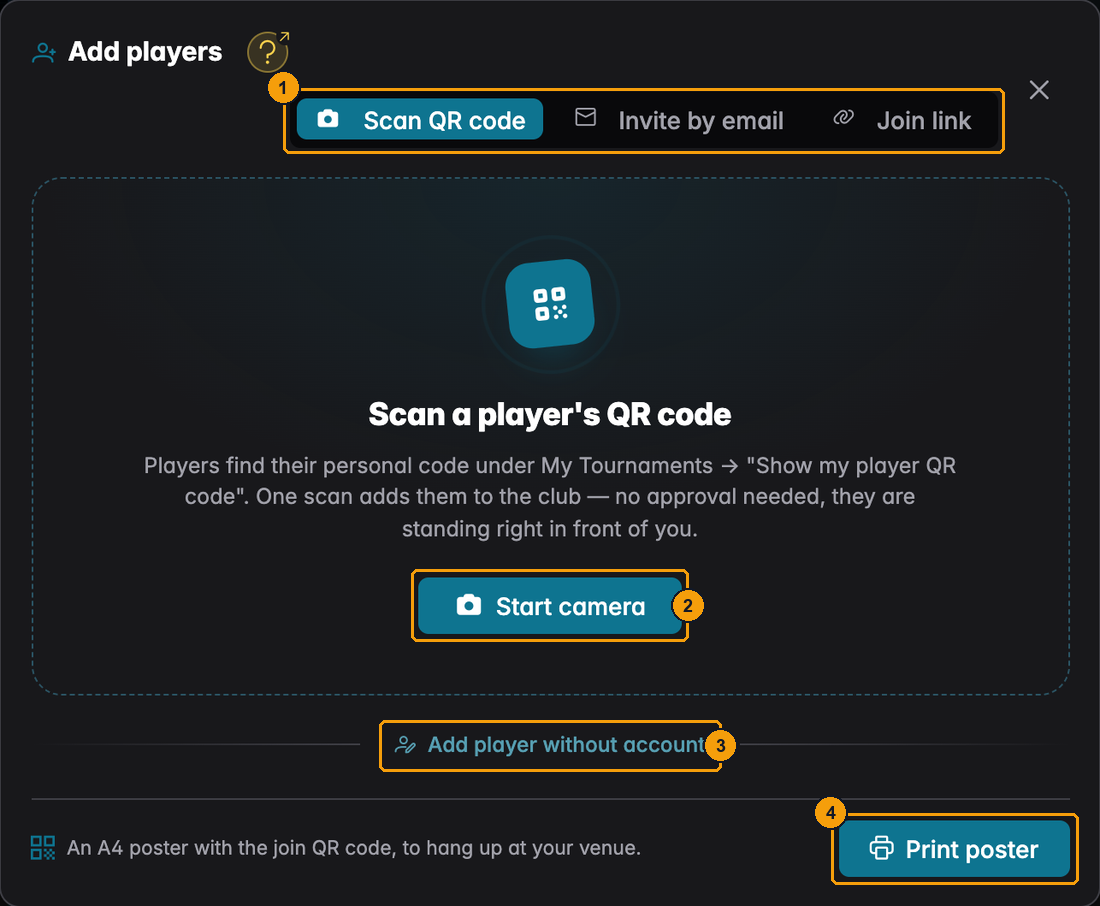
- The three tabs.
- Start camera turns on the camera of your phone, tablet or laptop.
- Add player without account switches to manual players. Only directors see this link.
- Print poster creates an A4 poster with the club's join QR code to hang up at your venue.
Every UHT player has a personal QR code. On the phone they open Tournaments → My Tournaments and press Show my player QR code:
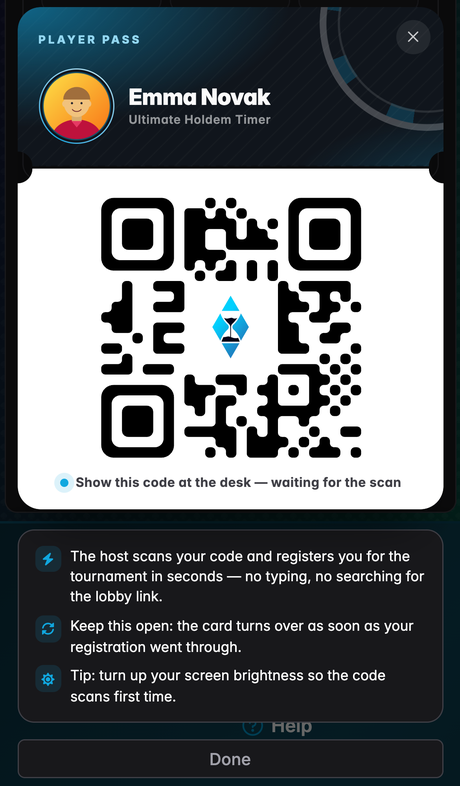
Point your camera at it and the player is a member straight away, no request and no approval. You can carry on with Scan next player, which makes it quick to sign up a whole table on club night.
If your club requires real names and the player has not entered theirs, UHT asks you to type their first and last name before adding them. The name is saved to the player's account.
Invite by email
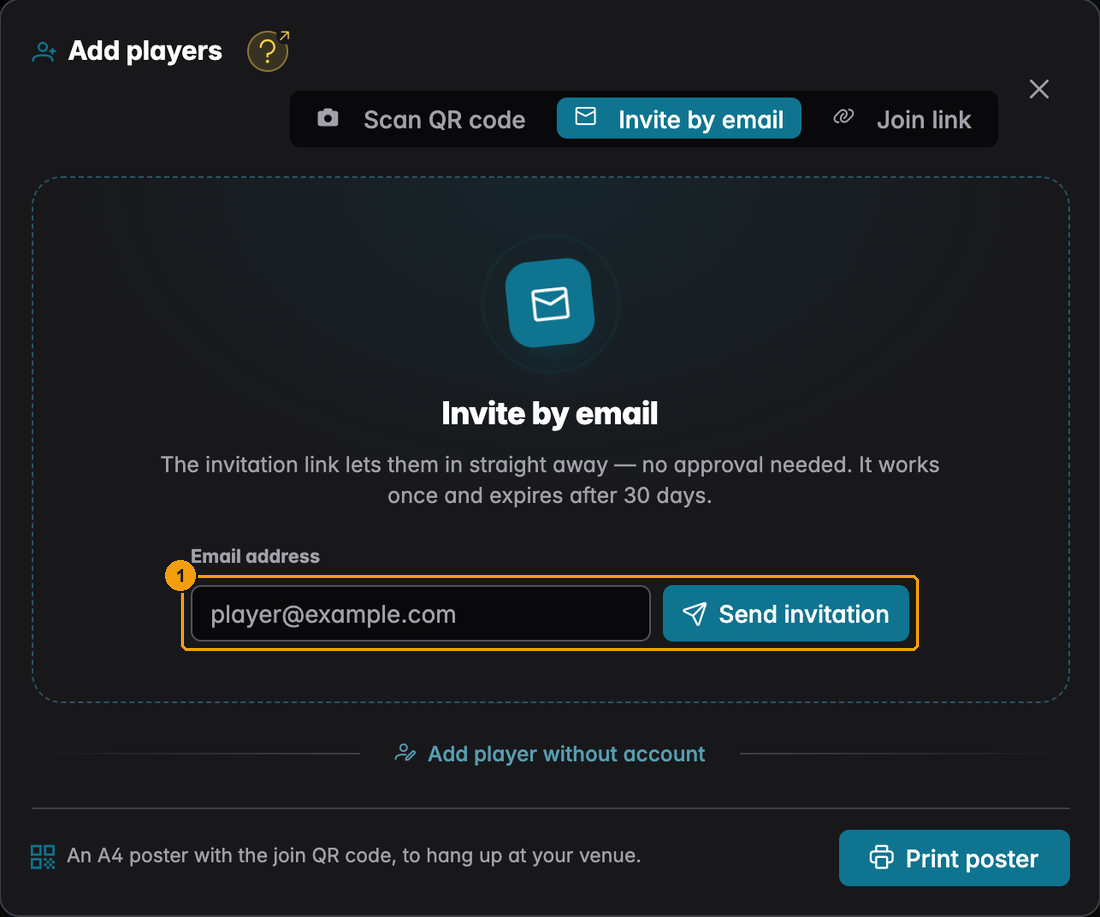
- Type the address and press Send invitation.
The player gets an email with a personal link. When they follow it, they are a member straight away, and your club's directors get an email that they joined.
- The link works once and expires after 30 days.
- It only works for the account with that email address, and the address has to be confirmed. If someone opens it while logged in with a different account, they see This invitation is for someone else.
- A club can send up to 50 invitations a day. If you need more, share the join link.
Share the join link
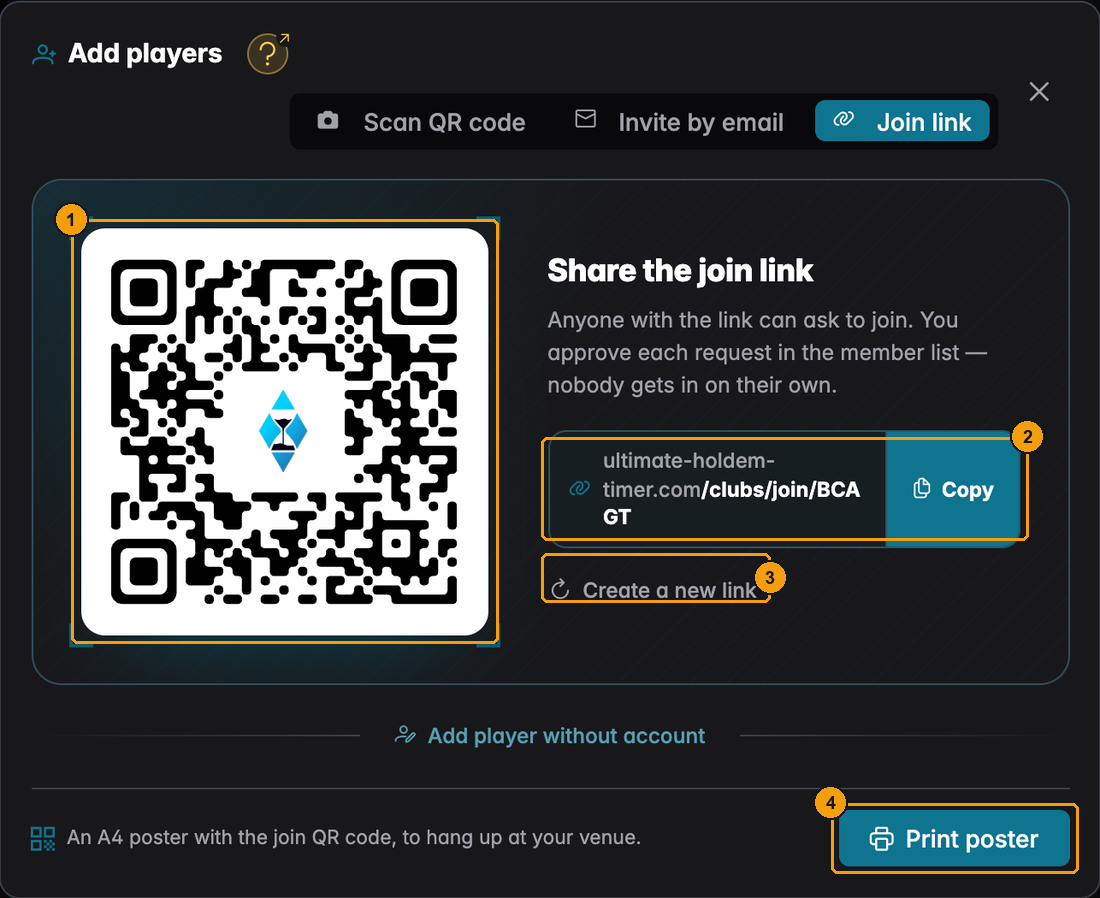
- The QR code of your join link. Anyone can scan it with their phone camera.
- The link itself. Copy puts it on your clipboard for WhatsApp, email or your website.
- Create a new link retires the old link and its QR code immediately. Use it if the link got into the wrong hands. Everyone who should still be able to join needs the new one.
- Print poster makes an A4 poster with this QR code, your club's name, address and contact, and three short steps for the player.
Anyone with the link can ask to join. Nobody gets in on their own: each request waits for a director. What the player sees is described in Joining clubs and leagues.
Requests also come in when your club is full. They wait in the list until you have room again.
Approving join requests
New requests appear at the top of the list. Directors also see them as a badge on the Members tab and on the club card on the Clubs page, and get an email for each one. If you use the UHT Player app, you get a push message too.
Click Review to open the request:
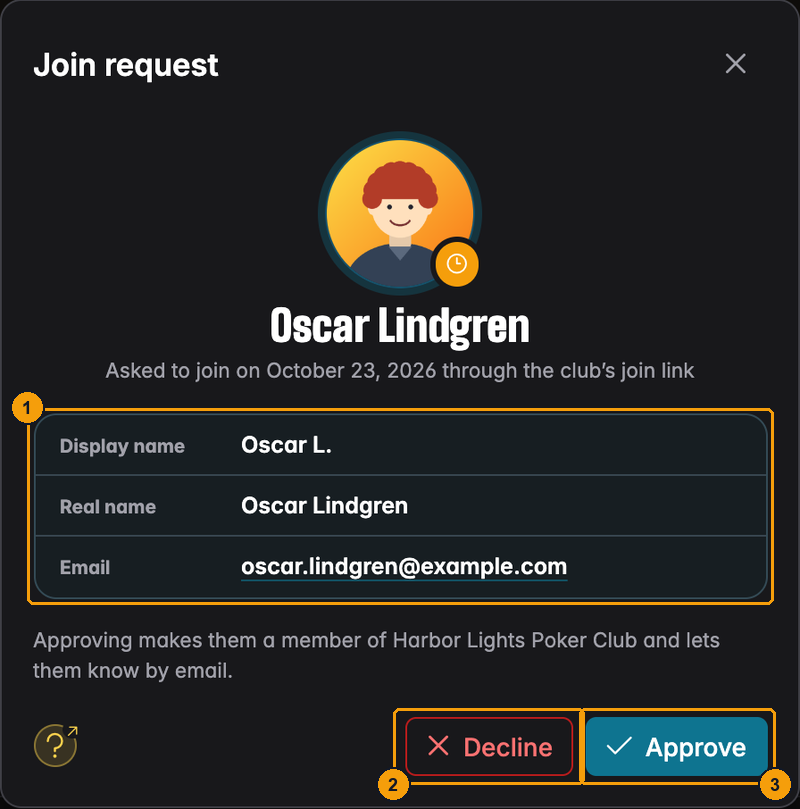
- Who is asking: their display name, their real name (if they entered one) and their email address, so you can tell whether you actually know them.
- Decline removes the request.
- Approve makes them a member and sends them an email that they are in.
Only directors can approve or decline. Floor staff can open the request but see the note A director of the club approves requests.
After approving, the player moves into the list as a normal member and the count goes up by one:
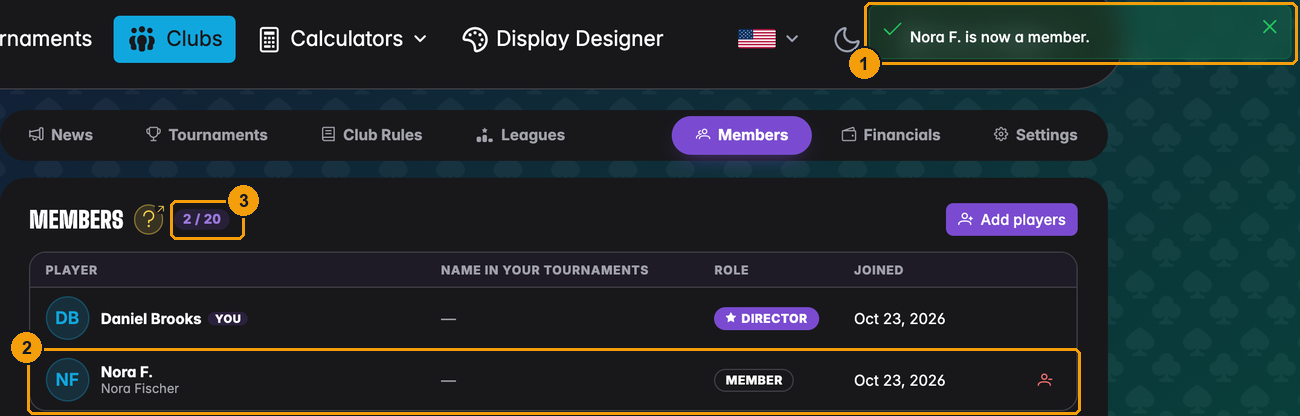
- The confirmation, here Nora F. is now a member.
- Nora is now in the list as a Member. Her real name shows under her display name.
- The member count went up.
Member details
Click a member's row to open their details. This is the same player window you know from your player list, with a few club extras.
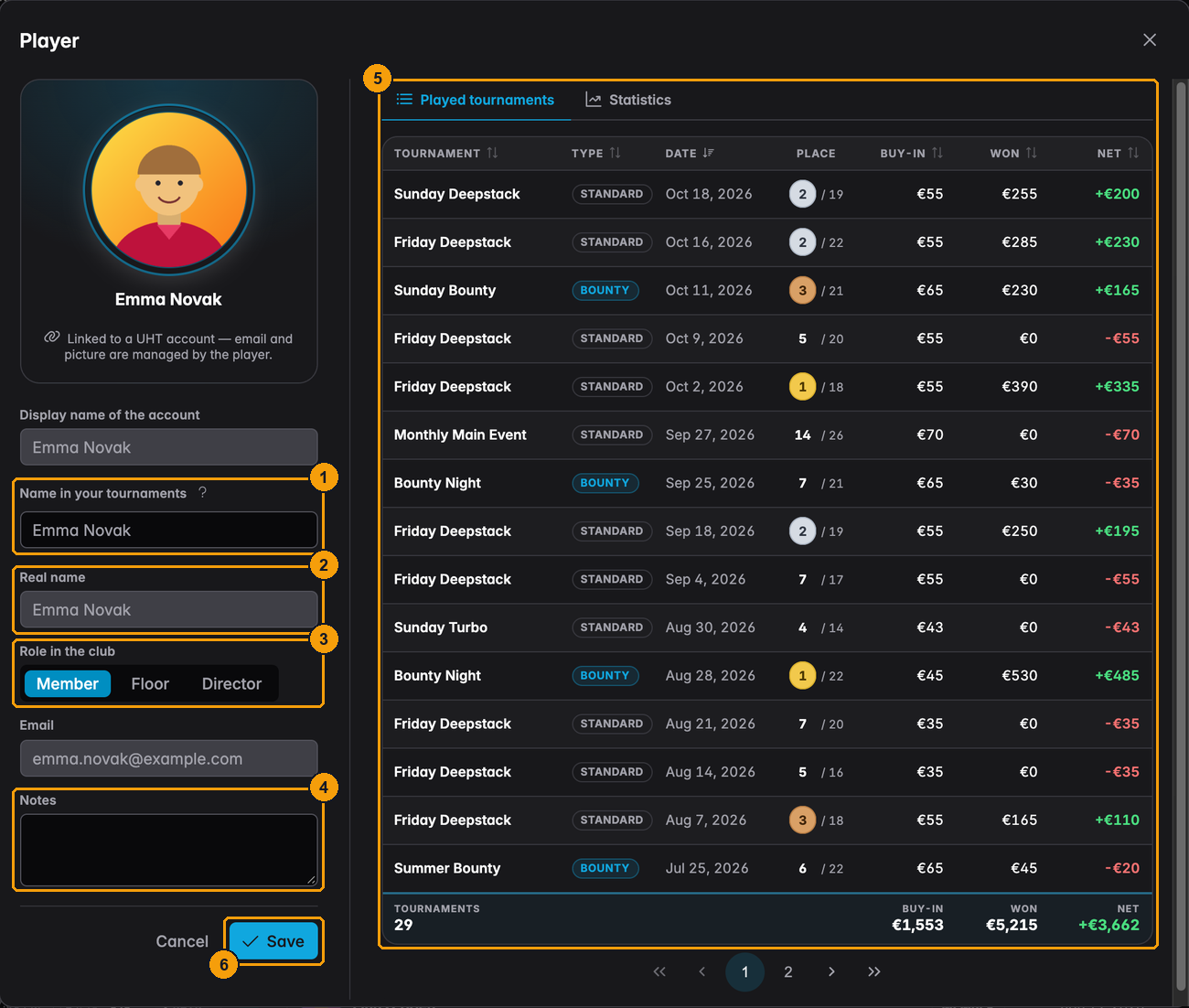
- Name in your tournaments: your own name for this player. It is used in your tournaments and lobbies, and does not change the player's account. Leave it empty to use their display name.
- Real name: what the player entered in their account. Only you and other directors and floor staff of their clubs can see it. You cannot change it here; the player does that in their settings.
- Role in the club: Member, Floor or Director.
- Notes: private notes that only you see.
- Every tournament this player has played, with place, buy-in and winnings. The Statistics tab next to it adds up their results.
- Save stores your changes.
Changing a role
Pick the new role in Role in the club and press Save. The change takes effect at once.
- Only directors can change roles. Floor staff see the roles but cannot change them.
- You cannot change your own role, and nobody can change the founder's role. The founder is always a director.
- Manual players can only be members, because they cannot log in.
- If you take someone off the floor staff, they also lose access to any tournament controls you handed them for club tournaments.
What each role may do is listed in Club administration.
Removing a member
Click the remove icon at the end of the row. UHT asks for confirmation:
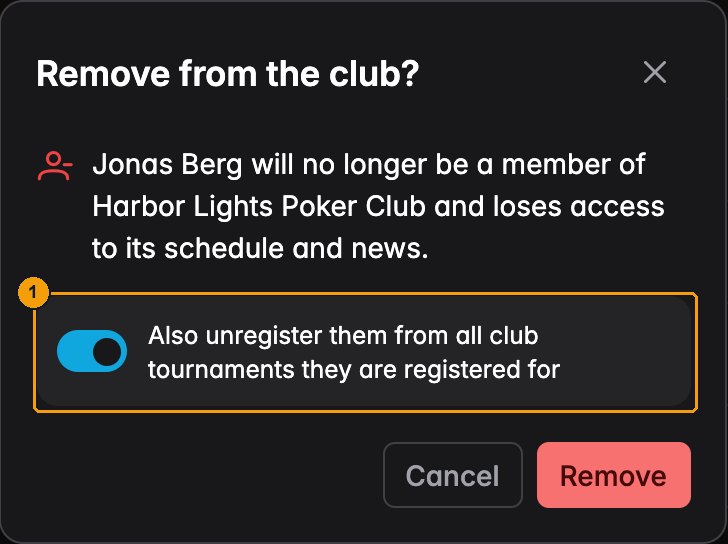
- Also unregister them from all club tournaments they are registered for is ticked by default. Leave it on unless you want to keep their seat in an upcoming event.
What removing does:
- They lose access to the club's schedule, news and rules straight away.
- They are taken off every league of the club, including open league requests. Their points stop counting in the standings. Adding them back later brings those points back.
- Their past results stay in their own statistics.
- To come back they need a new invitation, a QR scan or the join link.
Only directors can remove members, and nobody can remove the founder or themselves. To leave a club yourself, use Leave club at the bottom of the club page (see Leaving a club).
When the club is full
A free club holds 20 members. Once you reach that:
- Add players is greyed out, with a note that the club is full.
- Scanning, email invitations and approving requests are refused.
- Players can still ask to join through the link. Their requests wait until you have room.
Make room by removing members, or assign a Clubs license to the club for unlimited members (see Creating a club).