Club administration
Once your club is set up, the day-to-day work is mostly people: new players knocking on the door, staff who help on tournament night, the odd member who leaves. This page collects the rules behind all of that in one place.
Roles and permissions
Each club member has one of three roles. On top of that, the person who created the club is the founder, who is always a director and has a few extra rights.
| What | Member | Floor | Director | Founder |
|---|---|---|---|---|
| See news, rules, calendar and tournaments | yes | yes | yes | yes |
| Register for tournaments | yes | yes | yes | yes |
| Ask to join a league | yes | yes | joins directly | joins directly |
| See league tournaments of leagues they do not play in | only if the club allows it | yes | yes | yes |
| Open the Members tab and member details | yes | yes | yes | |
| Add players by QR scan, email invitation or join link | yes | yes | yes | |
| Create a new join link, print the poster | yes | yes | yes | |
| Post and delete news | yes | yes | yes | |
| Run club tournaments: controls, display, registrations, seating | yes | yes | yes | |
| Schedule, edit, cancel or delete club tournaments | yes | yes | ||
| Approve or decline join requests | yes | yes | ||
| Change roles, remove members | yes | yes | ||
| Add and edit manual players | yes | yes | ||
| Edit club details, card, house rules and settings | yes | yes | ||
| Create and manage leagues, scoring and results | yes | yes | ||
| Club financials | yes (if the founder has a Commercial account) | yes (with a Commercial account) | ||
| Assign or remove the Clubs license | yes | |||
| Delete the club | yes | |||
| Leave the club | yes | yes | yes (not the last director) | never |
A few things to keep in mind:
- The founder is fixed. Nobody can remove the founder or change their role, and the founder cannot leave. If the club should end, the founder deletes it.
- There is always a director. The last director cannot leave until someone else has the role.
- Nobody edits themselves. You cannot change your own role or remove yourself; use Leave club instead.
- Hosts keep their tournaments. Whoever created a tournament can always run, edit and cancel that tournament, whatever their role in the club is today.
- Leagues are for players. Floor staff see the league tables only for leagues they play in themselves, just like members.
How to change a role is explained in Managing members.
Directors and floor staff side by side
The difference is easiest to see on the Tournaments tab. Here is what Kwame, the floor manager of Harbor Lights, sees:
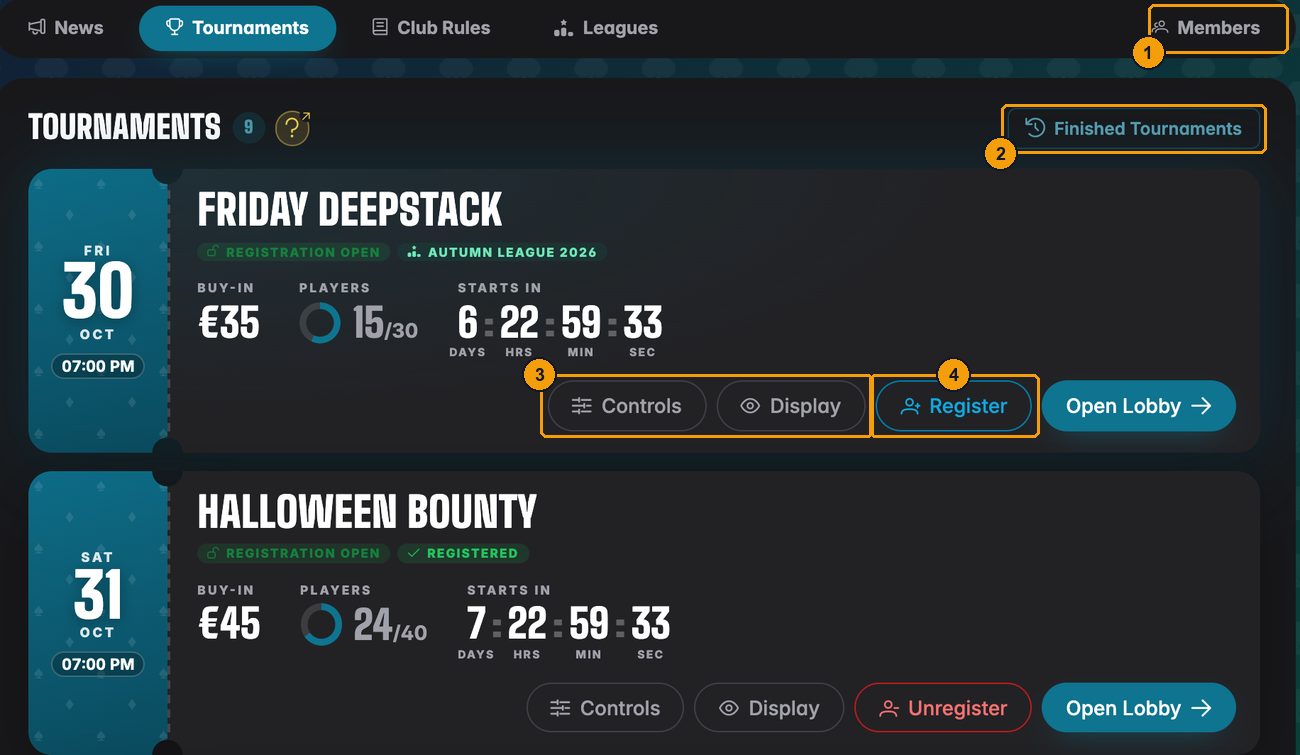
- Of the staff tabs, floor staff only get Members. No Financials, no Settings.
- Finished Tournaments is there, Schedule tournament is not.
- Controls opens the tournament controls in a new tab: clock, players and seating. Display opens the clock for the screen on the wall.
- Floor staff can still register for a tournament themselves, like any player.
And here is the same list for Marco, a director:
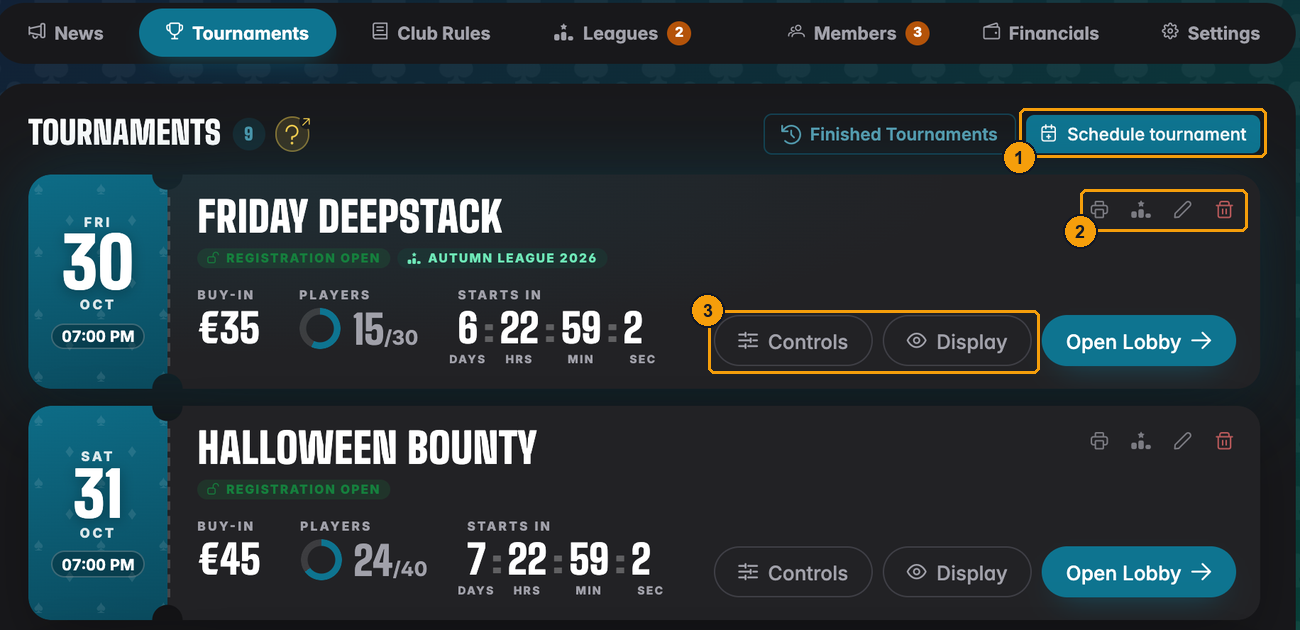
- Schedule tournament adds a new club tournament.
- On each tournament: print a flyer, assign it to a league, edit it and delete it.
- Controls and Display, the same as for floor staff.
Scheduling and running tournaments is covered in detail in Club tournaments.
The Members tab differs too. Kwame sees the same list as a director, but cannot act on it:
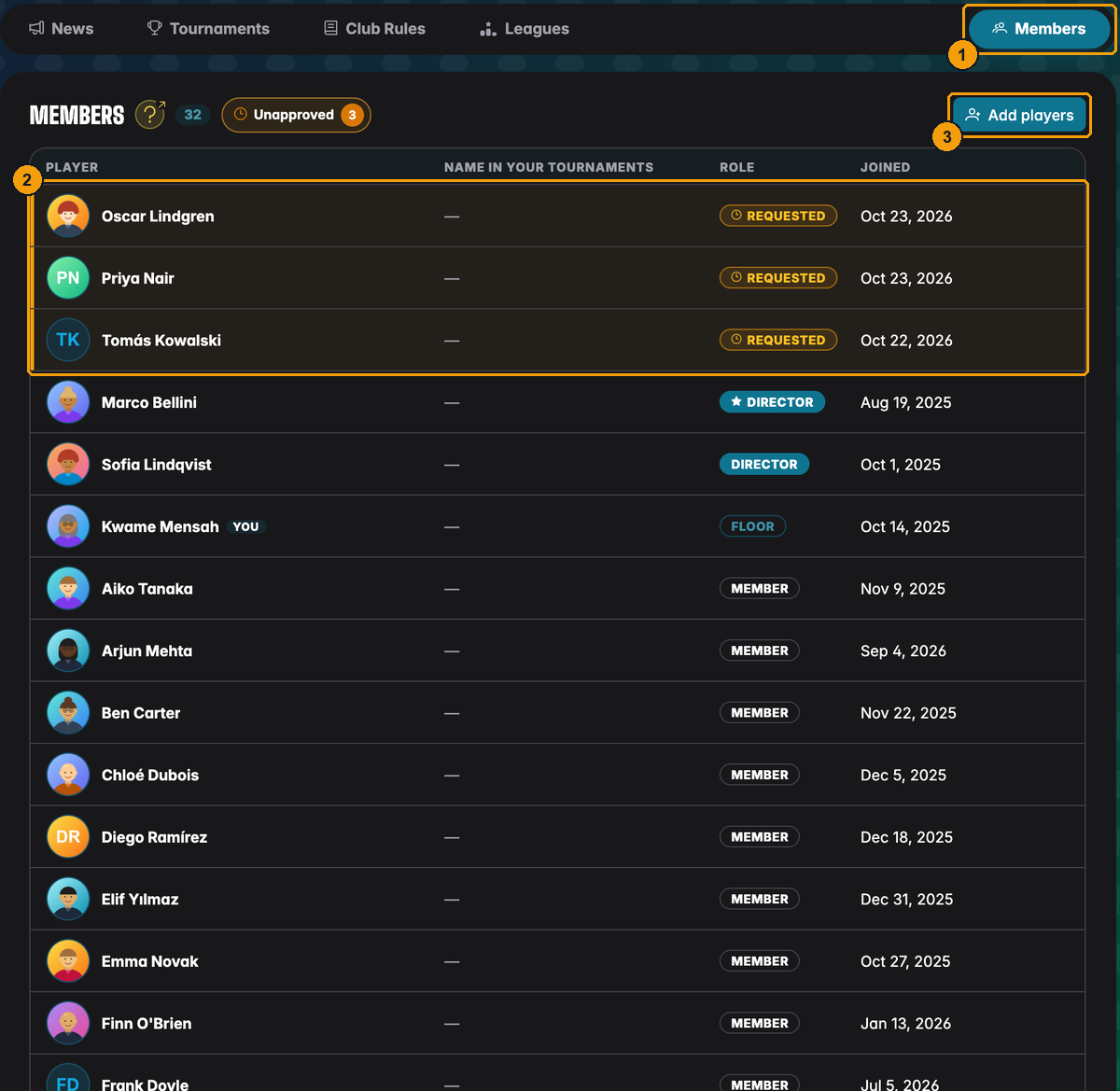
- Members is the only staff tab floor staff get.
- Open requests are listed, but without Review: approving is for directors.
- Add players works, so floor staff can scan new players in at the door.
There are no remove icons, and manual players look like everyone else.
A typical tournament night
- The director schedules the tournament days ahead. Players register through the lobby.
- On the night, the floor manager opens Controls from the club's tournament list. No need for the director's login or a shared password.
- The floor manager seats players, starts the clock, handles rebuys and knockouts.
- When the tournament ends, the results go into the club automatically, and into any league the tournament belongs to.
If you take someone off the floor staff, their access to the controls of club tournaments ends immediately, even if they had the controls open.
Handling requests
Two kinds of requests wait for directors:
- Club join requests from players who used the join link.
- League join requests from members who want to play in a league that needs approval.
You see both on the club card on the Clubs page:
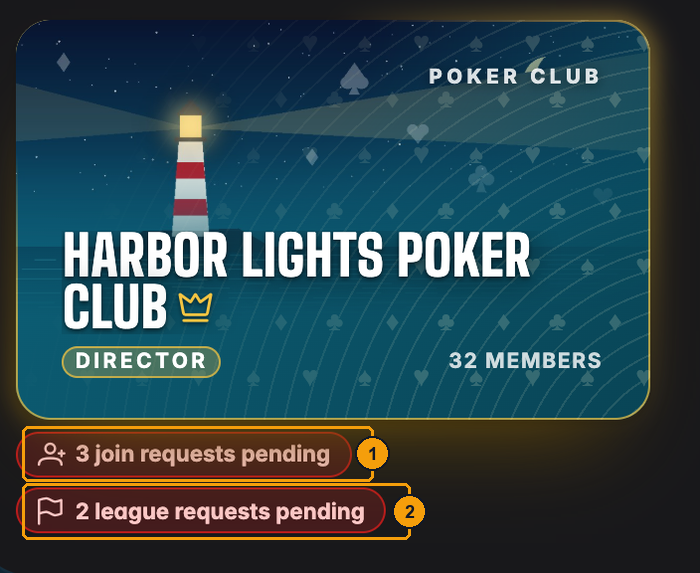
- 3 join requests pending: players who want into the club.
- 2 league requests pending: members who want into a league.
Inside the club the same numbers sit on the Members and Leagues tabs. You also get an email for each request, and a push message if you use the UHT Player app.
Club requests are handled on the Members tab with Review, see Approving join requests. League requests are handled on the league's Players tab, see Leagues and leaderboards.
Some habits that help:
- Look at the real name and email before approving someone you do not recognise.
- Decline what you do not want. An open request does not block anything, but it keeps the badge orange.
- Full club? Requests can still come in. Approving fails until you make room or upgrade.
Member limits
| Free club | Licensed club | |
|---|---|---|
| Members | 20 | unlimited |
Open requests do not count, manual players do. When the club is full (20 of 20), you cannot add anyone, but everything else keeps working.
Locked clubs
A club is locked when it has more members than its limit allows. This happens when a Clubs license ends or is removed from a club with more than 20 members.
Directors see a banner on every page of the club:
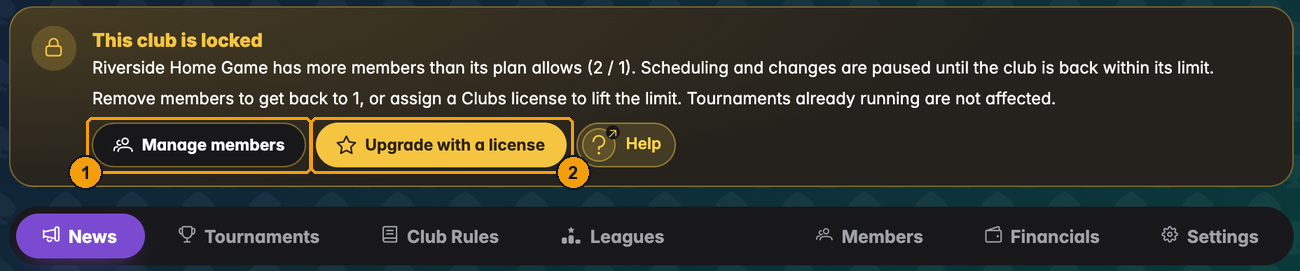
- Manage members jumps to the member list so you can remove people.
- Upgrade with a license opens the license dialog.
Members see the same banner, without the buttons:

While the club is locked, these are paused:
- scheduling new club tournaments and editing scheduled ones,
- adding players, sending invitations, creating a new join link, approving requests,
- editing the club details, card, settings and house rules, posting news,
- changes to leagues and the books,
- editing finished tournaments.
These keep working, so you can get the club back in order:
- tournaments that are already running,
- removing members and changing roles,
- deleting news, cancelling tournaments,
- assigning a license,
- members leaving, deleting the club.
Buttons that are paused are greyed out and say Not available while the club is locked when you point at them.
To unlock the club, either remove members until you are back at 20, or assign a Clubs license (see Creating a club). The lock lifts the moment the club is within its limit again.