The Add Display dialog
Add Display is the other half of connecting a TV with a code. The TV shows the code; this is where you enter it. It is also where every screen you have ever paired lives, so that the second night is one tap rather than six digits.
Finding it
You need a tournament with multi monitoring enabled, and you need to be on a controller device — normally the phone in your pocket.
Open the Tournament Controls, tap Manage Displays, then Add Display:
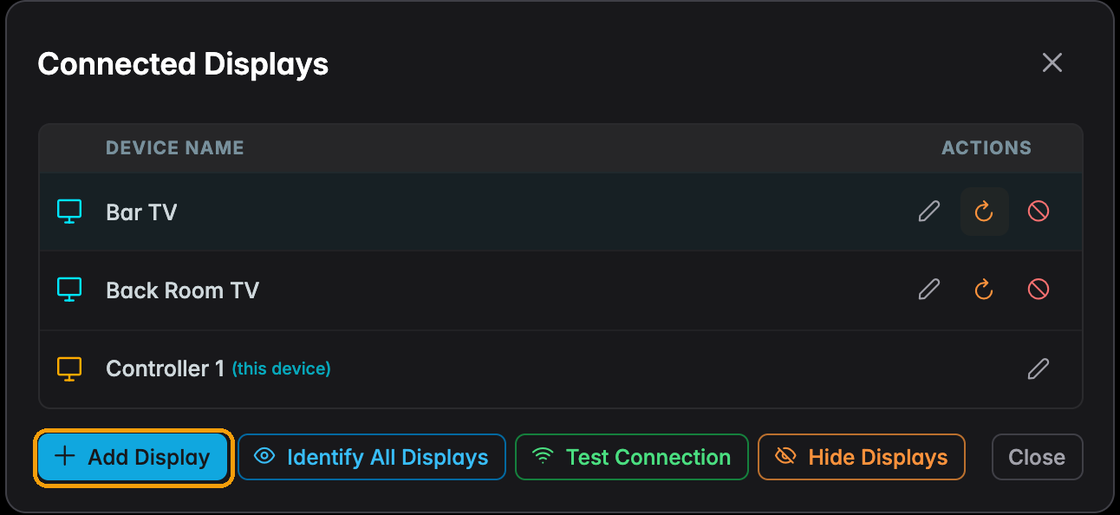
The multi-monitor command centre reaches the same place: the Displays count in its header opens the Connected Displays dialog too.
The dialog
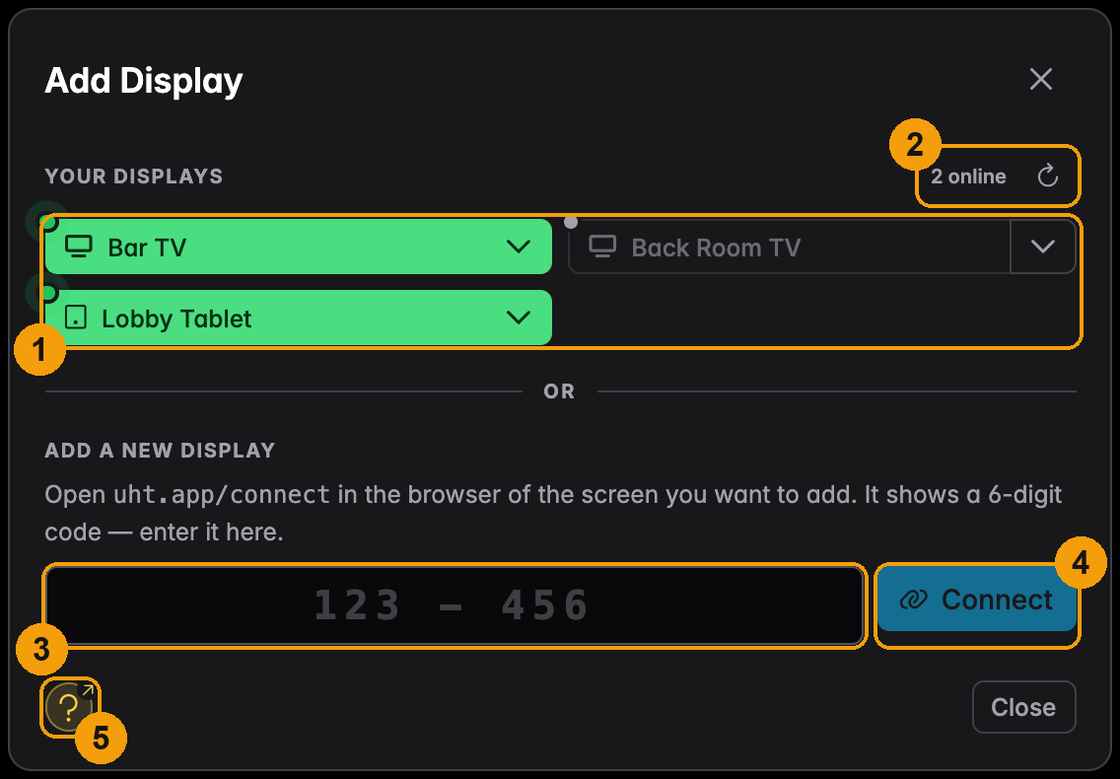
| # | What it is |
|---|---|
| 1 | Your displays — every screen remembered on your account, as a button each. Green means it is on the connect page right now; grey means it is not. |
| 2 | How many are online, and a refresh button. The list also refreshes itself every five seconds while the dialog is open. |
| 3 | The code field. Type the six digits the screen is showing. It formats itself as 123 - 456 while you type, so it mirrors the TV. |
| 4 | Connect — sends the screen showing that code to this tournament's display. |
| 5 | Help — opens this help centre. |
Adding a screen you have used before
This is the everyday case, and it needs no code at all.

- Green, with a pulsing dot — the screen is sitting on
uht.app/connectright now. Tap it and it joins the tournament. - Grey and outlined, with a dull dot — the screen is off, or showing something else. The
button cannot be tapped. Open
uht.app/connecton it and it turns green within a few seconds.
The icon on each button says what kind of device it is — a television, a tablet, a phone, a projector or a computer.
Walk past the television, turn it on, let it land on the connect page — then open Add Display on your phone. Everything you need will already be green.
Renaming and forgetting a screen
The little arrow on the right of each button opens its menu:

Rename turns the button into a text field. Type the new name, press the tick or Enter; Escape or the cross cancels.

Do this early. "TV 1" and "TV 2" tell you nothing when you are trying to work out which screen is in the back room; "Bar TV" and "Back room" tell you everything.
Remove from my account forgets the screen. UHT asks first:
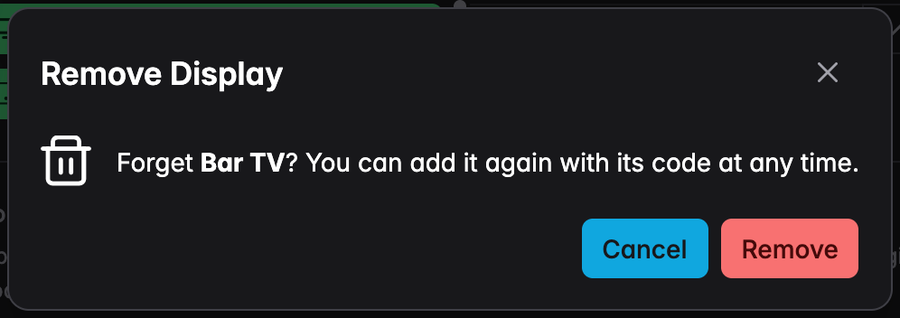
Removing is not destructive — the screen just stops being remembered. It can be added again at any time with its code. Use it for the television in a venue you no longer play at, or to free a slot when you reach the limit of 25 remembered screens.
Adding a new screen with a code
The first time a screen is used — or any time you are adding somebody else's television — you use the code. If you have no remembered screens at all, the dialog is only this:
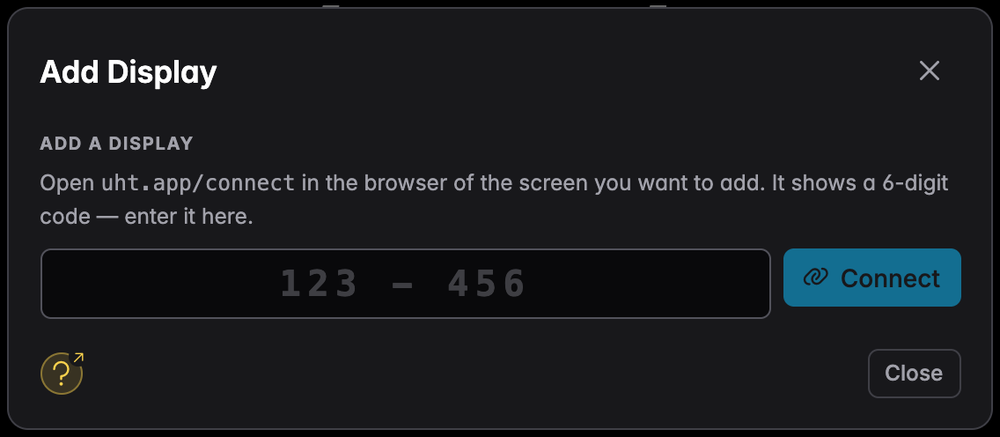
- On the screen, open
uht.app/connect. - Read the six digits.
- Type them here and press Connect.
The screen switches to the tournament clock by itself, and the dialog closes:
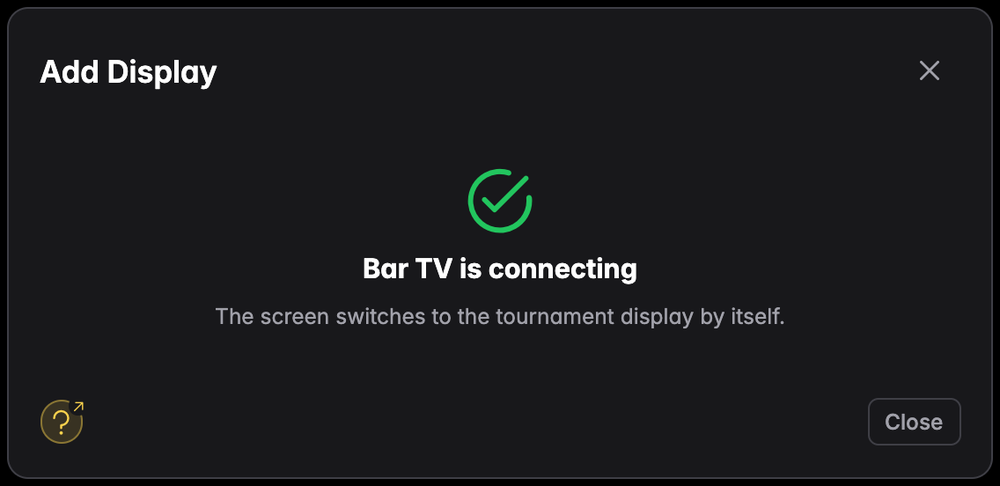
From this moment the screen is remembered on your account, and next time it will be one of the buttons at the top.
When it refuses
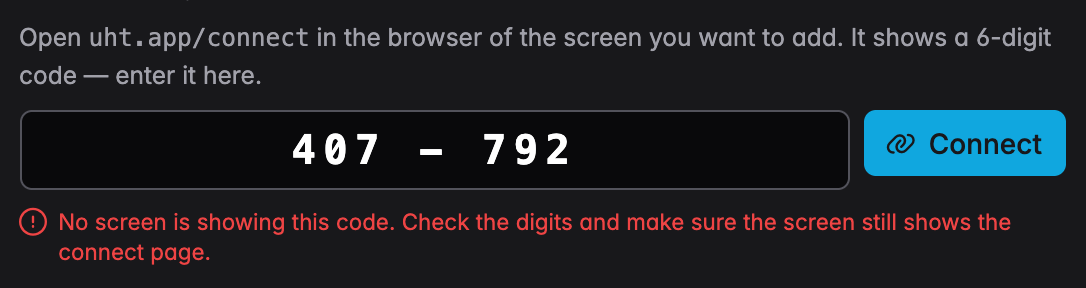
| Message | What it means |
|---|---|
| No screen is showing this code | The digits are wrong, the code has expired, or the screen has left the connect page. Look at the TV: it must say Waiting for the code to be entered. |
| This screen is not on the connect page right now | You tapped a remembered screen that went offline since the list was last refreshed. Open the connect page on it again. |
| Too many wrong codes | Ten failed attempts in ten minutes. Wait a few minutes and try again. |
| You already have the maximum number of remembered displays | 25 screens are remembered on your account. Forget one you no longer use. |
| This display is no longer available | The screen was removed — from another device, or by being paired to a different account. |
Why it works without logging in
The controller device is routinely not logged in — it is often a phone handed to whoever is running the clock tonight. So Add Display does not ask who you are: it acts as the account that owns the multi-monitor session, identified by the controller link itself.
The practical consequences:
- Whoever holds the controller link can add screens to that tournament and manage the screens remembered on the owner's account — without the owner's password.
- Every screen paired or forgotten this way is written to the account's audit trail.
- Someone who is handed a controller link learns nothing about the owner's other tournaments; refusals are deliberately vague.
If that is more trust than you want to hand out, share the display link instead of the controller link — see multi monitoring.